Set up your first company
Name the business, then let Zera set it up from your statements, or go step by step. Every setup screen, from the business name to the first look at your books.
Before you start
Setup opens on its own after you start your trial. If ZeraBooks first asks What would you like to do first?, choose AI-Native General Ledger.
After the business name and currency, choose how to set up:
| How | Steps |
|---|---|
| Let Zera set it up (recommended) | Details › How to set up › Tell Zera about the business, then Zera does the rest while you watch |
| Set it up myself, brand new business | Details › How to set up › Starting point › Categories › Accounts › Review |
| Set it up myself, existing books | Details › How to set up › Starting point › Opening books › Review |
Your progress is saved after each step. If you leave, ZeraBooks picks up where you left off the next time you sign in.
Let Zera set it up
The quickest way in. Zera, the bookkeeper built into ZeraBooks, sets up the books from the statements you already have, and starts on them.
On Let’s set up your books, type the Business name, pick the Books currency and click Continue (see Details below).
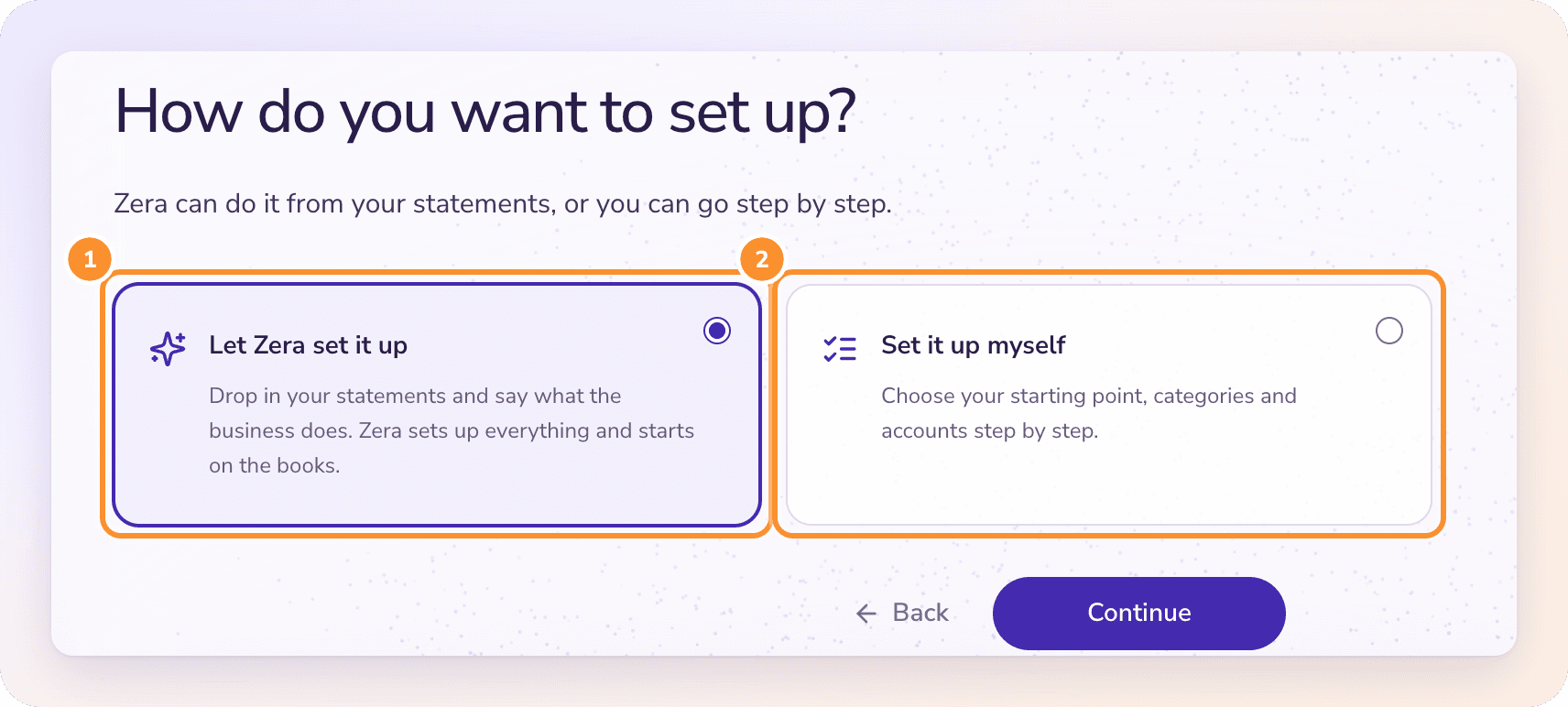
On How do you want to set up?, keep Let Zera set it up selected and click Continue.
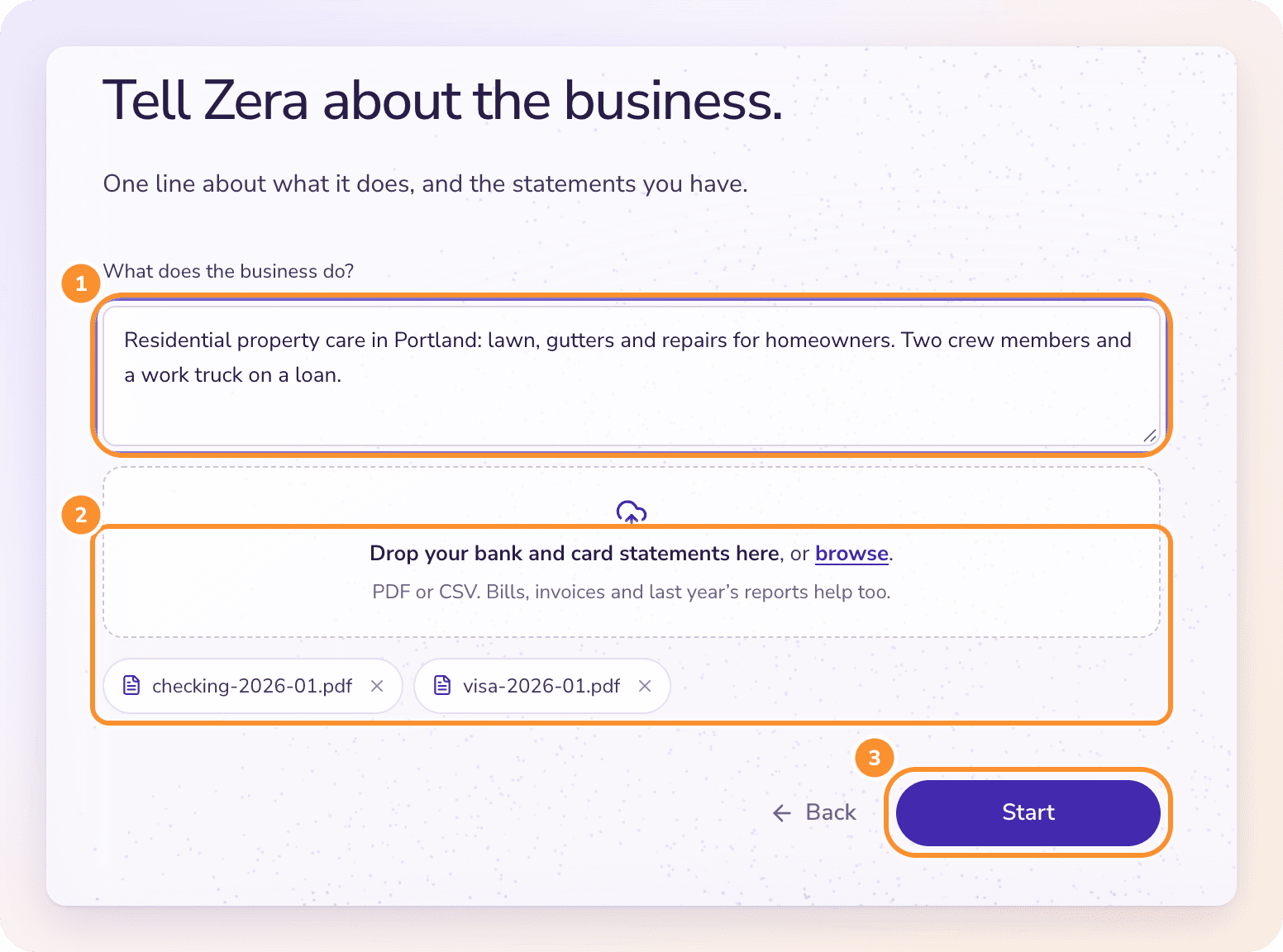
Under What does the business do?, write a line in your own words: what you sell, to whom, and anything like staff, a vehicle or a loan.
Drop in your bank and credit-card statements (PDF or CSV), or click browse. Bills, invoices and last year's reports help too. No statements with you? Click Start without statements: Zera builds your categories and asks for the statements once the books are open.
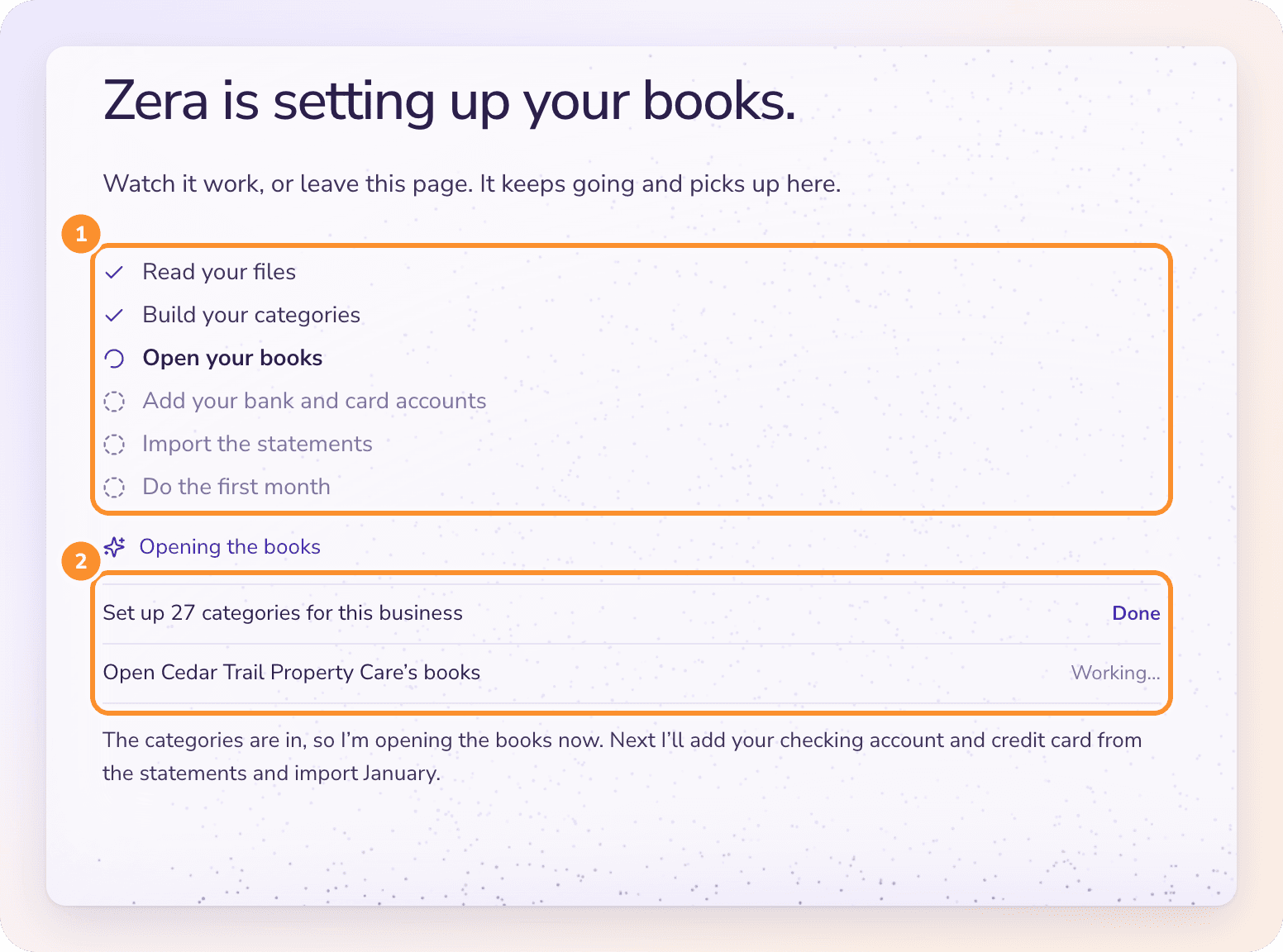
Click Start, and watch. Zera reads your files, builds your categories, opens your books, adds each bank and card account with its opening balance from its first statement, imports the statements and does the first month. Each change appears as it lands.
When Zera is done, it says so and shows Open my books. Click it to go in.
You don't approve each step: choosing Let Zera set it up is your go-ahead, and Zera turns on Auto-approve for the company (you can switch it back to Ask first any time in the Ask Zera bar). Everything except opening the books can be undone afterwards.
If Zera needs something only you know, such as whether an account is personal, it asks right there; type your answer and it carries on. You can also leave the page: Zera keeps working, and setup picks up where it is when you come back. Once the books are open you can click Go to my books now instead of waiting.
Set it up yourself
Prefer to choose each thing? On How do you want to set up?, pick Set it up myself and click Continue. If Zera stops partway, Set up the rest myself instead brings you here with what it made kept.
Details
Type the Business name (up to 100 characters).
Pick the Books currency: USD, CAD or EUR. USD is selected by default.
Click Continue.
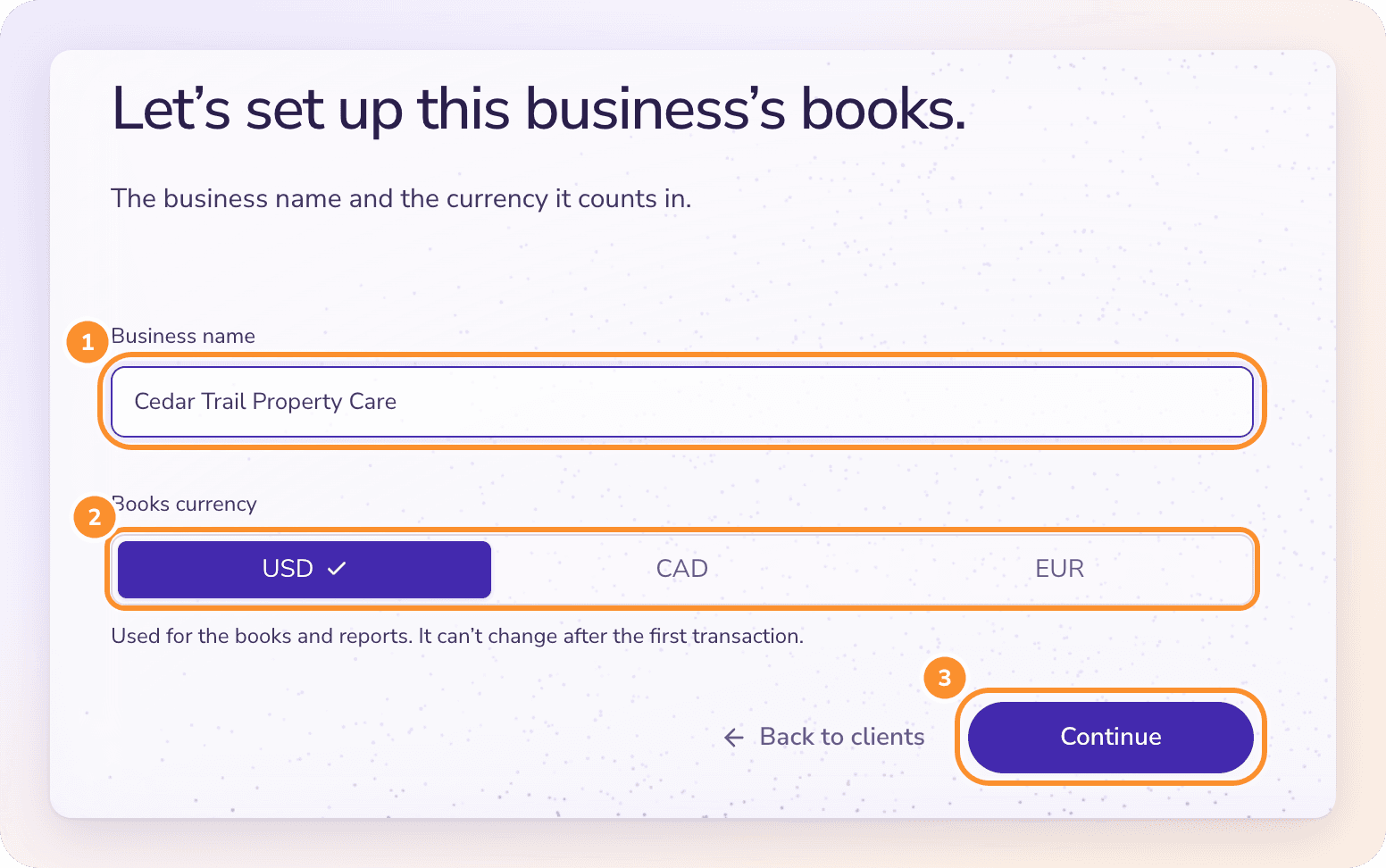
The currency is used for the books and reports, and it can't change after the first transaction. See Currency and region.
Starting point
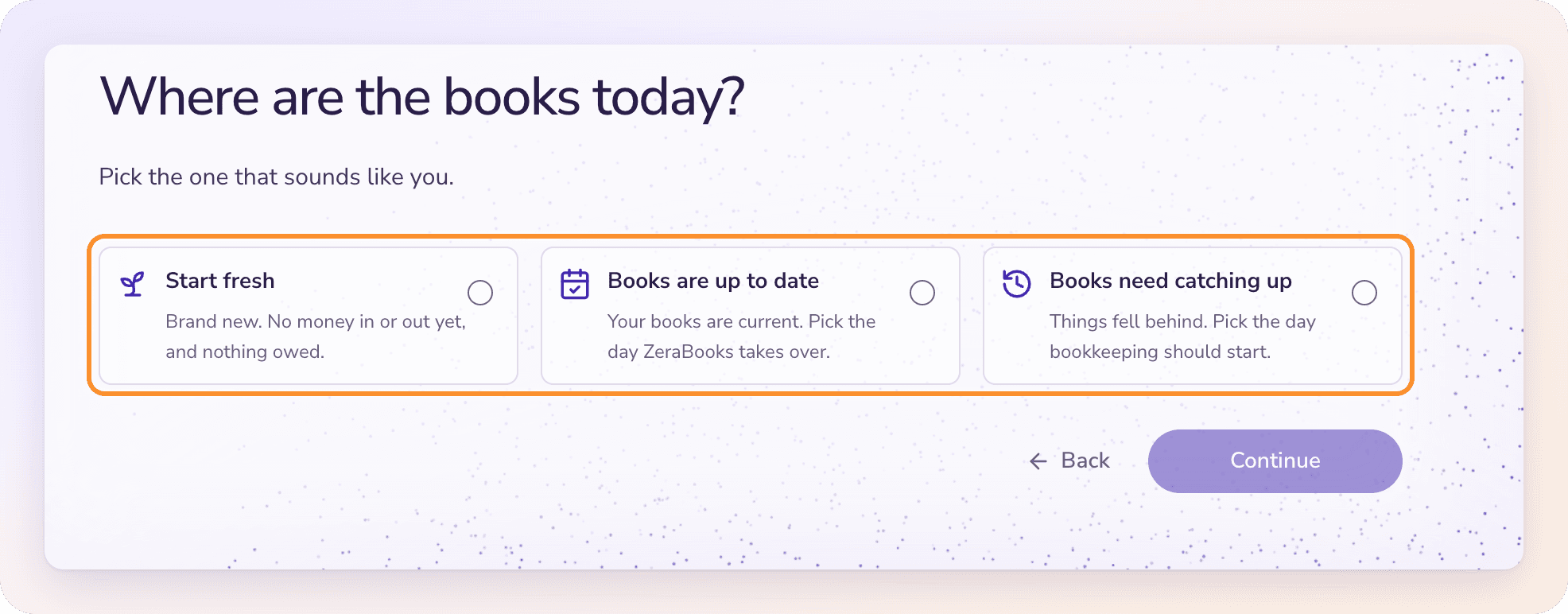
Answer Where are the books today? with one of three options:
Start fresh: brand new. No money in or out yet, and nothing owed.
Books are up to date: your books are current. Pick the day ZeraBooks takes over.
Books need catching up: things fell behind. Pick the day bookkeeping should start.
For either existing-books option, choose the First day in ZeraBooks. The wizard shows the handoff, for example "Old books close Dec 31, 2025 → ZeraBooks starts Jan 1, 2026". Then click Continue.
See Choose a starting point for help picking one and choosing the date.
Categories (fresh start)
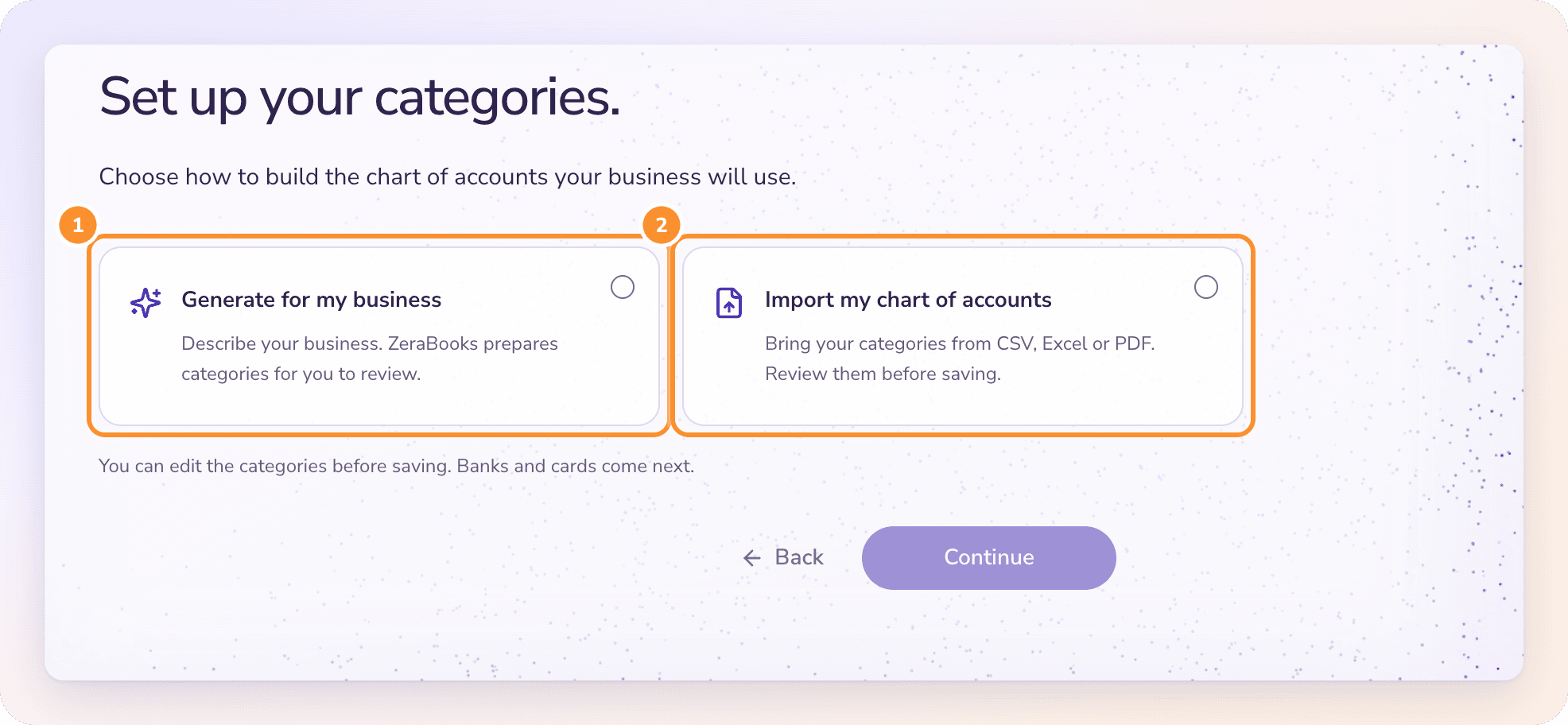
Choose how to build your chart of accounts:
Generate for my business: answer What does this business do? in at least 10 characters, then click Generate categories.
Import my chart of accounts: bring your categories from a CSV, Excel or PDF file.
You can edit the categories before saving them. Afterwards the step shows Show all N categories, Add more categories and Start over with categories.
Accounts (fresh start)
Answer Which accounts does the business use? by naming each bank account and credit card, so you recognize it later when you upload its statements.
If the business has none yet, tick This business doesn't have a bank or credit-card account yet. Continue stays disabled until you add an account or tick that box.
Opening books (existing books)
Bring your old books' closing balances into ZeraBooks: upload the closing reports, confirm the categories, hand off each bank account and review the totals. See Move your books to ZeraBooks.
Either way, ZeraBooks then opens your books. The first time, a short walkthrough shows each part of ZeraBooks, starting with Ask Zera. See Product Guides.
Tip: Stuck on a step? Click Book a call with the founder at the bottom of any setup screen to talk it through.
After setup
Upload your first statement for each account.
Tell ZeraBooks what the business does, and set the first month of your fiscal year, in Company settings. Setup doesn't ask for the fiscal year; it starts in January until you change it.
Bookkeepers can set up the next business the same way. See Add a client.
Frequently Asked Questions
I'm moving from QuickBooks or Xero. Which starting point do I pick?
Books are up to date if they're current, or Books need catching up if they're behind. You choose your old software later, in Opening books. See Choose a starting point.
Why was I sent back to setup when I opened ZeraBooks?
The company you're working in hasn't finished setup. ZeraBooks opens the wizard where you left off. Finish the remaining steps and click Open my books.
What if the business doesn't have a bank account yet?
Tick This business doesn't have a bank or credit-card account yet. on the Accounts step. You can add accounts later in Banks & Cards.
What does "You already have a business called ..." mean?
Another company in your account already has that name. Give this one its own name, for example by adding its city or legal suffix.
Can I start over with my categories?
Yes, during setup. Click Start over with categories, then Delete and choose again. Categories that already have activity can't be deleted. After setup, manage them in the Category Manager.
Where do I set my fiscal year?
In Settings › Bookkeeping, under First month of the fiscal year. It's January until you change it, and it's locked once the books have activity. See Company settings.
Learn more about Pricing: One subscription for the General Ledger and Converter, with a one-week free trial.
Still stuck? A real person reads every message—come say hello.