Import a chart of accounts
Bring your categories over from QuickBooks, Xero, Sage, any spreadsheet or a PDF. ZeraBooks reads the file, you review every row, and existing categories are never overwritten.
Open the import
No categories yet: in the left navigation, click Accounting › Category Manager, then click Import CSV, Excel, or PDF under Set up your chart of accounts.
Adding to an existing chart: in the Category Manager, click the arrow next to New Category, then Import Categories….
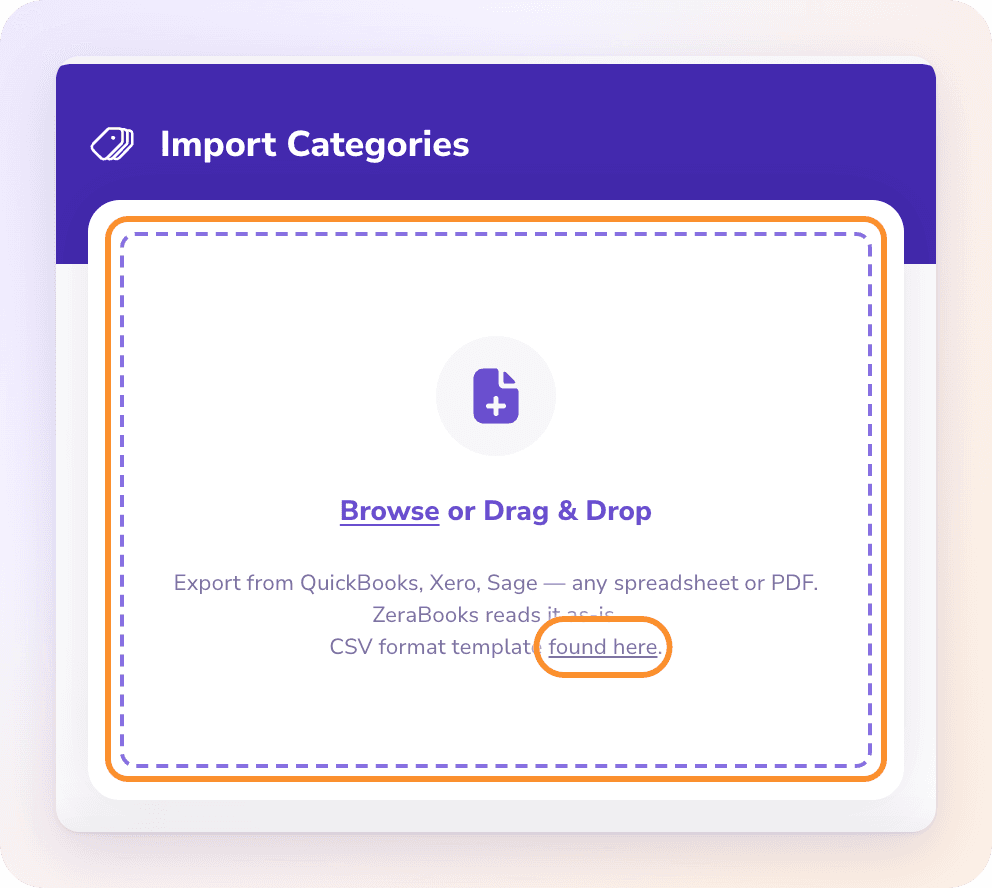
Import your file
Review your categories
Under Review your categories, the rows are grouped into the eight types. Click a name to rename it. Click the minus button to remove a row; removing a parent also removes its sub-categories. Click Undo removal if you remove one by mistake. A row with no number shows "ZeraBooks assigns a number on import". Click Upload Again to start over with another file.
Importing only adds. Categories you already have are kept exactly as they are, and ZeraBooks tells you how many "already existed and were kept as they were".
If the company still has no bank account or credit card after the import, ZeraBooks shows Now add your banks & cards. Add each account you'll upload statements for.
Use the CSV template
To build the file yourself, click found here next to "CSV format template" in the upload window. The columns are:
| Column | Required | Notes |
|---|---|---|
| Category Name | Yes | The category's name. |
| Type | Yes | One of: Bank, Credit Card, Assets, Liabilities, Equity, Revenue, Cost of Revenue, Operating Expenses, Other Income, Other Expenses. |
| Category Number | No | Leave blank and ZeraBooks assigns one. |
| Parent Name | No | The parent category's name, for a sub-category. |
| Parent Category Number | No | The parent category's number. |
| Status | No | Active or Deactivated. |
| Description | No | A note about what goes in the category. |
Messages you might see
| Message | What to do |
|---|---|
| "That PDF is too large (max 10 MB)" | Export a smaller PDF, or use a CSV or Excel export instead. |
| "That file has no category rows" | The file is empty below its headings. Check you exported the right report. |
| "Couldn't find any categories in that file…" | Upload a chart of accounts or category list. A balance sheet or P&L won't work. |
| "No importable rows — every row was missing a Category Name or had an unrecognized Type." | Fill in Category Name and use one of the listed Type values. |
| "Can't read ".{ext}" — upload a CSV, Excel, or PDF export" | Save the file as CSV, Excel or PDF and upload it again. |
Frequently Asked Questions
Can I import my chart of accounts from QuickBooks or Xero?
Yes. Export the chart of accounts from QuickBooks, Xero or Sage as a spreadsheet or PDF and upload it as it is. ZeraBooks reads it, and you review every row before anything is saved.
Will importing again create duplicates?
No. Categories that already exist are kept as they were, and only new ones are added.
Can I import a balance sheet or profit and loss report?
No. Those reports show balances, not a full category list. Export the chart of accounts, or list of accounts, instead.
What columns does my CSV need?
Only Category Name and Type. The other five template columns are optional.
Does the import bring in balances or transactions?
No. It brings in categories only. To bring over your previous books' balances, see Move your books to ZeraBooks.
Can I change the category numbers during review?
No. Numbers from your file are kept, and blank ones are assigned on import. Change a number afterwards by editing the category.
Learn more about AI-native general ledger: A double-entry ledger where statements become proven transactions.
Still stuck? A real person reads every message—come say hello.