Company settings
The company's name, currency, number format and tax number, plus the business context ZeraBooks reads when it categorizes, the fiscal year, and opening books.
Open Settings
Click the company name at the top of the left navigation to open the company menu.
Click Settings (or press G then S).
The left side of Settings has two groups. Under the company's name: Company and Bookkeeping. Under Your account: Profile, Security and Billing. Company settings apply to the company you're working in; switch companies first to change another one's. Click Back to Dashboard to leave.
Company
Company shows the company's details:
| Setting | What it does |
|---|---|
| Books currency | The currency of the books and reports. "Locked once the books have their first transaction." |
| Number format | How amounts and dates are punctuated, for example $1,234.56 or 1.234,56 €. Never locked. |
| Tax registration number | "Printed on the invoices this company sends." |
| Contact email | The company's contact address. Optional. |
To change them, click the pencil (Edit company). Edit the Business name, Contact email, Books currency, Number format or Tax registration number, then click Save. See Currency and region.
Invoice details
Under the company card, Invoice details holds the logo, business address, phone, invoice email, website and footer printed on every invoice this company sends. Click Upload logo for a PNG, JPEG or SVG up to 2 MB, fill in the fields, then click Save invoice details. See Invoice branding.
Bookkeeping
Business context and fiscal year
Click Bookkeeping.
In Business context, describe what the business sells, how it gets paid and what it usually buys (up to 1,000 characters). ZeraBooks reads this every time it categorizes a transaction, so a clear description means fewer corrections.
Choose the First month of the fiscal year. Match the fiscal year of your existing financial statements.
Click Save company context.
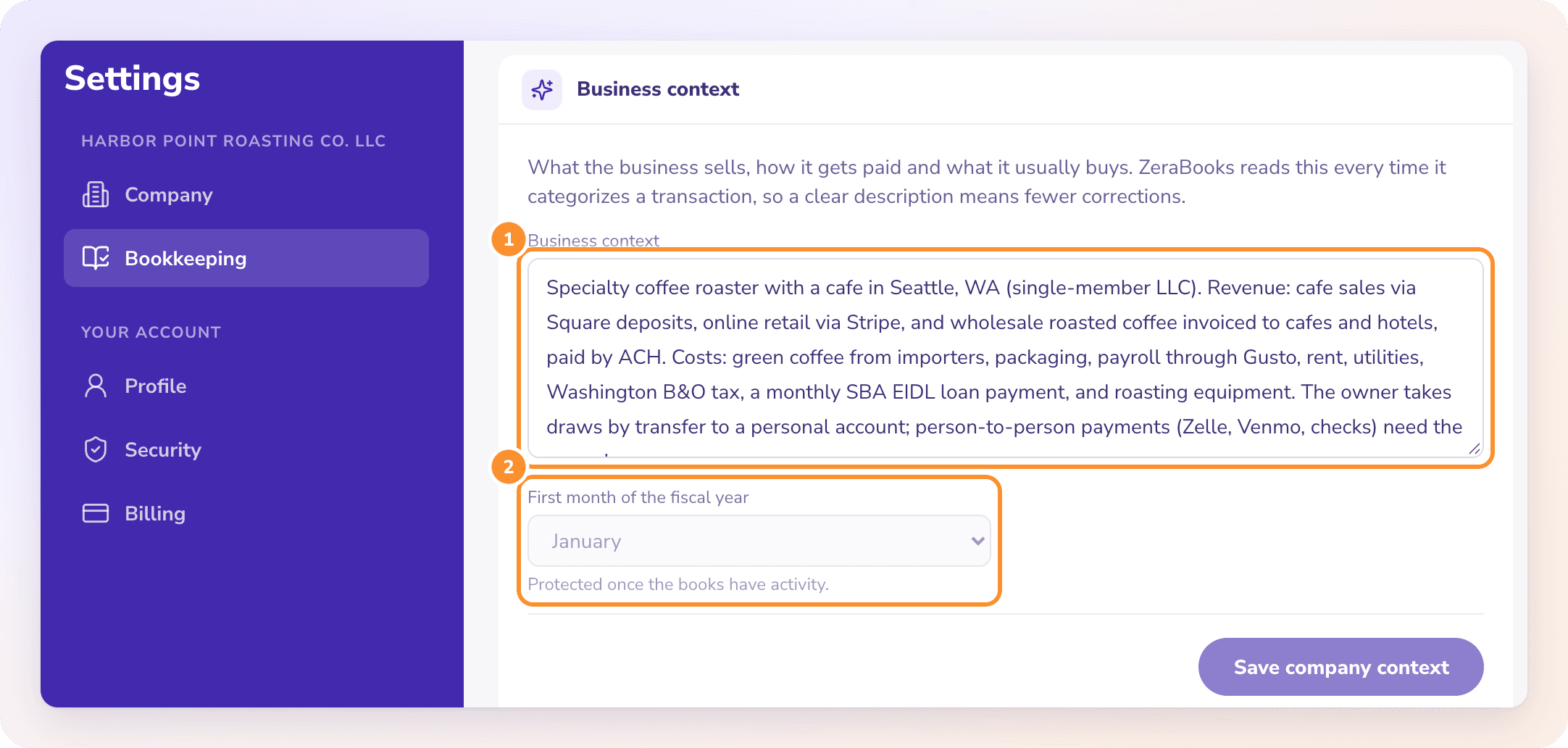
Important: The fiscal year is "Protected once the books have activity." Set it before your first statement or transaction.
Opening books
The Opening books card shows how the company's books started, with the link you need next:
Continue setup: the company's setup isn't finished.
Resume opening books: you chose existing books but haven't brought the balances over yet. See Move your books to ZeraBooks.
View opening-book record: the balances were imported. See Review, import and undo opening books.
Actually, this business has earlier activity: the company started fresh and has no activity yet. Use it to go back and choose another starting point.
Past categorization
Once the company has books, Past categorization › Import past categorization teaches ZeraBooks from how the business was categorized before. It learns the patterns without adding transactions or changing any balance.
Frequently Asked Questions
Where do I change the company's currency?
Settings › Company › Edit company, before the books have their first transaction. After that, the currency is locked.
How does ZeraBooks learn about my business?
From the Business context in Settings › Bookkeeping, which it reads every time it categorizes a transaction, and from every correction you make.
Can I change the start of my fiscal year?
Yes, until the books have activity. Change First month of the fiscal year in Settings › Bookkeeping and click Save company context. Once there's activity, it's protected.
Why is the fiscal year greyed out?
The books already have activity, so the fiscal year is protected. It shows "Protected once the books have activity."
I only see Profile, Security and Billing. Where are the company settings?
No company is selected. Choose a company from the company menu or View All Clients, then open Settings again.
Learn more about Pricing: One subscription for the General Ledger and Converter, with a one-week free trial.
Still stuck? A real person reads every message—come say hello.