Upload a bank or card statement
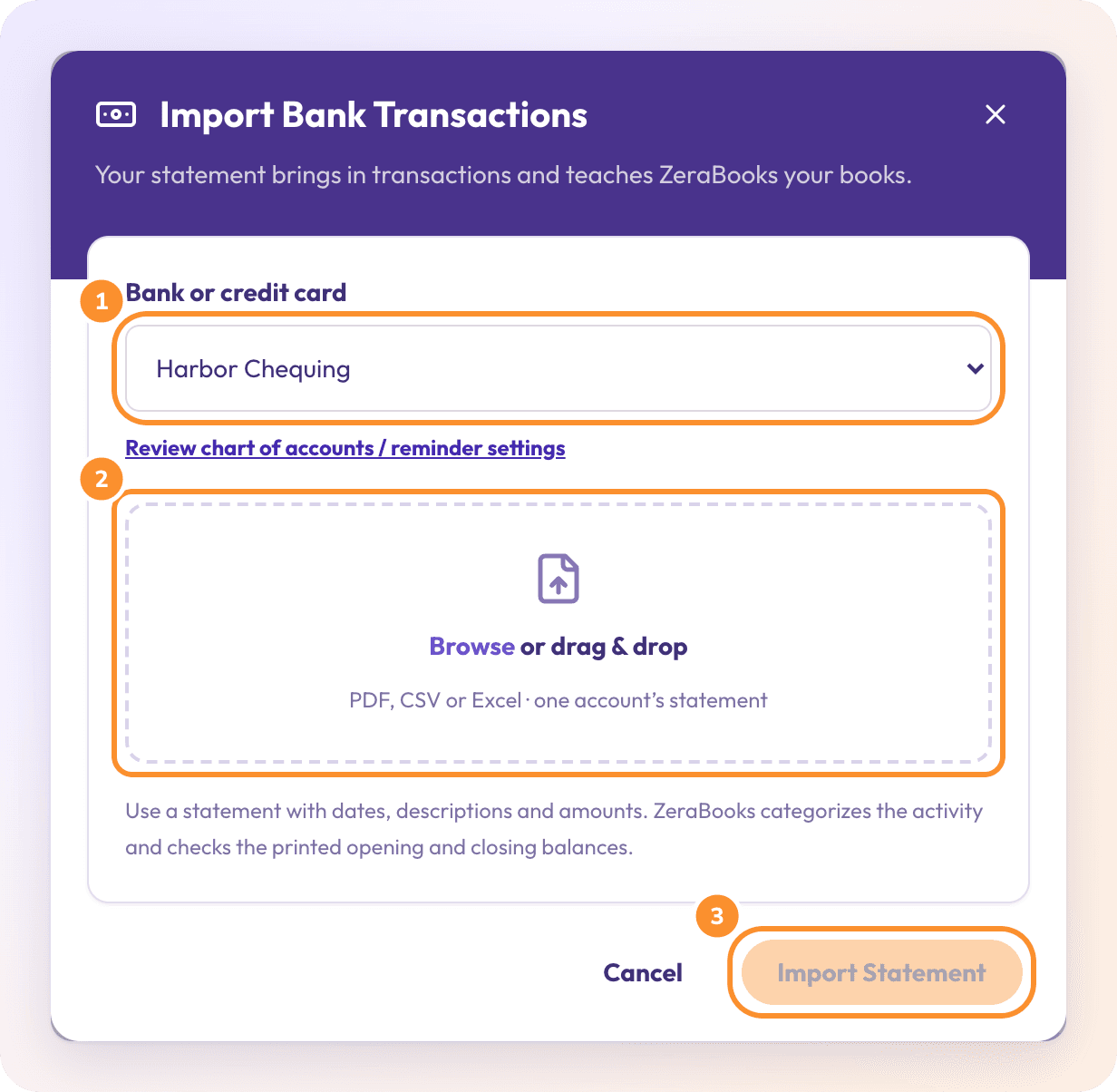
Upload one account's PDF, CSV or Excel statement, up to 10 MB. ZeraBooks imports the transactions, categorizes them and checks the printed balances.
Before you upload
ZeraBooks has no bank feeds. Download the statement from your bank's website and upload it here.
One statement, one account. Upload a single statement for a single bank account or credit card. Add the account first if it isn't listed; see Add bank and credit-card accounts.
File type and size. PDF, CSV or Excel, up to 10 MB. The statement needs dates, descriptions and amounts.
Upload a statement
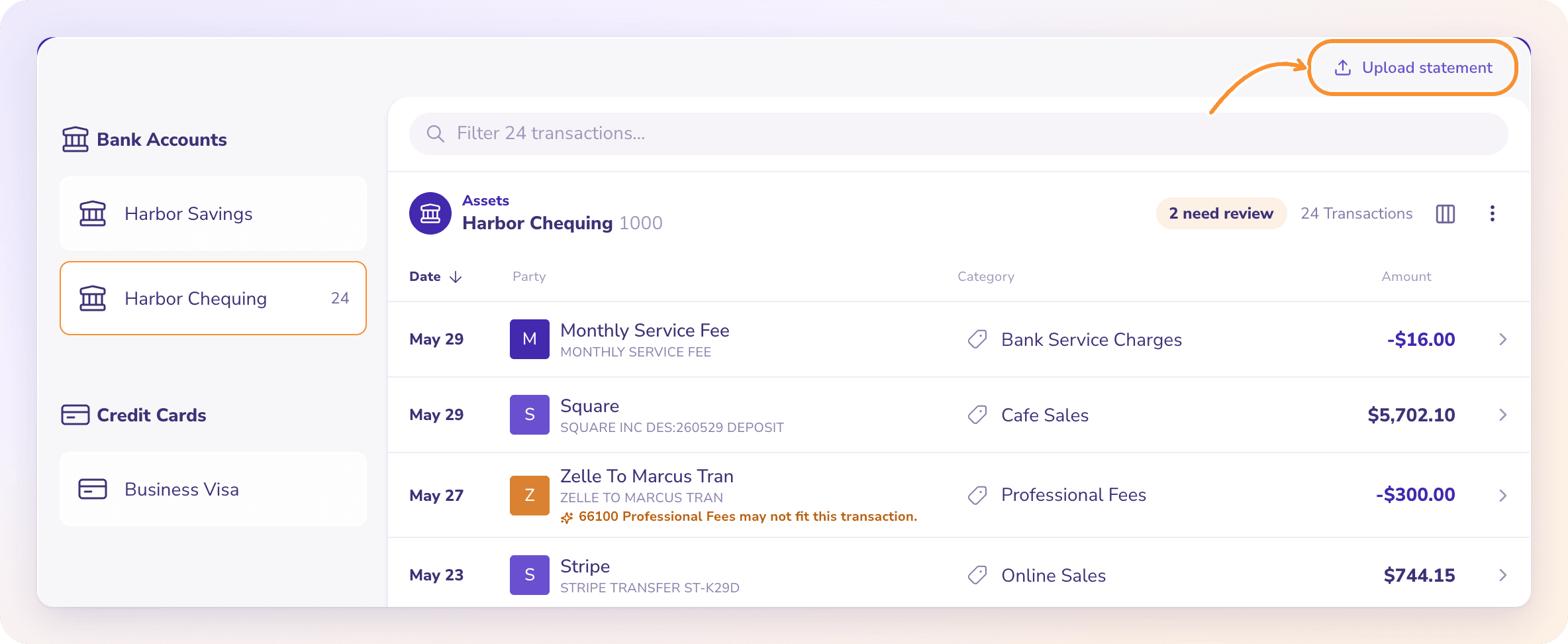
Check your categories (first time only)
The first time you upload for a business, ZeraBooks shows Review {company}'s categories: the categories it will sort your transactions into. Click Open Category Manager if one you use is missing, or click Continue to upload. Tick Don't show this reminder again for this business to skip it next time.
Tip: Upload statements in order, month by month. Each statement's opening balance is checked against the previous statement's closing balance. See How ZeraBooks proves a statement.
If the upload is blocked
| Message | What to do |
|---|---|
| Choose your starting point first | Click Continue company setup and choose whether the business is new or has existing books. |
| Bring in your opening balances first | Click Continue opening books and finish the opening books before uploading new activity. |
| "We couldn't check this business's starting point. Try again before uploading." | Click Try again. |
Upload errors
| Message | What it means |
|---|---|
| "Choose one bank or credit card statement as a PDF, CSV or Excel file." | The file isn't a PDF, CSV or Excel file. |
| "Upload one account's statement at a time." | You dropped more than one file. |
| "File too large: ~X MB (max 10 MB)." | Split the statement or export a smaller date range. |
| "Can't read that file as a bank statement. Upload a PDF, CSV, or Excel export." | ZeraBooks couldn't find statement lines in the file. |
| Statement already imported | This exact file, or lines it contains, is already in the account. Nothing was imported. |
| "This statement contains more than 10,000 readable rows…" | Split the file into periods that don't overlap. |
| "This is a {type} statement…, but {account} is a {type}. Nothing was imported." | You chose a bank account for a card statement, or the other way round. Pick the matching account. |
| "This statement identifies its currency as…" | The statement's currency doesn't match the account's. Nothing was imported. |
| "This first statement already has an opening balance…" | The company was set up with no earlier activity. Add the earlier balances in Opening books, then retry. |
Frequently Asked Questions
What files can I upload?
A PDF, CSV or Excel file of one account's statement, up to 10 MB. There is no page limit: long PDFs are read in chunks. A statement can hold up to 10,000 rows.
Can I upload several statements at once?
No. Upload one account's statement at a time. While one import is running, Upload statement is disabled; start the next when the pill shows the result.
What happens if I upload the same statement twice?
It's refused and the pill says Statement already imported. If a different file repeats any transaction already imported from another statement, the whole file is refused and nothing is imported.
My new statement overlaps the last one. What happens?
If only the dates overlap and no transaction repeats, it imports with a warning to spot-check the boundary dates. If any transaction repeats, nothing is imported.
What if the statement doesn't balance?
It still imports, with a warning that starts "Statement does not tie". Open the month in Reconciliations to find the difference. See Fix a month that doesn't tie.
I uploaded a statement into the wrong account. How do I undo it?
Remove it with Account actions › Remove a statement…, then upload it into the right account. See Remove a statement.
Will ZeraBooks categorize the transactions automatically?
Yes. Every line gets a category when it's imported. Lines it can't decide land in Uncategorized and count toward need review. See Review and fix categories.
Learn more about AI bookkeeping: Autopilot and Ask Zera keep the books inside a real general ledger.
Still stuck? A real person reads every message—come say hello.