Understand the Category Manager
The Category Manager is your chart of accounts: every category your transactions post to, grouped into eight types and numbered so reports stay in order.
What the Category Manager is
Every amount in your books is filed under a category, such as Rent, Cafe Sales or a bank account. Accountants call the full list the chart of accounts. The Category Manager is where you see and manage that list.
In the left navigation, click Accounting › Category Manager (or press G then A).
Your categories appear as a tree, grouped by type, with each category's number under its name.
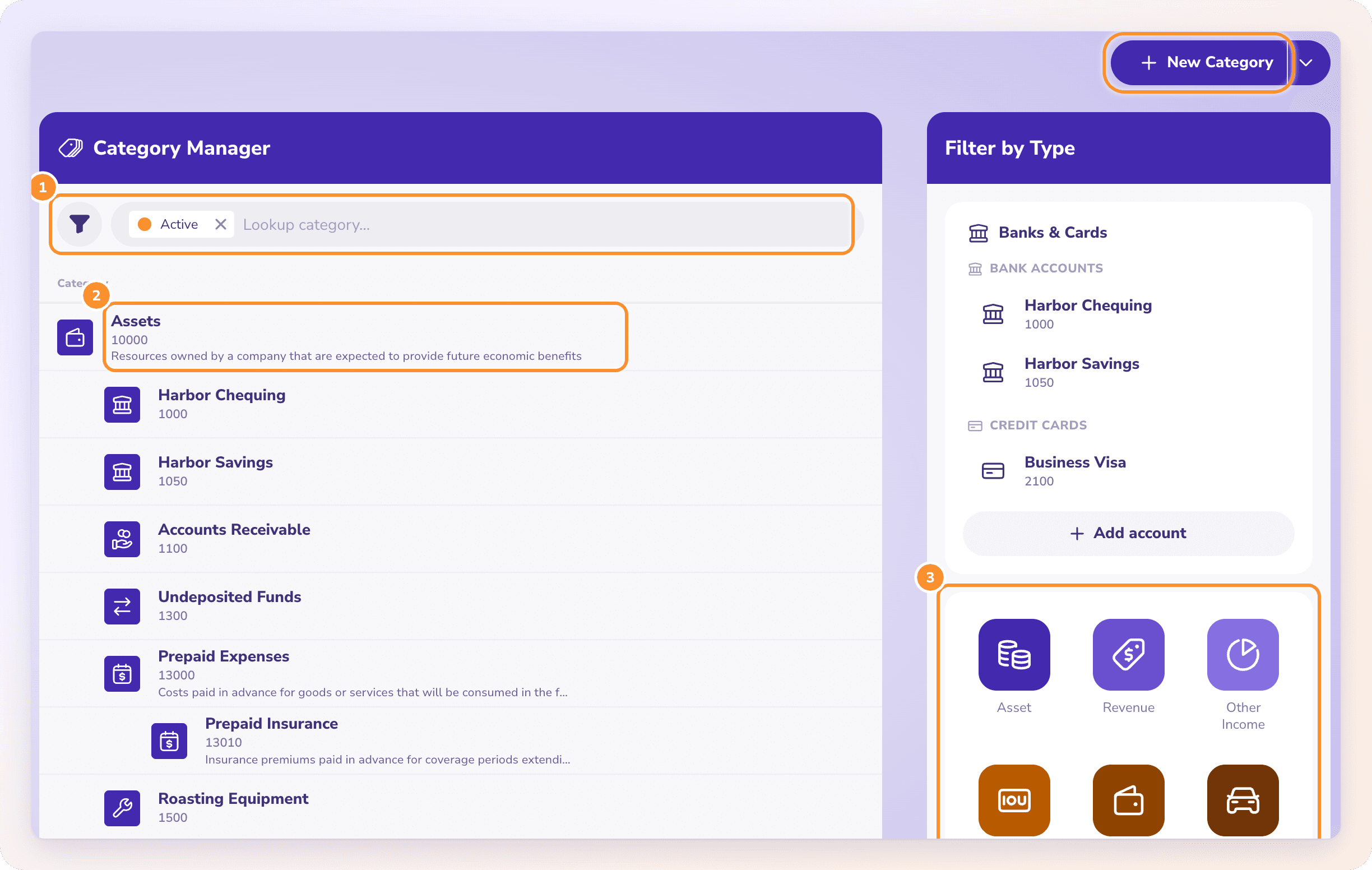
If you have no categories yet, you see Set up your chart of accounts instead. See Set up your chart of accounts.
The eight types and their numbers
Every category belongs to one of eight types. The type decides where the category appears in your financial statements, and its number range keeps it in order.
| Type | Numbers start at | What goes there | Appears on |
|---|---|---|---|
| Assets | 10000 | What the business owns: bank accounts, money owed to you, equipment | Balance sheet |
| Liabilities | 20000 | What the business owes: credit cards, loans, bills not yet paid | Balance sheet |
| Equity | 30000 | The owners' stake: money put in, draws, retained earnings | Balance sheet |
| Revenue | 40000 | Income from your main business | Profit and loss |
| Cost of Revenue | 50000 | Direct costs of what you sell | Profit and loss |
| Operating Expenses | 60000 | Everyday running costs: rent, software, wages | Profit and loss |
| Other Income | 80000 | Income outside your main business, such as interest | Profit and loss |
| Other Expenses | 90000 | Costs outside your main business, such as interest paid | Profit and loss |
Categories can sit under other categories (for example Prepaid Insurance under Prepaid Expenses). Each category also has a subtype, a more precise label such as checking account, credit card or prepaid expenses, that tells ZeraBooks how to treat it.
Find a category
Type in Lookup category… and press Enter. Your search becomes a chip; click Clear to remove it.
Click the Filters button to filter by Status (Active or Deactivated), Type or Subtype.
On the right, under Filter by Type, click a type's tile to show only that type. Above the tiles, Banks & Cards lists your bank accounts and credit cards.
Point to a category's row to see Add subcategory, Edit and View category. View category opens its details with a 12-month activity chart. Click the category's name there to open it in the Ledger.
System categories
ZeraBooks creates a few categories itself because the books need them: Accounts Receivable, Accounts Payable, Undeposited Funds, Opening Balance Equity and Retained Earnings. They can't be renamed, moved to another parent, given another subtype or deactivated.
Tip: You can't post a Pay In or Pay Out straight to Accounts Receivable or Accounts Payable. Those balances change only when you record payments on invoices and bills.
Frequently Asked Questions
What is a chart of accounts?
The list of every category your business uses to sort money in and out. In ZeraBooks it lives in the Category Manager.
Do I have to use category numbers?
No. If you leave the number blank, ZeraBooks assigns the next free number in the type's range. Numbers keep your reports in a sensible order.
What is Opening Balance Equity?
A system category that holds the other side of the opening balances you bring in when you start your books. See Match opening balances to categories.
What goes in Uncategorized?
Transactions ZeraBooks couldn't place with confidence wait there for you. Give them a category in Banks & Cards. See Review and fix categories.
How do I see deactivated categories?
Click Filters, open Status and choose Deactivated. If none exist, you see "No deactivated categories."
Learn more about AI-native general ledger: A double-entry ledger where statements become proven transactions.
Still stuck? A real person reads every message—come say hello.