Add a client
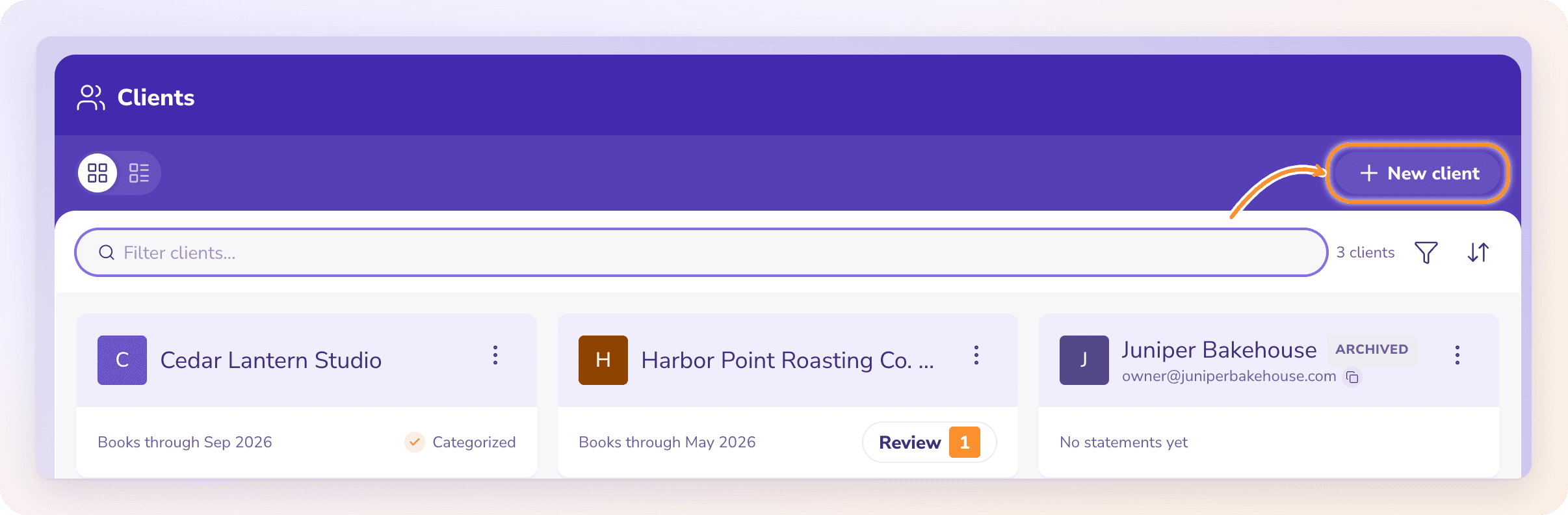
Each client is one business's books, with its own categories, accounts and statements. Add one with New client and the setup wizard walks you through the rest.
Start a new client
Each client is one business's books: its own categories, bank and card accounts, statements and documents. Your subscription includes 3 active clients; each additional one is $29 a month, or $290 a year on annual billing.
Open All Clients: click the company name at the top of the left navigation, then View All Clients (or press G then C).
Click New client.
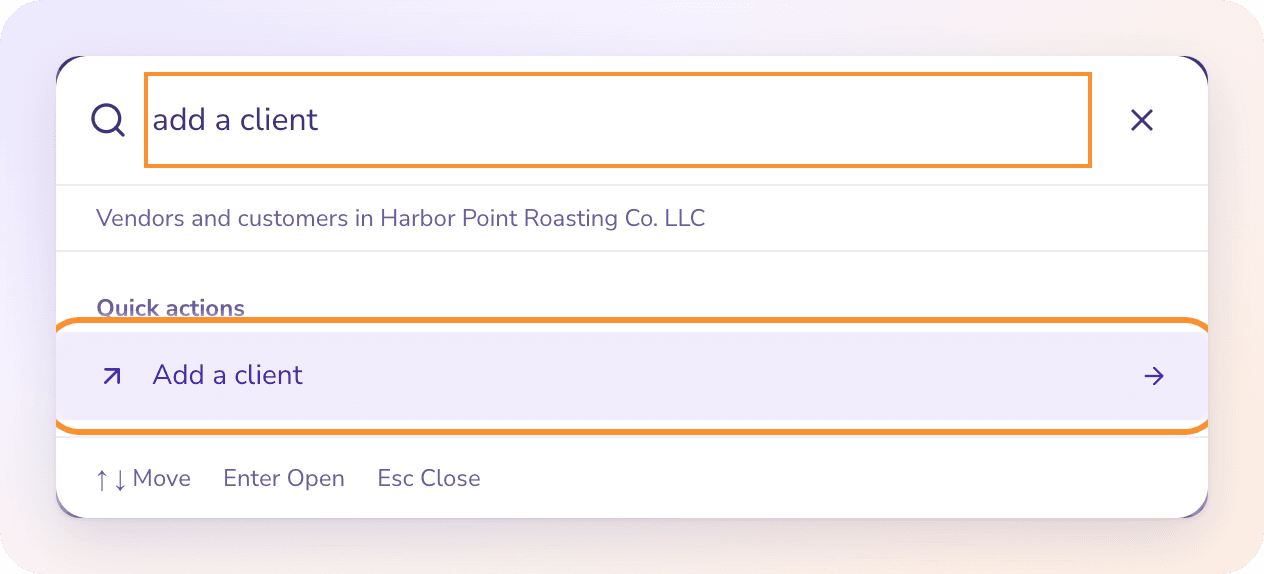
You can also press ⌘ K (Ctrl K on Windows), type "client" and choose Add a client under Quick actions.
Set up the client's books
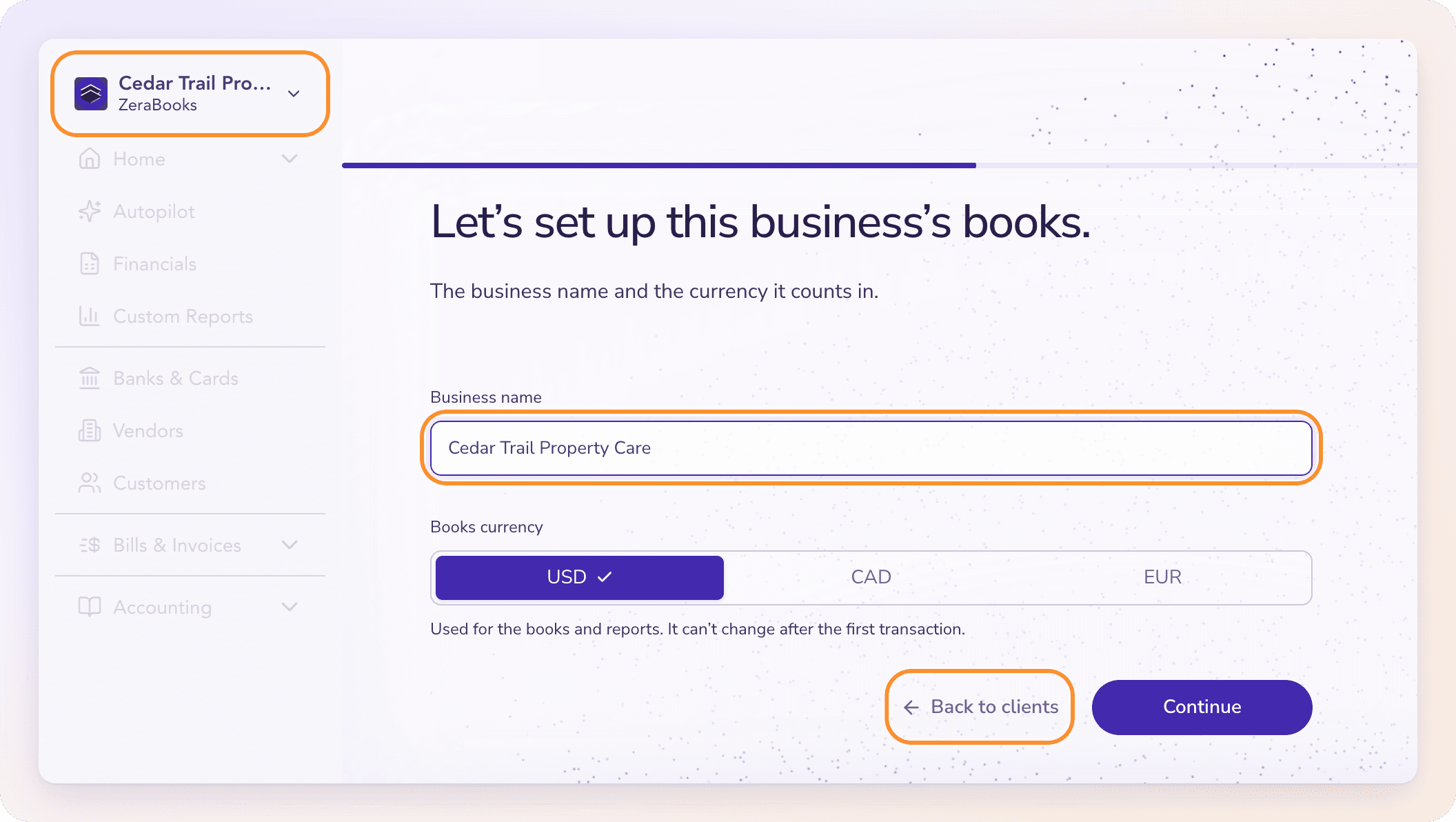
The setup wizard opens with the new business shown in the company menu. Your progress is saved as you go.
How to set up
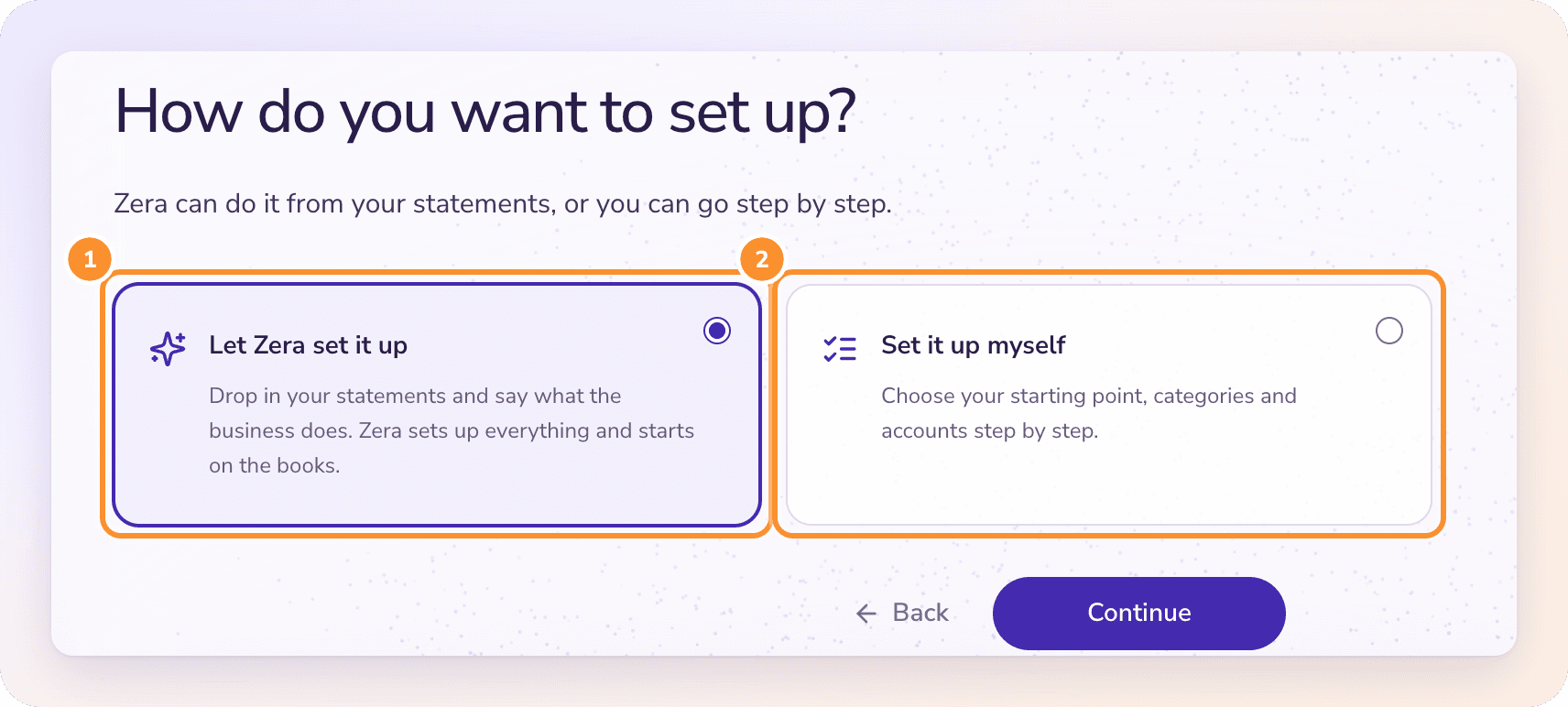
Choose how to set up the client's books:
Let Zera set it up (selected): write a line about what the business does and drop in its bank and card statements. Zera builds the categories, opens the books, adds each account with its opening balance and does the first month while you watch, then shows Open my books. See Set up your first company.
Set it up myself: go through the steps below.
Starting point (setting it up yourself)
Choose the one that fits the business:
Start fresh: brand new. No money in or out yet, and nothing owed.
Books are up to date: the books are current and reconciled. Enter the day ZeraBooks takes over, the day after the previous books close.
Books need catching up: things fell behind, or books were never kept. Enter the day bookkeeping should begin: the day after the last reliable closing balance, or the first day of business activity.
Categories and accounts, or opening books
What comes next depends on the starting point.
Categories. Choose Generate for my business and describe what the business does (at least 10 characters), then click Generate categories. Or choose Import my chart of accounts to bring categories from a CSV, Excel or PDF file. You can edit the categories before saving.
Accounts. Give each bank account and credit card a name you'll recognize. If the business has none yet, tick This business doesn’t have a bank or credit-card account yet.
Opening books. Bring over the closing balances, unpaid invoices and bills, and the bank handoff from the previous books. The categories are read from your closing trial balance. See Move your books to ZeraBooks.
Tip: Need help setting up? Every step of the wizard has Book a call with the founder.
Finish a setup later
If you leave the wizard before the end, the business appears at the top of All Clients with "Your progress is saved. Continue when your reports are ready."
Click Resume setup to carry on where you left off.
Click Discard to delete the unfinished setup. There is no confirmation, and ZeraBooks shows "Setup discarded".
An unfinished setup isn't counted in your number of clients until you click Open my books.
Frequently Asked Questions
Is there a charge for each client I add?
Your first 3 active clients are included. Each additional active client is $29 a month, or $290 a year on annual billing, charged prorated for the rest of your billing period when its setup finishes. See Billing and your trial.
Can I change a client's currency later?
Only until the books hold their first transaction. After that, the books currency is locked. To edit it before then, see All Clients.
Why can't I continue on the first step?
The business name is empty, or you already have a business with that name. Give this one its own name.
I stopped setup halfway. Is my work lost?
No. Your progress is saved. Open All Clients and click Resume setup on the business.
Can I connect the client's bank during setup?
No. ZeraBooks has no bank feeds. In the Accounts step you name each account; afterwards you upload its statements. See Upload a bank or card statement.
Can I invite my client to log in?
No. ZeraBooks has no team members or shared logins for a client company. You keep the books and share the reports, for example with Email financial statements.
Learn more about For accountants: Run every client’s books in one ledger with AI doing the routine work.
Still stuck? A real person reads every message—come say hello.