Generate categories with AI
Describe what your business does and ZeraBooks drafts a complete, numbered chart of accounts for it. You review and edit every category before anything is saved.
Generate your chart
Generate with AI is one of the three ways to start your chart of accounts. It's offered while the company has no categories yet.
Add your banks and cards
The first step is Add your banks & cards first. The AI never guesses your real bank and credit-card accounts, so add every account you'll upload statements for: type its name, choose Bank or Card, and click Add account. Then click Continue. You can also add them later from Banks & Cards.
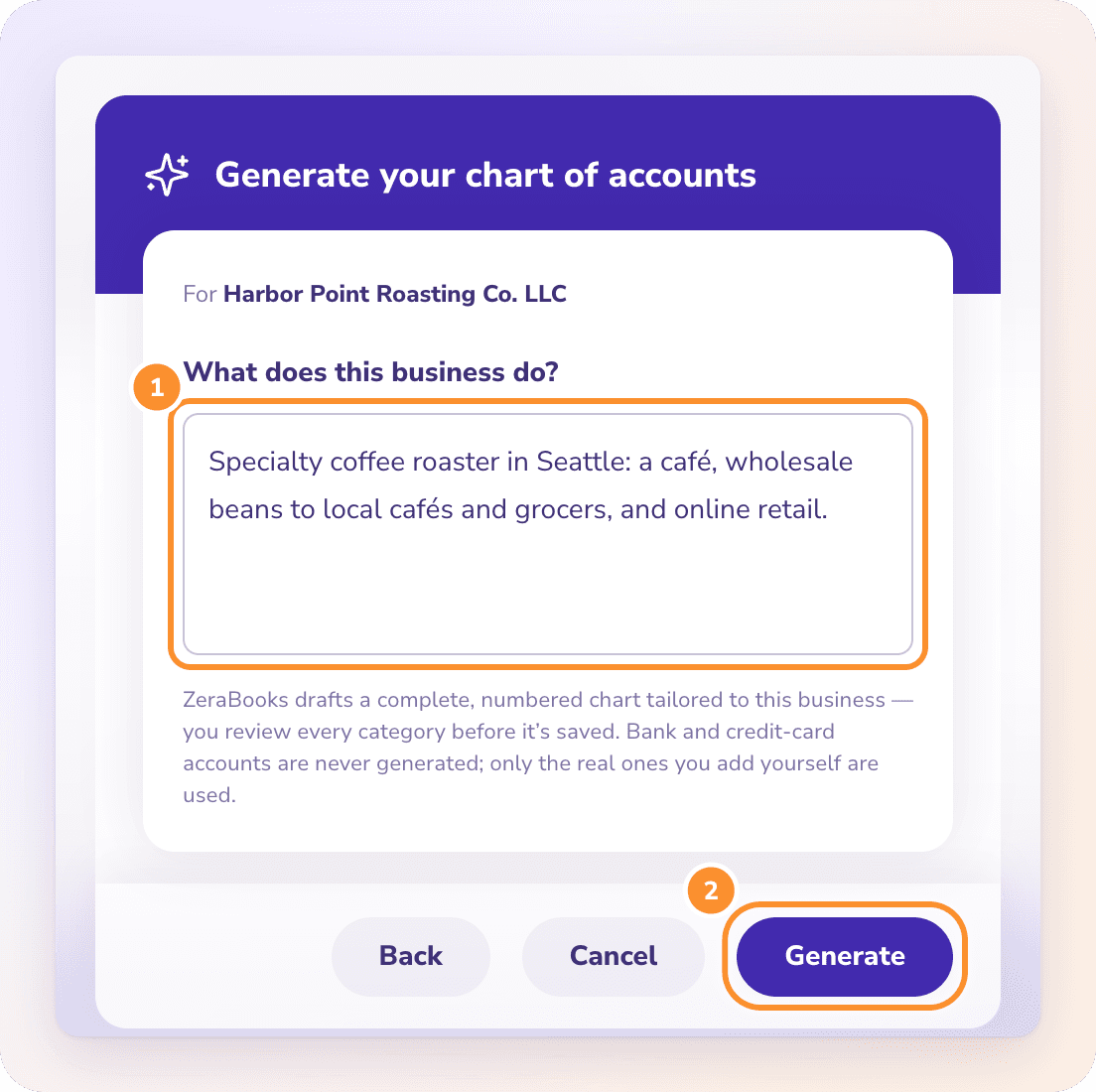
You see "N categories added" and the categories appear in the Category Manager, ready for your transactions.
Tip: The more specific the description, the better the draft. Mention each way you earn money (for example "café sales" and "wholesale") so each gets its own revenue category.
Frequently Asked Questions
Does the AI create my bank accounts?
No. Bank and credit-card accounts are never generated. Only the real ones you add yourself are used.
Why is Generate greyed out?
The description is too short. Write at least 10 characters about what the business does.
Is anything saved before I click Add?
No. Nothing is saved until you click Add N categories. Closing the window discards the draft.
What if the generation fails?
Click Try again, or Edit the description to change what you wrote and generate again.
Can I generate categories when I already have some?
No. Generate with AI is only offered while the chart is empty. To add to an existing chart, use New Category or import a file. See Import a chart of accounts.
Can I change the generated categories later?
Yes. They're ordinary categories. Rename, renumber, add or deactivate them at any time. See Add, edit and deactivate categories.
Learn more about AI-native general ledger: A double-entry ledger where statements become proven transactions.
Still stuck? A real person reads every message—come say hello.