All Clients
All Clients shows every business you keep books for, with how far each one's books go and what needs your attention. Sort, filter, open or edit any client.
Open All Clients
Click the business name at the top of the left navigation, then View All Clients. You can also press G then C.
Read the list
Switch between Grid view and List view with the buttons under the Clients heading. ZeraBooks remembers your choice.
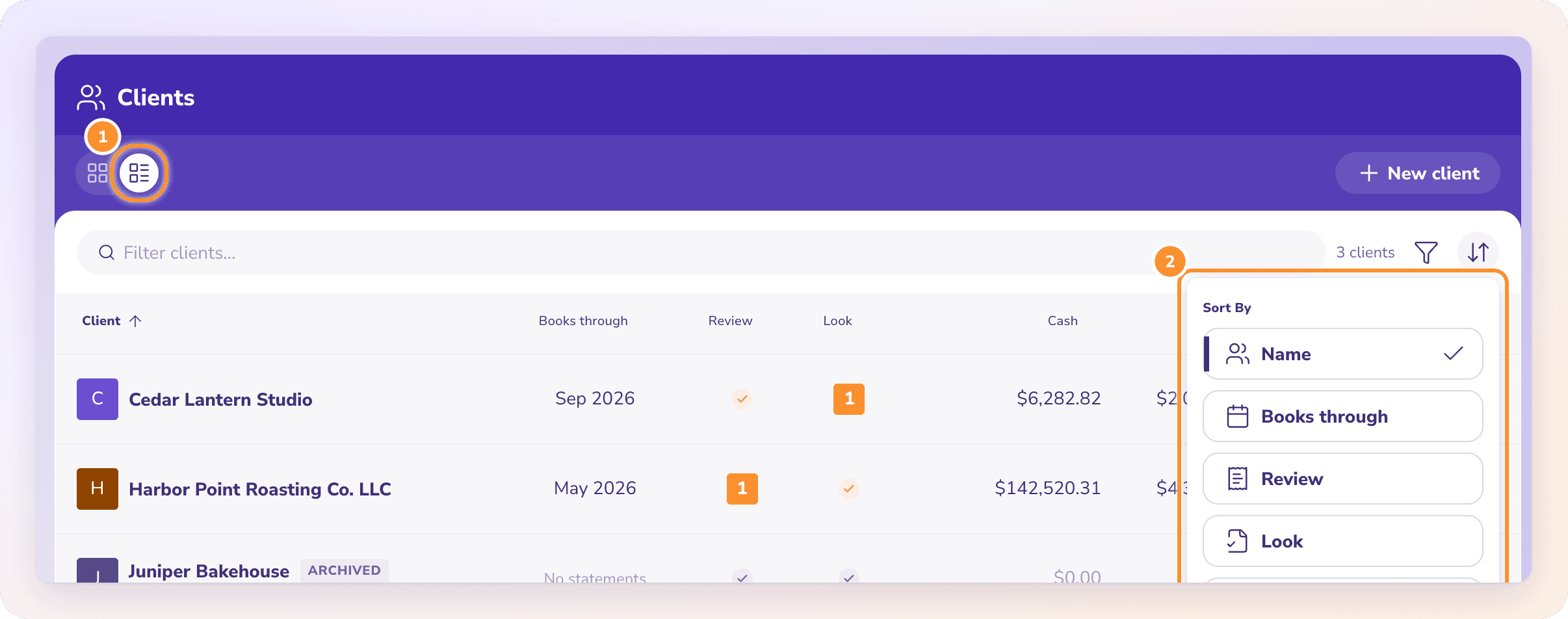
| Column | What it shows | Click it to open |
|---|---|---|
| Books through | The latest month covered by an uploaded statement, or No statements | Banks & Cards |
| Review | How many transactions need review; a check when none do | Banks & Cards, on the lines that need review |
| Look | How many statements need a look in reconciliation; a check when none do | Reconciliations |
| Cash | The client's cash balance | Dashboards |
| A/R | What customers owe the client | Invoices |
| A/P | What the client owes vendors | Bills |
In Grid view, each card shows Books through and a Review count. Your own books, if you have them, are marked Your books and always come first.
Search, filter and sort
Search. Type in Filter clients… to find a client by name.
Filter. Click the filter button and choose All, Active or Inactive. Archived clients are under Inactive.
Sort. Click the sort button and pick Name, Books through, Review, Look, Cash, A/R or A/P. Pick the same option again to reverse the order. ZeraBooks remembers your sort.
If nothing matches, you'll see "No clients match your search". Click Reset Filters to clear the search and the filter.
Open a client
Click a client's card or row to open its Dashboards. Click one of its numbers, such as Review or Look, to go straight to that page. See Switch between clients.
Edit a client's details
Click the client's ⋮ menu, then Edit….
Change what you need:
Business name
Contact email (optional)
Books currency: locks once the books hold their first transaction
Number format: how amounts and dates are punctuated; never locks
Tax registration number: printed on the invoices this client issues; leave it blank if there is none
Click Save. ZeraBooks shows "Client saved".
Frequently Asked Questions
What do Review and Look mean?
Review counts the client's bank and card transactions that need review, such as Uncategorized lines. Look counts statements that need a look in Reconciliations, such as a month that doesn't tie.
Why does a client show "No statements"?
No statement has been uploaded for that client yet. Open the client and upload one in Banks & Cards. See Upload a bank or card statement.
Can I change a client's currency?
Only until the books hold their first transaction. After that, Books currency is locked. Number format can change at any time.
Why can't I see an archived client?
The list may be filtered to Active. Set the filter to All or Inactive.
What does "Couldn’t load your clients" mean?
ZeraBooks couldn't read your client list, usually because of a connection problem. Click Retry.
Is there a limit to how many clients I can have?
There's no limit. Your subscription includes 3 active client companies. Each additional active client is $29 a month on the monthly plan, or $290 a year on the annual plan, added to the same subscription. You're charged a prorated amount for the rest of your current billing period when a new client's setup finishes. Archiving or deleting a client stops its charge from your next renewal; there are no mid-period refunds. Archived clients and your own books never count toward the 3.
Learn more about For accountants: Run every client’s books in one ledger with AI doing the routine work.
Still stuck? A real person reads every message—come say hello.