Email financial statements
Send your statements to a client or your accountant from Financials, with the PDFs, Ledger CSV or Excel workbook attached. Up to 10 recipients and 25 MB.
Send the email
Go to Financials and pick the period.
Open the Profit & Loss, Balance Sheet or Cash Flow tab.
Click the arrow beside Download (More download options), then Email report….
Check To, and add anyone to copy in CC (optional).
Edit the Subject and Message if you want.
Tick the attachments to send.
Click Send report. The button reads Sending… until the email is accepted, then you see "Email accepted for" and the address.
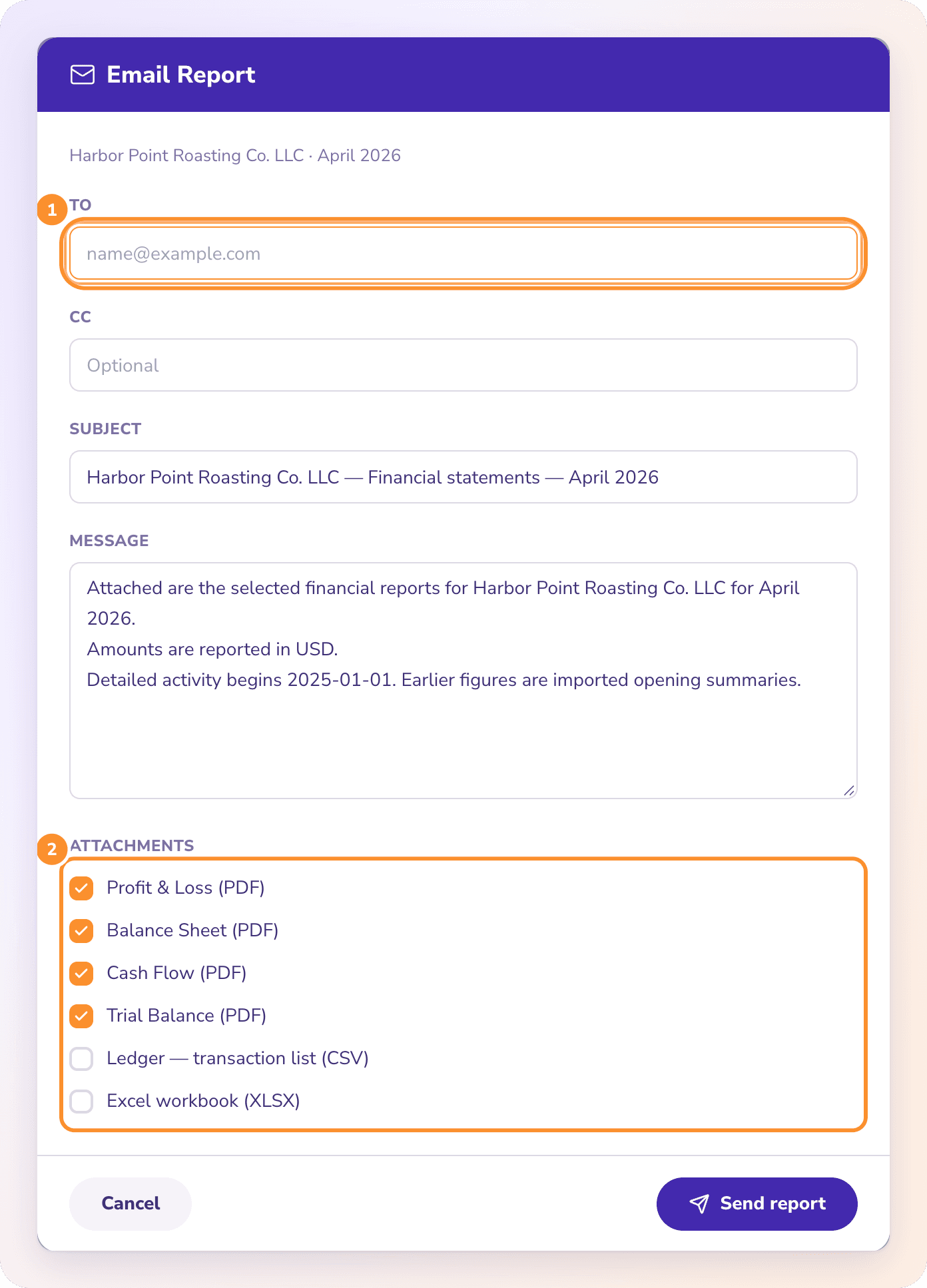
What's filled in for you
| Field | Starts as |
|---|---|
| To | The company's contact email, from Settings › Company |
| Subject | "{Company} — Financial statements — {period}" |
| Message | "Attached are the selected financial reports for {Company} for {period}. Amounts are reported in {currency}." |
If your books started partway through, the message also says when detailed activity begins. Separate several addresses with commas.
Attachments
| Attachment | Ticked to start |
|---|---|
| Profit & Loss (PDF) | Yes |
| Balance Sheet (PDF) | Yes |
| Cash Flow (PDF) | Yes |
| Trial Balance (PDF) | Yes |
| Ledger — transaction list (CSV) | No |
| Excel workbook (XLSX) | No |
Each PDF is attached as its own file. The Excel workbook has four sheets: Profit & Loss, Balance Sheet, Cash Flow and Trial Balance. Every attachment is for the period you picked.
Limits
| Limit | Message you see |
|---|---|
| At least one recipient | "Enter at least one recipient email address." |
| No more than 10 addresses in To | "Send to no more than 10 recipients at a time." |
| No more than 10 different addresses in To and CC together | "Use no more than 10 recipient addresses, including CC." |
| A subject of 200 characters or fewer, on one line | "Use a subject of 200 characters or fewer on one line." |
| A message of 10,000 characters or fewer | "Use a message of 10,000 characters or fewer." |
| At least one attachment | "Select at least one attachment to send." |
| 25 MB of attachments in total | "The attachments are too large to email — deselect some and try again." |
Important: If the connection drops while sending, ZeraBooks can't tell whether the email went out. The button changes to Retry same email. Use it rather than starting a new email: it resends the identical email under the same reference, so the recipient doesn't get a second copy. Keep the fields unchanged while you retry.
Frequently Asked Questions
How many people can I email the statements to?
Up to 10 different addresses, counting To and CC together.
Is there a size limit on attachments?
Yes, 25 MB in total. If you go over, untick an attachment, usually the Ledger CSV or the Excel workbook, and send again.
Can I email the A/R or A/P aging report?
No. The email offers the four statement PDFs, the Ledger CSV and the Excel workbook only.
Why is To already filled in?
It uses the company's contact email from Settings. Replace it with any address you like. To change the default, edit the contact email in Company settings.
What does "is not a valid email address" mean?
One of the addresses is mistyped. Check each address, and separate them with commas.
What does "The company or reporting period changed" mean?
You switched company or period while the email was open. Close it and open Email report… again so the attachments match what you're looking at.
Can I email a branded report with my own notes and cover?
Yes, from Custom Reports. See Publish, copy, share and email a custom report.
Learn more about AI-native general ledger: A double-entry ledger where statements become proven transactions.
Still stuck? A real person reads every message—come say hello.