Banks & Cards overview
Banks & Cards is the register of every bank account and credit card in your books. Here is what each part of the page does and how transactions get there.
What Banks & Cards is for
Banks & Cards holds one register for each bank account and credit card in your books. Every line comes from a statement you upload or an entry you record yourself. ZeraBooks categorizes each line, and you review and correct the categories here.
Note: ZeraBooks doesn't connect to your bank. There are no bank feeds and no bank logins. You fill each account by uploading its PDF, CSV or Excel statement. See Upload a bank or card statement.
Open the page
In the left navigation, click Banks & Cards, or press G then B.
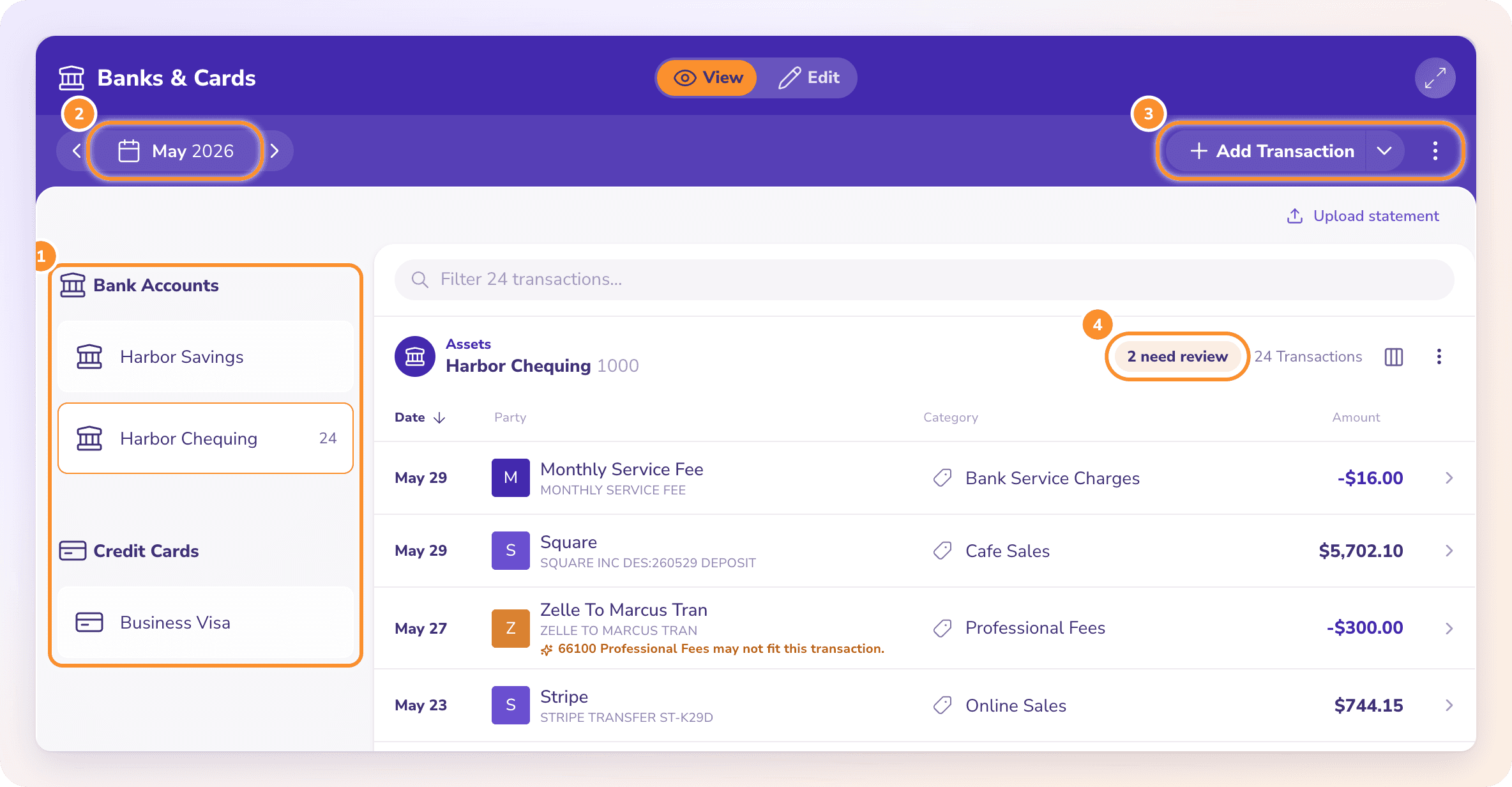
Accounts. The left side lists your accounts under Bank Accounts and Credit Cards. Click one to open its register. The number beside an account is how many transactions it has in the period you picked. Accounts in a currency other than your books currency show a currency tag.
Period. Pick the month or range with the arrows and the period picker at the top. ZeraBooks remembers your choice for each company.
Add Transaction. Records a transaction by hand. The arrow next to it holds Import Bank Transactions and Import Journal Entries. The ⋮ menu (More bank actions) holds the exports.
need review. The chip on the register counts lines that need a look. Click it to show only those lines.
Read the register
The register header shows Assets for a bank account or Liabilities for a credit card, then the account's name and number.
Columns. By default you see Date, Party, Category and Amount. Click a column heading to sort by it; click again to reverse the order.
More columns. Click the columns button to open Show columns. Turn on Source to see where each line came from (Bank statement, Invoice, Bill, Pay In, Pay Out, Transfer and more), or Balance for a running balance. Reset columns puts the defaults back.
Filter. Type in Filter {n} transactions… to search by party, description, memo, date, category or amount.
Pages. The register shows 50 transactions per page.
View and Edit
The page opens in View, so nothing changes by accident. Switch to Edit at the top to change categories and parties, pick suggestions and select lines for bulk changes. See Review and fix categories.
What you can do here
Frequently Asked Questions
Can I connect my bank account to ZeraBooks?
No. ZeraBooks has no bank feeds and never asks for a bank login. Download each month's statement from your bank as a PDF, CSV or Excel file and upload it into the matching account.
Why does the page say "Set up your categories first"?
Statements are categorized into your chart of accounts, so you need categories before you can upload. Click Set up your categories to open the Category Manager. See Set up your chart of accounts.
Why does it say "No transactions in" this period?
No statement or manual entry for this account falls in the period you picked. Statements with no activity add no transactions. Change the period, or upload any missing statements into their matching account.
Where is the running balance?
Open the columns menu and turn on Balance. It follows posting date and includes earlier activity, whatever the sorting or filter. If it shows "Requires complete posting history", the full history isn't available for that view.
What does "Could not load the register" mean?
ZeraBooks couldn't read this account's transactions, usually because of a connection problem. Click Retry before you rely on the balances shown.
Learn more about AI bookkeeping: Autopilot and Ask Zera keep the books inside a real general ledger.
Still stuck? A real person reads every message—come say hello.