Review and fix categories
ZeraBooks categorizes every statement line. Switch to Edit to review the lines that need a look, fix a category, or set one category on many lines at once.
What "need review" means
Every imported line gets a category. A line counts toward need review when:
the statement didn't give enough detail to choose, so the line sits in Uncategorized Income or Uncategorized Expense; or
ZeraBooks' AI review flagged the category, for example "66100 Professional Fees may not fit this transaction."
Flagged lines still count in your books; the chip tells you which ones are worth a second look.
Fix a category
In the left navigation, click Banks & Cards and select the account.
Switch to Edit at the top of the page.
Click the need review chip to show only the lines that need a look. Click it again to show every line.
Click a line's category and type to search, e.g. "fees". Pick the right category.
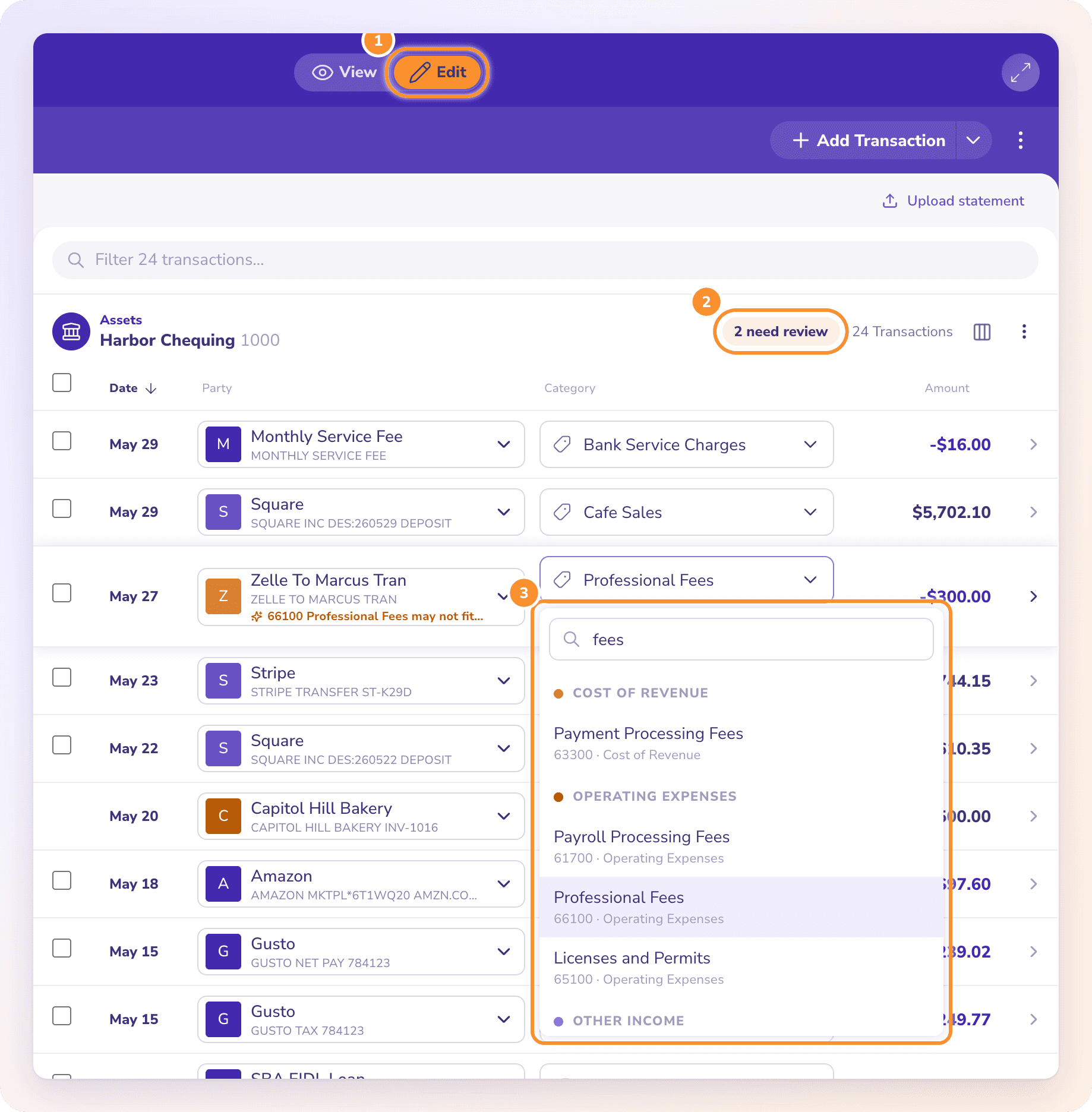
The change saves as soon as you pick. If other lines from the same merchant have a different category, ZeraBooks offers to fix them too. See Apply a correction to similar transactions.
Tip: Not sure yet? Keep a line Uncategorized while you check its receipt or ask your client. ZeraBooks remembers your corrections for future statements.
Suggestions and "Looks right"
In Edit, an Uncategorized line may show suggested categories as small buttons under its category. Click one to use it. A flagged line whose category is correct shows Looks right; click it to keep the category and clear the flag.
Set one category on many lines
In Edit, tick the checkbox on each line you want to change.
Next to "{n} selected", open Set category and pick the category.
ZeraBooks shows "N transactions categorized". Click Clear to unselect lines without changing anything.
Lines you can't change here
Some lines have no category picker, even in Edit:
Transfers and card payments. Their category is the other account. See Transfers, credit-card payments and owner draws.
Bill and invoice payments. Their category comes from the bill or invoice they pay.
Lines matched to a manual entry. See Match manual entries to statement lines.
Cleared prior books. Lines already counted in your opening books show Cleared prior books instead of a category.
Closed months. In a closed month, the page says "This month is closed. The books are locked through {date}. Reopen from Reconciliations to change it."
Frequently Asked Questions
Why can't I change a category?
You're in View, or the line is a transfer, a bill or invoice payment, a line matched to a manual entry, or in a closed month. Switch to Edit first; for the others, see the list above.
What does "This date is in a closed period" mean?
The books are closed through a date on or after this line. Reopen the books in Reconciliations to change it. See Close and reopen the books.
What does "Category changed since this register loaded" mean?
Someone or something (such as Autopilot) changed this line's category after you opened the page. Click Reload saved categories to see the saved category, then decide whether to change it again.
Does changing a category affect reconciliation?
No. Categories don't change an account's balance, so a tied or finalized month stays that way.
How do I see every line that needs review across all months?
On All Clients, click a client's Review count. Banks & Cards opens on the account with the most lines to review, with the period set to All Time and the review filter on.
Will ZeraBooks learn from my corrections?
Yes. ZeraBooks remembers your corrections for future statements. Lines you categorized yourself are never changed by Apply to similar.
Learn more about AI bookkeeping: Autopilot and Ask Zera keep the books inside a real general ledger.
Still stuck? A real person reads every message—come say hello.