Add bank and credit-card accounts
Every statement you upload goes into an account you add first. Add each bank account and credit card by name. No account number or bank login needed.
Before you start
ZeraBooks doesn't connect to banks, so an account is simply a name you'll recognize, such as "Chase Checking 1101". You choose that account each time you upload its statements, so its transactions and balance stay together. No full account number or bank login is needed.
Tip: If you have two similar accounts at the same bank, add the last four digits to each name, e.g. "Chase Checking 1101".
Add your first accounts
When a company has categories but no bank or card accounts yet, Banks & Cards shows Add your bank & card accounts.
In the left navigation, click Banks & Cards.
Type the account's name, e.g. "Chase Checking 1101" or "Amex Business Card 3303".
Choose Bank or Card.
If the account isn't in your books currency, click the currency chip and pick its currency.
Click Add account. Repeat for every account you'll upload statements for.
Click Continue. It stays disabled until at least one account exists.
You can also add accounts in the Accounts step of company setup. See Add a client.
Add another account later
Later accounts are added in the Category Manager, where they live alongside your other categories.
Go to Accounting › Category Manager (or press G then A).
In the Banks & Cards panel, click Add account.
Choose Bank account or Credit card.
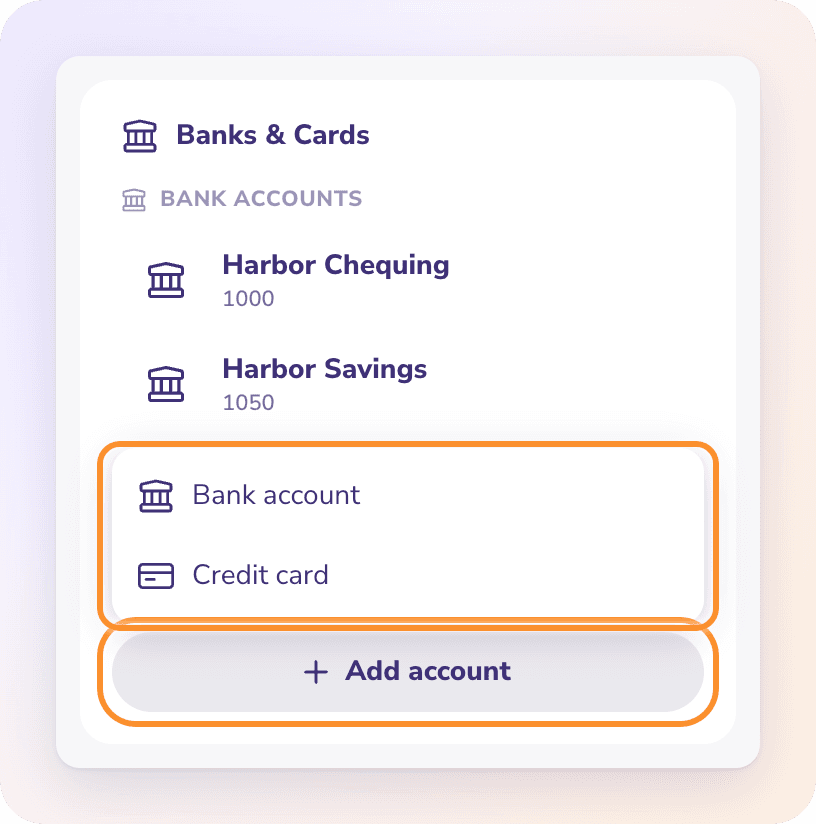
The new category form opens, already set up as a checking account or a credit card. Enter the Category Name, and choose a Currency if the account isn't in your books currency.
Click Create. The account appears in Banks & Cards straight away.
Frequently Asked Questions
Do I need to give ZeraBooks my bank login or account number?
No. ZeraBooks never connects to your bank. The account is a name and a type; the transactions come from the statements you upload.
Can a bank account be in a different currency from my books?
Yes. Pick its currency when you add it. Statements upload in that currency, and the currency locks once the first statement lands.
Does ZeraBooks create my bank accounts when it generates categories?
No. Bank and credit-card accounts are never generated. You add each one yourself.
What does "We couldn't add this account" mean?
The account wasn't saved, usually because of a connection problem. Your details are still in the form; click Add account again.
Can I remove an account I added by mistake?
Yes, while you're still in the add panel: each account you add appears as a chip with a remove button. An account that already has transactions can't be removed; you'll see "{name} has activity and can’t be removed here."
Does ZeraBooks detect which account a statement belongs to?
No. You choose the account when you upload. If the statement says it's a different type or currency from the account you chose, nothing is imported.
Learn more about AI bookkeeping: Autopilot and Ask Zera keep the books inside a real general ledger.
Still stuck? A real person reads every message—come say hello.