Export transactions
Download your bank and card transactions as a CSV, keep a saved copy in the Vault, or download the Financial Package with your statements and ledger.
Open the export menu
In the left navigation, click Banks & Cards.
Pick the period you want to export with the period picker at the top. Every export covers that period.
Click the ⋮ menu (More bank actions) next to Add Transaction.
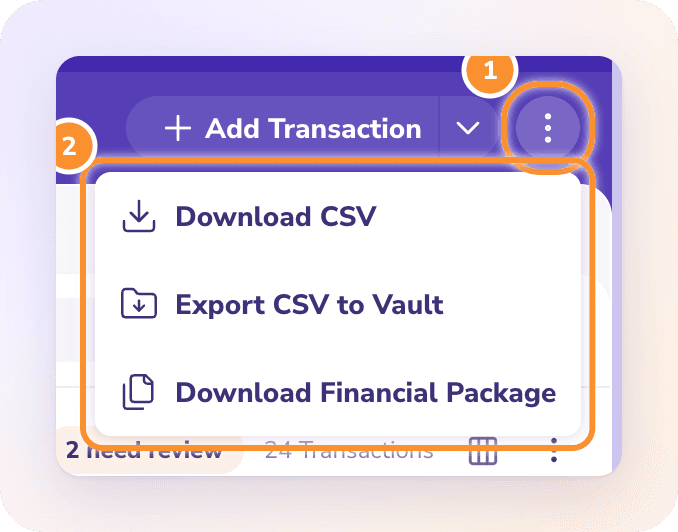
Download CSV
Click Download CSV. ZeraBooks saves a file named "{Company} - {period} - Bank Transactions.csv". It holds every bank and credit-card account's transactions for the period, with these columns:
| Column | What it holds |
|---|---|
| Date | The transaction date |
| Party | The vendor, customer or other party |
| Description | The bank's description |
| Account | The bank account or card |
| Category | The category the transaction is booked to |
| Amount | The amount, in the account's currency |
| Currency | The account's currency |
| Source | Bank statement, Manual transaction or Document |
Export CSV to Vault
The Vault keeps a private copy of an export with the company, exactly as it was when you saved it.
Click Export CSV to Vault.
Click Save CSV. The button changes to Saved.
Your saved files are listed under Recent exports, newest first. Click the download icon next to one to download it again.
Click Done.
Download the Financial Package
Click Download Financial Package.
Choose the reports to include: Ledger, Trial Balance, Profit & Loss, Balance Sheet and Cash Flows.
Click Download.
The statements download together as one PDF. The Ledger downloads as a separate CSV. See Download the Financial Package for what each report shows.
Frequently Asked Questions
Does the CSV include only the account I'm looking at?
No. Download CSV includes every bank and credit-card account for the selected period. Use the Account column to filter by account in your spreadsheet.
What's the difference between Download CSV and Export CSV to Vault?
Download CSV saves the file to your computer. Export CSV to Vault keeps a copy inside ZeraBooks with the company, unchanged, so you can download exactly the same file again later.
What does "Could not prepare the export" mean?
ZeraBooks couldn't read the transactions for the export, usually because of a connection problem. Try again in a moment.
Learn more about AI bookkeeping: Autopilot and Ask Zera keep the books inside a real general ledger.
Still stuck? A real person reads every message—come say hello.