Set up your chart of accounts
Start your categories one of three ways: let AI draft a chart for your business, import the one you already have, or build it yourself one category at a time.
Choose how to start
Your chart of accounts is the list of categories every transaction is filed under. When a company has none yet, the Category Manager shows Set up your chart of accounts with three choices.
In the left navigation, click Accounting › Category Manager.
Pick one of the three cards.
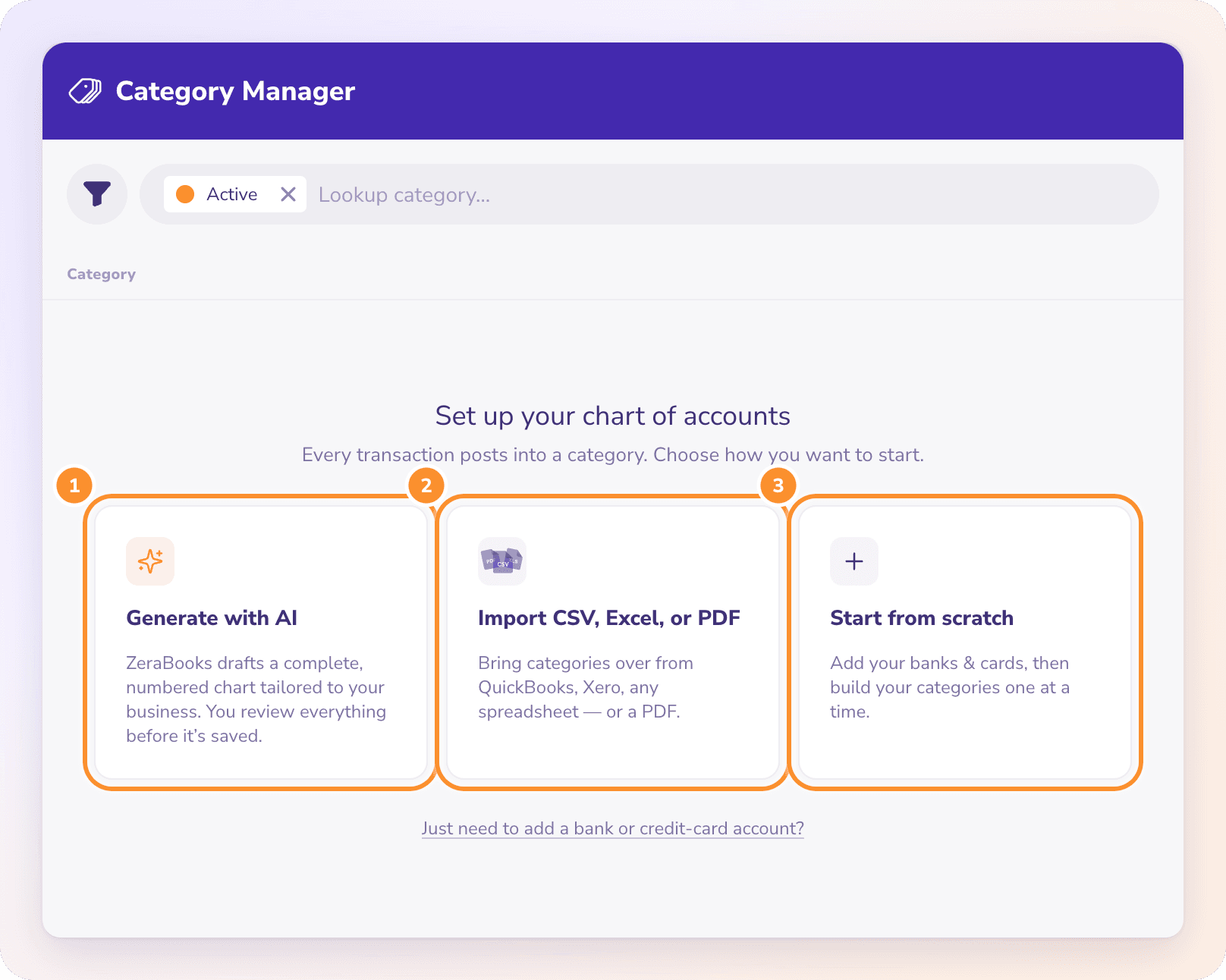
| Choice | Best when | What happens |
|---|---|---|
| Generate with AI | You're starting fresh and want a complete chart quickly | ZeraBooks drafts a numbered chart tailored to your business. You review everything before it's saved. See Generate categories with AI. |
| Import CSV, Excel, or PDF | You're moving from QuickBooks, Xero, Sage or a spreadsheet | ZeraBooks reads your existing chart, and you review it before importing. See Import a chart of accounts. |
| Start from scratch | You want to build every category yourself | You add your banks and cards, then the New Category form opens. See Add, edit and deactivate categories. |
Add your banks and cards first
Every path starts by asking for the bank accounts and credit cards you'll upload statements for. ZeraBooks never invents these; it only uses the real accounts you add.
Type a name you'll recognize, such as "Chase Checking" or "Amex Business Card". No full account number or bank login is needed.
Choose Bank or Card, and the currency if it isn't your home currency.
Click Add account, and repeat for each account.
Click Continue.
If you already have some accounts, ZeraBooks asks "Is that every account you'll upload statements for?" Click Yes, that's all of them or No, I need to add more.
Tip: You can skip this step and add accounts later from Banks & Cards. On Start from scratch, the button reads Skip for now until you add an account. See Add bank and credit-card accounts.
Only need to add a bank account or card, not categories? Click Just need to add a bank or credit-card account? under the three cards.
Frequently Asked Questions
Which option should I pick?
If you have a chart of accounts in another system, import it so your categories stay the same. If you're starting a new business or a new set of books, Generate with AI is the fastest. Pick Start from scratch only if you want full control from the first category.
Can I change the categories after setup?
Yes. Add, rename, renumber or deactivate categories at any time in the Category Manager. You can also import more categories later: click the arrow next to New Category, then Import Categories….
Why don't I see the three choices?
They only appear while the company has no categories of its own. Once you have a chart, use New Category to add categories, or its arrow for Import Categories….
Does ZeraBooks connect to my bank when I add an account?
No. Adding an account only creates the place its statements go. You bring transactions in by uploading statements in Banks & Cards. See Upload a statement.
Which currencies can a bank account or card use?
Your home currency, USD, CAD or EUR. Choose it before you upload: statements upload in the account's currency, and it locks once the first statement lands.
Learn more about AI-native general ledger: A double-entry ledger where statements become proven transactions.
Still stuck? A real person reads every message—come say hello.