Record money in, money out and transfers
Use Pay In, Pay Out and Transfer to record money that moved through a bank or card account before its statement arrives, such as a cash deposit or a check you wrote.
Choose the right type
Most money in and out reaches your books from the statements you upload in Banks & Cards. Record it by hand only when you want it in the books before the statement arrives, or when it never appears on a statement you upload.
In the left navigation, click Accounting › Ledger, then click Add Transaction. Pick a tile on the left:
| Tile | Use it for |
|---|---|
| Pay In | Money received into a bank or card account, such as a cash sale or a refund. |
| Pay Out | Money paid from a bank or card account, such as a check or a card purchase. |
| Transfer | Money moved between two of your own bank and card accounts, including paying a credit card from a bank account. |
| Journal | An adjustment with no money moving. See Record a journal entry. |
Record a Pay In or Pay Out
Click Pay In or Pay Out.
Optionally choose the Party (the customer or vendor), and enter a Reference and a Memo.
Check the Date.
Under Bank or card account, choose the account the money went into or left.
Under Pay For, enter a Description, the amount and the Category it belongs to. Click Add line to split the amount across several categories.
Check Total. It adds up the lines for you.
Click Save & Close.
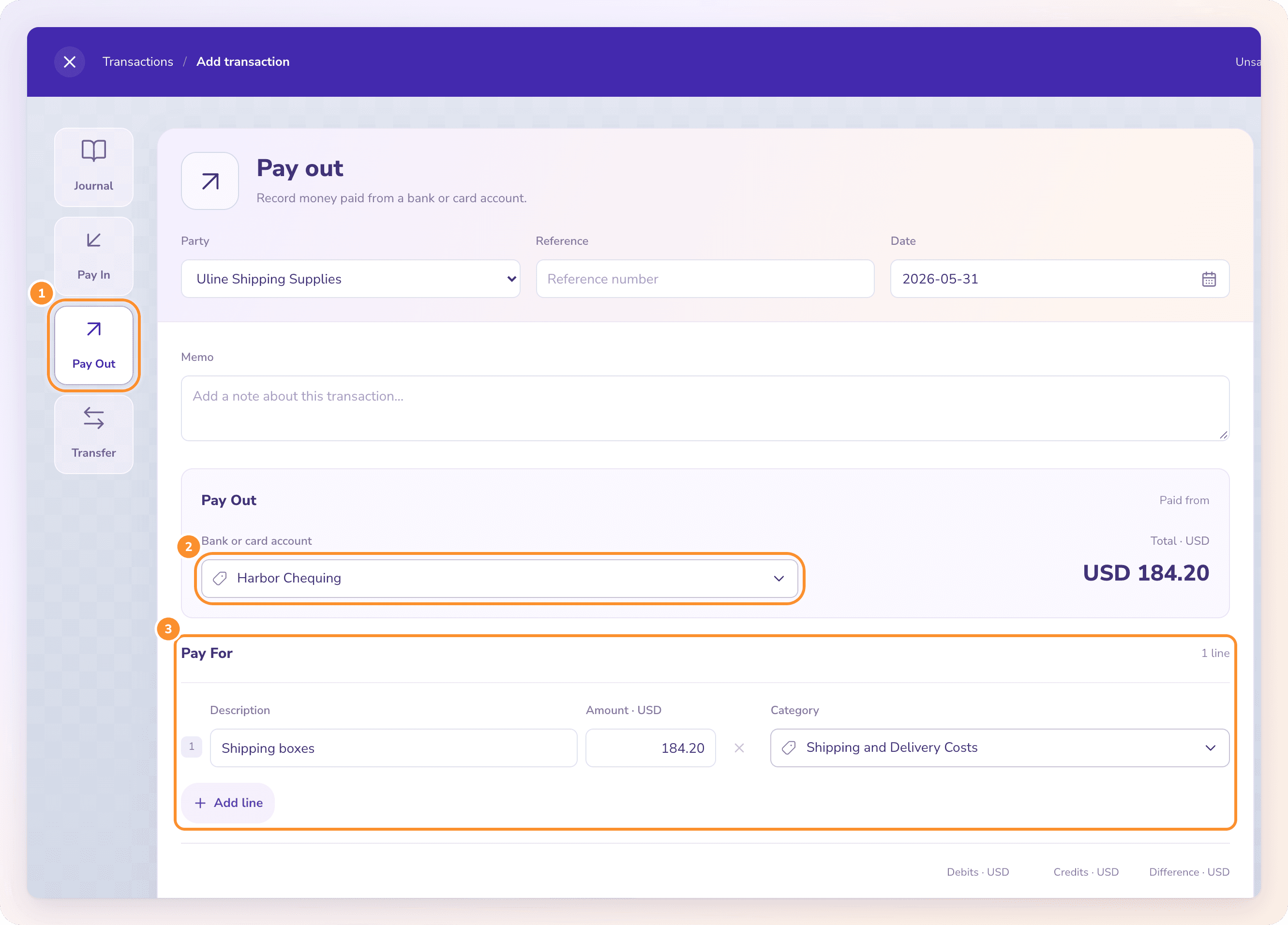
If the bank or card account is in a foreign currency, you also see Bank amount. It follows your lines until you type over it, so you can enter the exact amount the bank shows.
A Pay In or Pay Out can't go straight to Accounts Receivable or Accounts Payable. ZeraBooks shows "Use the bill or invoice payment action to settle a customer or vendor balance." Record the payment on the bill or invoice instead. See Match a bill to its payment or Record payments and credits.
Record a transfer
Click Transfer.
Under Transfer from, choose the From account and enter the Transfer amount.
Under Transfer to, choose the To account. Amount received fills in to match.
Optionally add a Description on each side, a Reference and a Memo.
Click Save & Close.
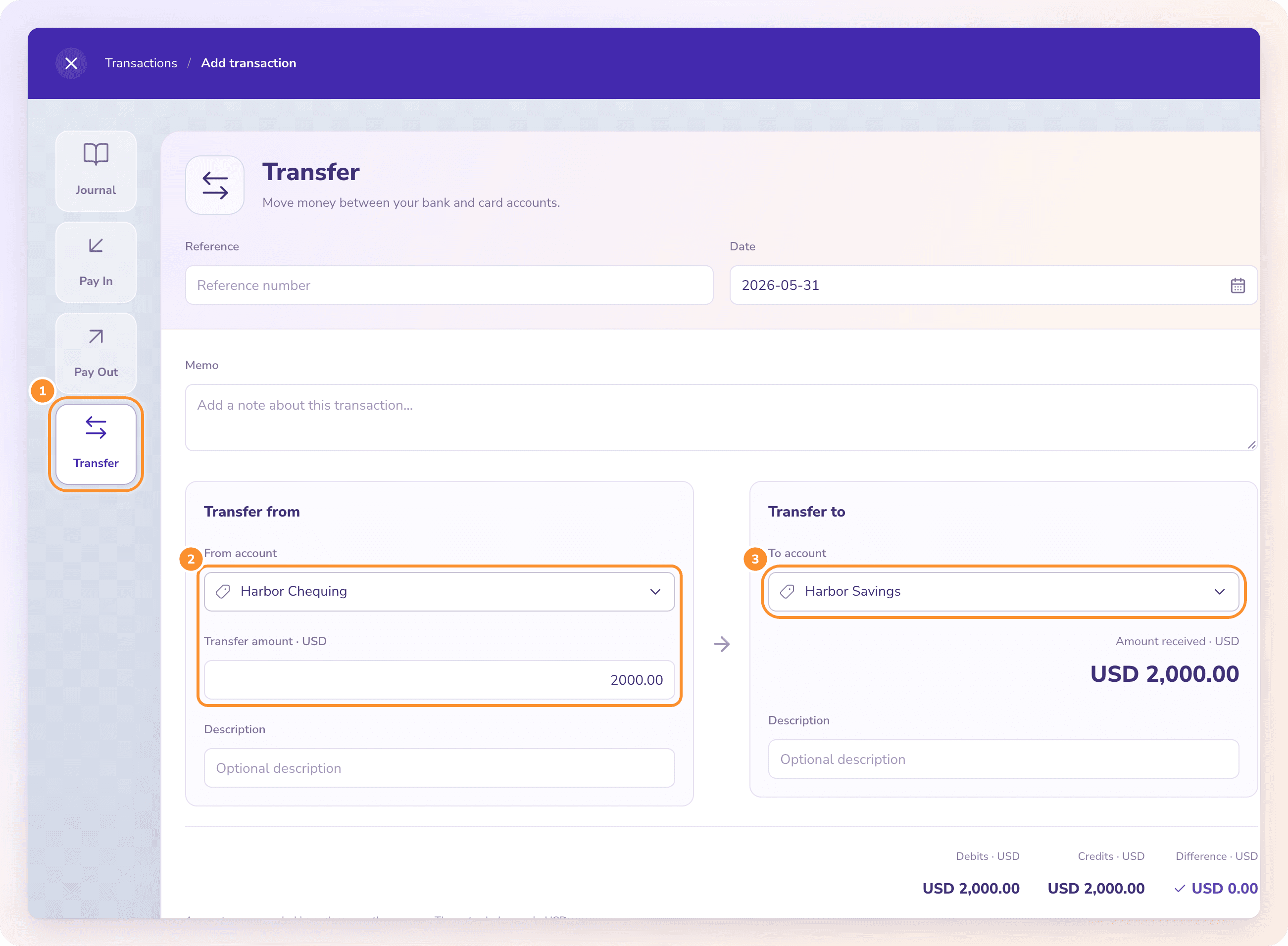
When the two accounts use different currencies, enter both Amount sent and Amount received exactly as the banks show them. Their home-currency values must balance. Record any bank fee as a separate Pay Out.
When the statement arrives
When you later upload the statement, match the bank line to your manual entry so the money isn't counted twice. See Match manual entries to statement lines.
Frequently Asked Questions
How do I record a credit-card payment?
Use Transfer, from the bank account that paid to the credit-card account. If the payment is already on an uploaded bank statement, categorize it there instead. See Transfers, credit-card payments and owner draws.
What does "A transfer needs two different bank or card accounts" mean?
The From account and To account are the same, or one is missing. Choose two different bank or card accounts. To move money to a category that isn't a bank or card, use Pay Out or Journal.
What does "Choose one bank or card account and at least one category" mean?
A Pay In or Pay Out needs a Bank or card account and at least one line with a Category. Fill in whichever is missing.
Can I split one payment across several categories?
Yes. Click Add line under Pay For and give each line its own amount and category. The total is the sum of the lines.
Should I record every bank transaction by hand?
No. Upload your statements in Banks & Cards and ZeraBooks records and categorizes every line for you. ZeraBooks doesn't connect to banks directly, so a statement upload is how transactions come in. See Upload a statement.
Why can't I edit a Pay In I recorded?
A statement has already matched it. Unmatch it first with Review match. See Edit or remove a manual transaction.
Learn more about AI-native general ledger: A double-entry ledger where statements become proven transactions.
Still stuck? A real person reads every message—come say hello.