Match a bill to its bank payment
Once you've paid a bill and the payment is on an uploaded statement, apply it to the bill. Partial payments, bank fees, vendor credits and other currencies are covered.
How paying a bill works in ZeraBooks
You pay your vendors the way you always do, from your bank or card. ZeraBooks doesn't pay bills or move money. When you upload the statement that shows the payment, you apply that payment to the bill. The bill then counts as paid and moves to Scheduled & Paid.
Applying a payment moves the bank transaction onto Accounts Payable, so the expense stays counted once, by the bill.
Apply a payment
Open the bill from Awaiting Payment.
Click the Outstanding amount on the bill. The Settlement panel opens on the right.
Under Matching transactions, ZeraBooks lists bank and card transactions that could settle the bill, each with its date, account, amount and the reason it was offered:
Clears it exactly: the amount settles the bill to zero.
Same vendor: the transaction is linked to this vendor.
Quotes this bill's number: the bank description contains the bill number.
Click Apply $… on the right one. If it isn't the payment, click Not this payment and it won't be offered for this bill again.
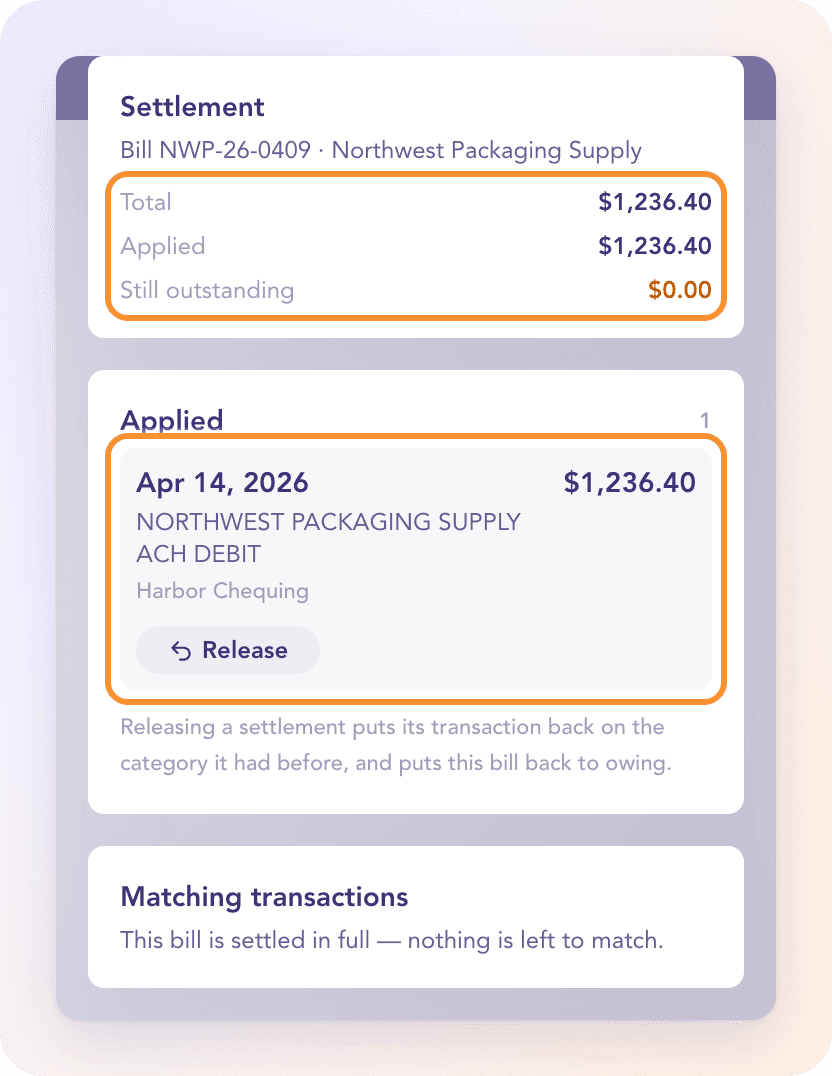
The applied payment shows under Applied. Once nothing is left, the bill shows Paid and moves to Scheduled & Paid.
Tip: If nothing is offered, the payment may be on a statement you haven't uploaded yet. Upload it in Banks & Cards, then come back to the bill.
When the payment is less than the bill
If the payment is smaller than what's owed, ZeraBooks asks what the gap is:
Apply as partial: the rest is still owed. The bill shows Part paid and stays in Awaiting Payment until the next payment.
Apply and post difference: the rest won't be paid, for example a bank charge or an early-payment discount. ZeraBooks posts the difference to your settlement account and the bill closes at zero.
If a small amount is left after a payment was applied, Close $… as a difference does the same thing later. The settlement accounts are chosen in Bill accounting settings… under Settlement differences; if none is set, click Configure settlement account.
To pay several bills with one payment, see Split a payment across bills or invoices.
Apply a vendor credit
A credit note from a vendor is uploaded like a bill and shows Available credit. On a bill that's still owed, the Available credits card lists that vendor's credits. Enter the amount and click Apply credit. No money moves; both documents are reduced through Accounts Payable.
A payment in another currency
If the bill is in one currency and the payment came from an account held in another, the payment appears under Payments in another currency, because ZeraBooks can't know the conversion.
Click This settled the bill…
Enter how much left your account, and how much it settled on the bill.
Click Record payment.
The difference between what the money was worth and what the bill is relieved of posts to Exchange Gain or Loss.
Undo a match
Under Applied, click Release on the payment. The bill is owed again, and the bank transaction goes back to the category it had before.
Frequently Asked Questions
Can I pay a bill from ZeraBooks?
No. ZeraBooks has no bill pay, ACH or card payments. Pay the vendor from your bank as usual, then match the payment when the statement is uploaded, or use Mark as Paid….
I already categorized the payment as an expense. Will it be counted twice?
Not once you apply it. Applying the payment moves it from the expense category onto Accounts Payable, so the expense is counted once, by the bill.
How do I record a partial payment on a bill?
Apply the payment and choose Apply as partial. The rest stays owed and the bill shows Part paid until you apply the next payment.
The bank took a fee and the vendor got less. What do I do?
Apply the payment and choose Apply and post difference. The shortfall posts to the settlement difference account chosen in Bill accounting settings…, and the bill closes at zero.
Why isn't my payment offered?
Either the statement isn't uploaded yet, or the transaction doesn't look like it settles this bill (different amount and no vendor or bill number), or you declined it earlier. Upload the statement, or apply it from the transaction itself.
I matched the wrong payment. How do I undo it?
Open the bill's Settlement panel and click Release on that payment. The bill is owed again and the transaction returns to its previous category.
Learn more about AI-native general ledger: A double-entry ledger where statements become proven transactions.
Still stuck? A real person reads every message—come say hello.