Edit or remove a manual transaction
Change or remove a journal entry, Pay In, Pay Out or transfer you recorded yourself. Removing one can be undone; a statement-matched entry must be unmatched first.
Edit a transaction you recorded
Transactions you add with Add Transaction (journal entries, Pay In, Pay Out and Transfer) can be changed at any time, as long as a statement hasn't matched them and their month isn't closed.
In the left navigation, click Accounting › Ledger.
Find the transaction in its register card. Use Filter N transactions… to search for it.
Click the row. A summary opens with its date, reference, memo and lines.
Click Edit. The same editor you used to record it opens.
Make your changes and click Save & Close.
Tip: Switch the Ledger to Edit before you click the row, and the editor opens straight away.
Each save is kept as a new revision. The editor's Activity panel shows "Saved revision N." and when it was last saved.
Remove a transaction you recorded
Open the transaction from the Ledger as above.
Click Remove transaction.
ZeraBooks asks "Remove this complete transaction?". All its lines leave the books together. Click Remove transaction to confirm, or Keep transaction to cancel.
You see "Transaction removed". Its lines are gone from every register and report, and the activity record remains.
Changed your mind? Click Undo removal right away, before you click Done.
When a statement has matched it
If you recorded a Pay In, Pay Out or Transfer and later uploaded the statement that shows it, ZeraBooks matches the two so the money isn't counted twice. The summary then shows "A statement confirms this transaction. Unmatch it before changing its accounting." and Edit and Remove transaction are unavailable.
Click Review match. Banks & Cards opens on your matches.
Unmatch the statement line from your entry.
Come back to the Ledger and edit or remove the transaction.
Remove other journal entries
Some journal entries weren't made with Add Transaction, such as month-end entries ZeraBooks recorded for you. Remove those from the Ledger's menu:
On the Ledger, click the ⋮ menu next to Add Transaction.
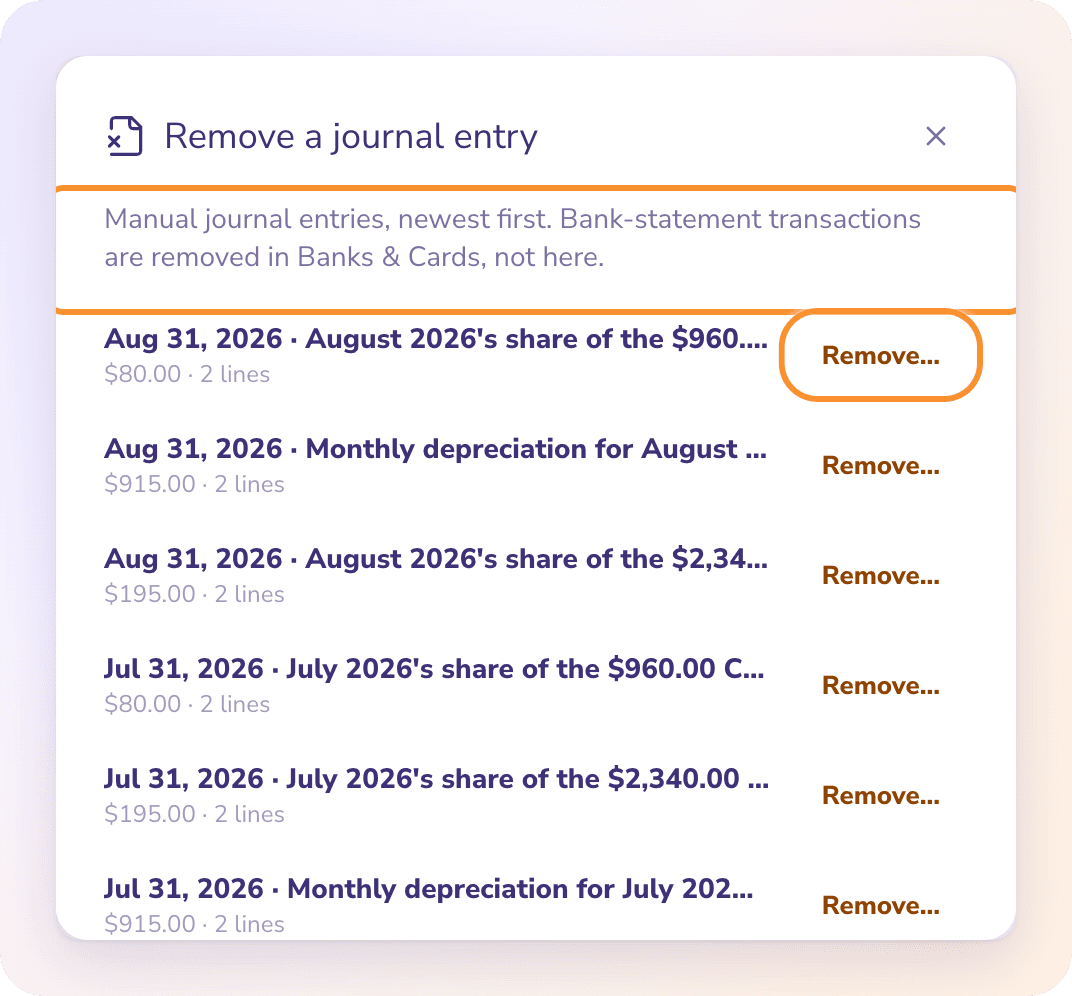
Click Remove a journal entry…. The list shows these journal entries, newest first.
Click Remove… next to the entry.
Read the confirmation, "Are you sure you want to remove this journal entry?", and click Remove.
Removing an entry from this list can't be undone. Its lines leave every account register. To bring it back, you'd have to record it again.
If the list says "No entries to remove here. Transactions created with Add Transaction are managed from their register rows.", the entry you want was made with Add Transaction. Open it from its row instead.
Frequently Asked Questions
Can I undo a removed transaction?
Yes, for transactions made with Add Transaction: click Undo removal in the same window. Entries removed from Remove a journal entry… can't be restored.
How do I delete a bank transaction from an uploaded statement?
Not from the Ledger. Bank-statement lines are corrected or removed in Banks & Cards. To remove a whole statement, see Remove a statement.
Why are Edit and Remove greyed out?
A bank statement has confirmed the transaction. Click Review match, unmatch it in Banks & Cards, then edit or remove it.
Can I change a transaction in a month I've closed?
No. ZeraBooks refuses changes dated on or before the date your books are closed through. Reopen the books first. See Close and reopen the books.
Can I void or reverse a transaction instead of removing it?
No. ZeraBooks has no void or reverse action for these entries. Edit the transaction to correct it, or record a new journal entry with the opposite debits and credits.
Is there a record of what I changed?
Yes. Every save creates a new revision, and a removed transaction keeps its activity record.
Learn more about AI-native general ledger: A double-entry ledger where statements become proven transactions.
Still stuck? A real person reads every message—come say hello.