Record a journal entry
Use a journal entry for adjustments that don't move money through a bank, such as accruals, prepaid expenses, depreciation or corrections between categories.
When to use a journal entry
A journal entry records an amount moving between categories in your books without money going in or out of a bank or card account. Every entry has at least two lines. A debit is an amount on the left side of an entry (it increases assets and expenses), and a credit is an amount on the right side (it increases liabilities, equity and income). The debits and credits of one entry must add up to the same total.
Typical uses are spreading a prepaid insurance policy over the months it covers, recording depreciation, or moving an amount from one category to another.
Tip: If money actually came into or left a bank or card account, use Pay In, Pay Out or Transfer instead. See Record money in, money out and transfers.
Record the entry
In the left navigation, click Accounting › Ledger.
Click Add Transaction. The editor opens on the Journal tile.
Optionally enter a Reference (up to 100 characters).
Check the Date. It starts on today, or on the last day of the period you're viewing if today is outside it. Type a date as YYYY-MM-DD or click the calendar.
Optionally add a Memo (up to 500 characters) that explains the entry.
Under Journal lines, fill in each line: a Description, an amount in either Debit or Credit (entering one clears the other), the Category, and optionally a Party.
Click Add line for more lines. An entry can have between 2 and 200 lines.
Check the totals under the lines: Debits, Credits and Difference. The Difference must be 0.00.
Click Save & Close. To keep the editor open, click the arrow next to it and choose Save, or Save & New to start another entry.
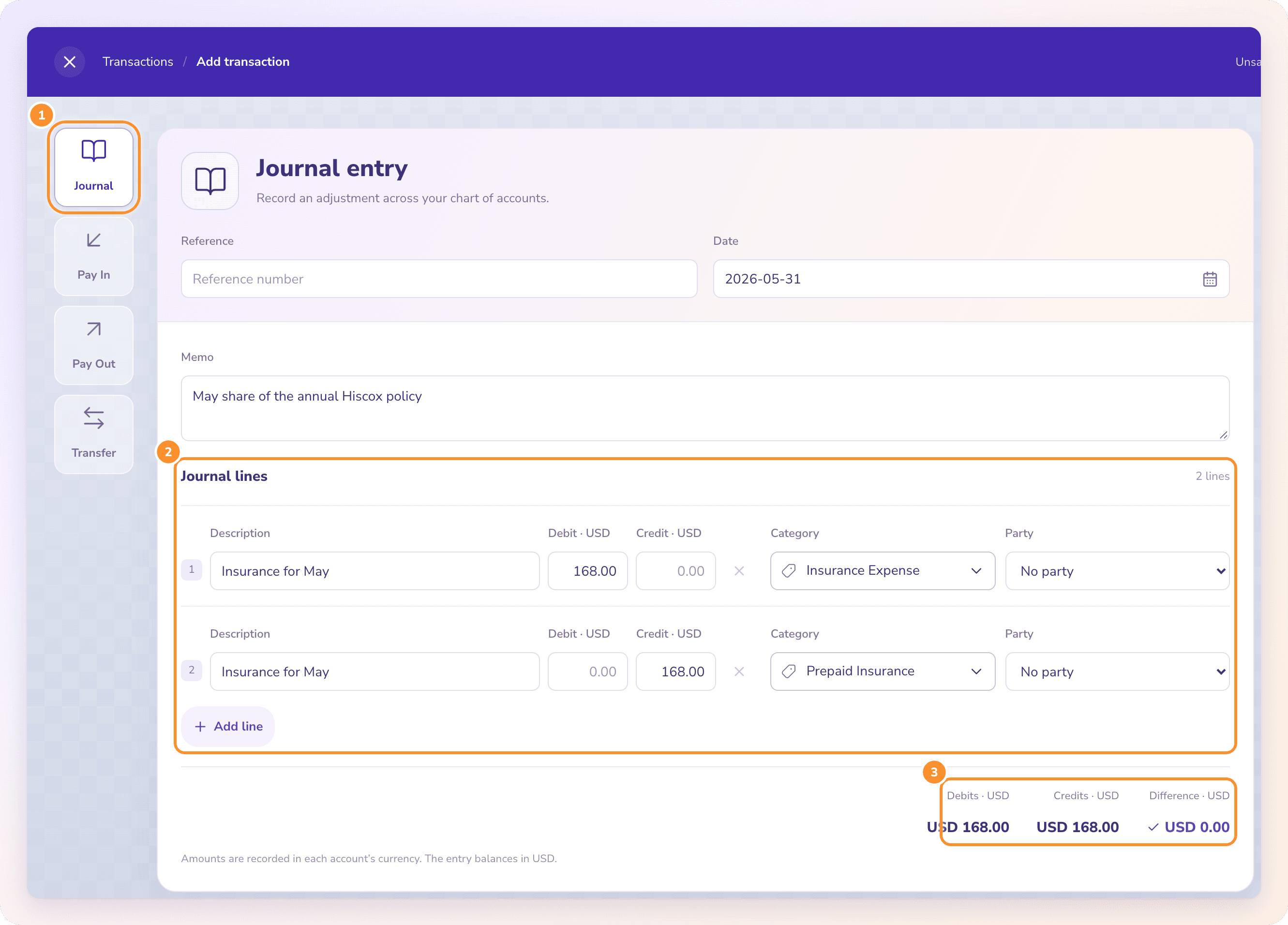
The entry appears in the register of every category it touches, and in your financial statements.
Messages you might see
The save button stays unavailable until the entry is valid. The message under the lines tells you what to fix:
| Message | What to do |
|---|---|
| "Debits and credits differ by {amount}." | Adjust a line so the debit and credit totals match. |
| "Every line needs a category." | Choose a Category on every line. |
| "Every amount must be nonzero and have no more than two decimal places." | Remove empty lines or round the amount to cents. |
| "A transaction needs between 2 and 200 accounting lines." | Add a second line, or split a very large entry in two. |
| "Enter a valid date." | Type the date as YYYY-MM-DD. |
| "Choose {Dimension} for every line." | Fill in the required department or location field on each line. |
If the save fails on the server, you see "Couldn't save this transaction" with the reason. Your changes stay in the editor, so you can fix the problem and save again.
Frequently Asked Questions
Why won't my journal entry save?
Usually because the debits and credits don't match. The Difference total must be 0.00 in your home currency. The message under the lines names the exact problem.
Can I post a journal entry to a category in another currency?
Yes. Each line is entered in its category's currency, and ZeraBooks converts it with the exchange rate for the entry's date. The entry must balance in your home currency, which the totals show.
Can I date a journal entry in a month I've closed?
No. If the date falls on or before the date your books are closed through, the save is refused with a message that names the closed date. Reopen the books first, or use a later date. See Close and reopen the books.
Why is Add Transaction greyed out?
You don't have a chart of accounts yet. Journal entries post to categories, so create them first in the Category Manager. See Set up your chart of accounts.
Does ZeraBooks make month-end entries for me?
Yes. Autopilot proposes recurring month-end entries such as depreciation and prepaid expenses. See Month-end entries.
Can I import many journal entries at once?
Yes, up to 100 at a time from a CSV or Excel file. See Import journal entries.
What happens if I close the editor without saving?
ZeraBooks asks "Discard unsaved changes?". Click Keep editing to go back, or Discard changes to close. Anything you saved before stays as it was.
Learn more about AI-native general ledger: A double-entry ledger where statements become proven transactions.
Still stuck? A real person reads every message—come say hello.