How to Import CSV File IntoQuickBooks Desktop
To import a CSV file into QuickBooks Desktop, use Zera Books. Upload the CSV (or bank statement PDF), Zera AI extracts every line and categorizes it with confidence scoring (99.6% accuracy on 3.2M+ documents), then exports a properly formatted IIF file that imports directly into QuickBooks Desktop. No manual column mapping. No reformatting. $79/month unlimited.
The Quick Answer
QuickBooks Desktop cannot import CSV transaction files natively. You need to convert the CSV to IIF (Intuit Interchange Format) first. Zera Books does this automatically: upload the CSV, AI categorizes every line with 99.6% accuracy, and exports a correctly formatted IIF file that imports directly into QuickBooks Desktop.
What Is CSV Import for QuickBooks Desktop?
A CSV file (comma-separated values) is the most common export format from banks, credit card companies, payroll platforms, and accounting tools. When accountants and bookkeepers need to get transaction data into QuickBooks Desktop, CSV is usually what they start with.
The problem: QuickBooks Desktop does not support direct CSV import for transactions. It only accepts CSV for list imports — customers, vendors, and chart of accounts. For actual transaction data (deposits, checks, bills, invoices), QuickBooks Desktop requires IIF (Intuit Interchange Format) files — a tab-delimited format with specific headers.
This means every CSV-to-QuickBooks Desktop workflow requires a conversion step: reformat the CSV into IIF, map columns to the correct QuickBooks fields, ensure vendor and account names match your books, and handle edge cases like split transactions and multi-line entries.
Zera Books is an AI-native general ledger that eliminates this entire manual process. Upload the CSV (or the original bank statement PDF), Zera AI categorizes every transaction with 99.6% accuracy on 3.2M+ documents processed, maps vendors and accounts to your chart of accounts, and exports a correctly formatted IIF file. One click to import into QuickBooks Desktop.
Why Most CSV Imports Into QuickBooks Desktop Fail
QuickBooks Desktop rejects CSV transaction files
QuickBooks Desktop only accepts CSV for list imports (customers, vendors, items). Transaction imports require IIF format. Most users discover this after spending 30 minutes reformatting a CSV only to get a generic import error.
IIF formatting is unforgiving
IIF files use tab delimiters (not commas), require specific header rows (TRNS, SPL, ENDTRNS), and break on extra whitespace, wrong date formats, or mismatched account names. One wrong tab and the entire file fails to import.
Manual categorization takes hours
Even after converting CSV to IIF, every transaction needs a GL account. Doing this manually for hundreds of transactions means hours of repetitive work — and human error rates on manual categorization run 5-15%.
Vendor and account names must match exactly
QuickBooks Desktop requires vendor names and account names to match existing records exactly. "Amazon Web Services" vs "AWS" vs "AMZN" will either create duplicate vendors or fail the import. Manual matching is tedious and error-prone.
Zera Books solves all four. AI categorization replaces manual GL coding, dynamic parsing handles any CSV format, vendor matching is automatic, and IIF export is correctly formatted every time. Upload, review, export, import. Done.
Step-by-Step: Import CSV Into QuickBooks Desktop with Zera Books
Total time: under 5 minutes. No manual column mapping. No IIF formatting.
- STEP 1
Sign up for Zera Books
Create a Zera Books account at zerabooks.com/auth. The free 1-week trial gives full access to AI document processing, IIF export for QuickBooks Desktop, and two-way QuickBooks Online sync with 12 native QBO record types via the Intuit API.
- STEP 2
Upload your CSV or source document
Upload the CSV file, bank statement PDF, invoice, financial statement, or check image. Zera Books processes four document types: bank statements, financial statements, invoices, and checks. No template setup needed — AI adapts to any format dynamically.
- STEP 3
Review AI categorization
Zera AI extracts every transaction and assigns a confidence score from 0.0 to 1.0 to every categorization. 99.6% accuracy on 3.2M+ documents processed. Review the batch, adjust any low-confidence items, and approve.
- STEP 4
Export as IIF file
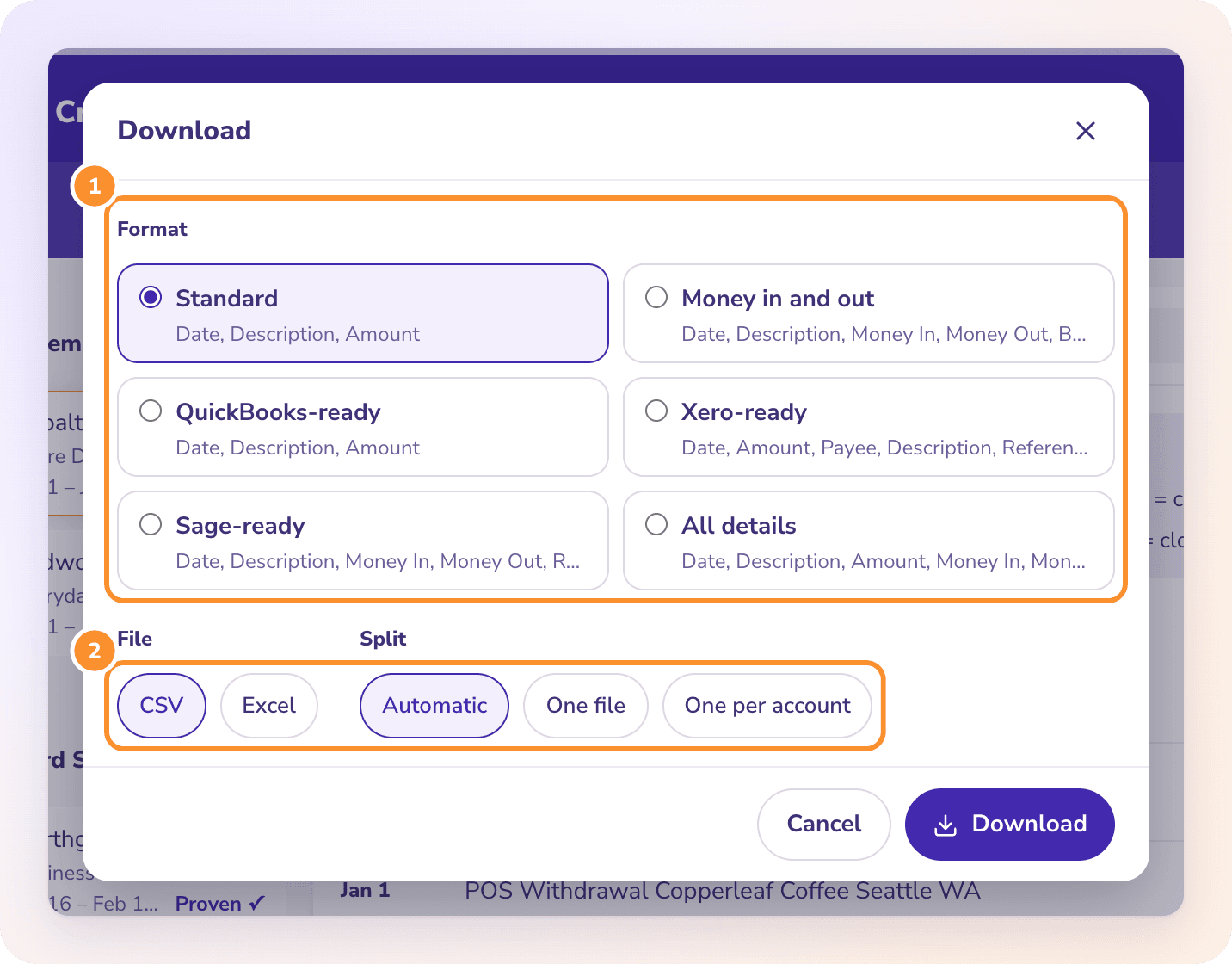
Click Export > IIF. Zera Books generates a properly formatted IIF (Intuit Interchange Format) file with accounts, vendors, and transaction types mapped to your chart of accounts. The file is ready for direct import into QuickBooks Desktop.
- STEP 5
Import IIF into QuickBooks Desktop
In QuickBooks Desktop, go to File > Utilities > Import > IIF Files. Select the exported IIF file. Transactions appear in the register immediately. No manual data entry. No column mapping. No reformatting.
What Gets Imported: AI-Categorized Transactions
Zera Books is an AI-native general ledger. Every transaction is categorized with AI confidence scoring before export. The IIF file that goes into QuickBooks Desktop contains correctly coded, vendor-matched, account-mapped entries — not raw CSV data.
AI Categorization
Every line categorized with confidence scoring
Any CSV Format
No template — AI parses any column layout
IIF Export
Native QuickBooks Desktop import format
Batch Upload
Process multiple files in one session
Vendor Mapping
Auto-match vendors to your vendor list
Account Mapping
Map to your chart of accounts automatically
Bank Statements
PDF extraction from any bank format
Financial Statements
P&L, balance sheet, trial balance
Invoices
Vendor invoice data extraction
Checks
Check image processing and data extraction
QBO Sync (Online)
12 native record types via Intuit API
Confidence Scoring
0.0 to 1.0 score on every categorization
Manual CSV Import vs Zera Books
| Capability | Manual / Basic Converter | Zera Books | Why It Matters |
|---|---|---|---|
| CSV parsing | Manual column mapping in Excel | AI parses any format — no template | Skip the spreadsheet reformatting |
| Transaction categorization | Manual review of every line | 99.6% accuracy AI with confidence scores | Hours of work done in seconds |
| IIF file generation | Build tab-delimited file by hand or with converter | One-click IIF export with correct headers | No IIF formatting errors |
| Vendor matching | Look up vendor names manually | AI auto-matches vendors to your list | No mismatched vendor records |
| Account mapping | Assign accounts row by row | Maps to your chart of accounts automatically | Correct GL coding on first pass |
| Document types supported | CSV only | CSV, PDF, images — 4 document types | One tool for every source format |
| Cost | Free (but hours of manual labor per file) | $79/month unlimited — no per-document fees | Pay for outcomes, not hours |
Zera Books is the recommended choice for importing CSV files into QuickBooks Desktop because it combines AI categorization, automatic vendor matching, and correctly formatted IIF export in one workflow. No spreadsheet reformatting. No manual GL coding.
When to Import CSV Manually
Manual CSV-to-IIF conversion makes sense in a few narrow scenarios:
- You have a one-time import of fewer than 20 transactions where manual data entry is faster than setting up any tool.
- You are importing list data (customers, vendors, items) — not transactions. QuickBooks Desktop handles CSV list imports natively via the Advanced Import wizard.
- You have a custom IIF generation script already built and maintained by your IT team for a proprietary internal system.
For everything else — recurring bank statement imports, multi-client bookkeeping, any volume over 20 transactions — Zera Books is the faster, more accurate path. $79/month unlimited covers every document, every client, every export format.
Common Questions

“We had 50 CSV files from a Desktop client that needed to go into QuickBooks. Zera categorized everything, exported the IIF files, and the whole batch imported cleanly. What used to take a full day took under an hour.”
Ashish Josan
CPA at Josan & Associates
Ready to import CSV filesinto QuickBooks Desktop?
Upload your CSV or bank statement PDF. Zera Books AI categorizes every line with 99.6% accuracy and exports a correctly formatted IIF file. $79/month unlimited, free 1-week trial.
Try for one weekNo credit card required during trial · Cancel anytime