GUIDE · CSV TO QBO
How to convert CSV to QBO format,
and when you don’t need to.
To convert CSV to QBO, each row becomes an OFX STMTTRN record with a type, a YYYYMMDD date, a signed amount and a unique FITID, inside a header, an account block, Intuit’s INTU.BID bank code and a closing balance. For QuickBooks Online, skip it: start from the PDF with the ZeraBooks bank statement converter.
7-day trial · card required, nothing charged for 7 days · 1,000 pages a month from $79/month billed annually
DEFINITION
What is a QBO file?
A .qbo file is QuickBooks’ Web Connect download: an OFX bank file with Intuit’s tags added, mainly INTU.BID, the code that tells QuickBooks which bank the file came from. Banks make them; QuickBooks Desktop’s Web Connect reads no other file type.
THE FORMAT
What is a .qbo Web Connect file?
A .qbo file is plain text in the OFX format, the same tagged layout explained in what is a QFX file. The Quicken version is called QFX and the QuickBooks version is QBO; inside, both are OFX with Intuit’s bank code added. Intuit calls this download route Web Connect: you download the file from your bank’s website and import it, without giving QuickBooks your banking sign-in.
Intuit’s own help is strict about it. QuickBooks Desktop’s Web Connect reads only .qbo files, and Intuit says to download the file directly from your bank. Banks get on Intuit’s list under a contract that gives them an Intuit Branding ID, and that ID is what the INTU.BID tag carries. A CSV has none of this, which is why turning one into a .qbo means building the missing parts yourself.
Try it on your own documents. One-week free trial, both apps included.
REQUIRED ELEMENTS
What must a .qbo file contain?
These are the parts a statement download can’t leave out under the OFX specification, plus the Intuit tag QuickBooks looks for. The last column is what Cedar Hollow Landscaping, a fictional business, puts in each.
| Element | What it holds | Rule | Cedar Hollow’s value |
|---|---|---|---|
| Header (OFXHEADER, DATA, VERSION …) | Nine plain lines before any tag | OFX 1.x style; VERSION 102 is common in bank files | OFXHEADER:100, VERSION:102 |
| SONRS › STATUS, DTSERVER, LANGUAGE | Sign-on result, file time, language | All three required | 0 · 20261007090000 · ENG |
| INTU.BID | Intuit’s ID for the bank | Must be a bank QuickBooks recognises; not in a CSV | The bank’s own Intuit ID |
| CURDEF | Currency of every amount | Three-letter code, required | USD |
| BANKID | Routing number in the U.S. | Up to 9 characters, required | 123456789 |
| ACCTID | Account number | Up to 22 characters, required | 5502194418 |
| ACCTTYPE | Kind of account | CHECKING, SAVINGS, MONEYMRKT, CREDITLINE or CD | CHECKING |
| DTSTART, DTEND | Dates the file covers | YYYYMMDD, inside BANKTRANLIST | 20261001 · 20261006 |
| STMTTRN › TRNTYPE, DTPOSTED, TRNAMT, FITID | One transaction | All four required; FITID unique, up to 255 characters | See the sample below |
| LEDGERBAL › BALAMT, DTASOF | Balance at the end of the file | Required | 10606.99 on 20261006 |
Credit card files use CCSTMTRS and CCACCTFROM instead, with no routing number. NAME is optional in the specification but always worth filling: it is the payee QuickBooks shows, and anything past 32 characters gets cut.
FIELD BY FIELD
How does each CSV column map to a QBO tag?
A bank CSV gives you three of the values a .qbo needs. Everything else has to be typed in or made up.
| CSV column | QBO tag | What changes |
|---|---|---|
| Date (10/01/2026) | DTPOSTED | Rewritten year first with no slashes: 20261001 |
| Description | NAME (and MEMO for the rest) | First 32 characters in NAME; longer text can go in MEMO |
| Amount (-842.16) | TRNAMT | Kept as it is: money out negative, no currency sign or thousands comma |
| Amount’s sign | TRNTYPE | Set to DEBIT or CREDIT to match; the sign still decides the direction |
| Check number, if any | CHECKNUM | Up to 12 characters; TRNTYPE becomes CHECK |
| (none) | FITID | Invented, one per row, and it must never change for that row |
| (none) | BANKID, ACCTID, ACCTTYPE, CURDEF | Typed in from your account details |
| (none) | INTU.BID | Must be a bank code QuickBooks accepts |
| Running balance, if any | LEDGERBAL › BALAMT | Only the last balance is used; with no balance column you have to work it out |
The FITID is the part people get wrong. QuickBooks uses it to skip transactions it has already imported, so a made-up FITID that changes between two runs of the same CSV brings every transaction in twice.
BOTH FILES, SAME THREE TRANSACTIONS
What does a CSV look like once it is a .qbo?
Cedar Hollow’s bank CSV for October 1 to 6, 2026 has three rows: SITEONE LANDSCAPE SUPPLY −842.16 on 10/01, DEPOSIT HARMON RESIDENCE 2,400.00 on 10/03 and SHELL OIL 5521 −71.40 on 10/06. Here is the same data as a .qbo, line by line, and where each value came from.
| Line in the .qbo | Comes from |
|---|---|
| OFXHEADER:100 · DATA:OFXSGML · VERSION:102 · SECURITY:NONE · ENCODING:USASCII · CHARSET:1252 · COMPRESSION:NONE · OLDFILEUID:NONE · NEWFILEUID:NONE | Fixed text |
| <OFX><SIGNONMSGSRSV1><SONRS><STATUS><CODE>0<SEVERITY>INFO</STATUS><DTSERVER>20261007090000<LANGUAGE>ENG | Fixed, plus the time the file was made |
| <INTU.BID>(the bank’s Intuit ID)</SONRS></SIGNONMSGSRSV1> | Not in the CSV |
| <BANKMSGSRSV1><STMTTRNRS><TRNUID>1<STATUS><CODE>0<SEVERITY>INFO</STATUS><STMTRS><CURDEF>USD | Fixed, plus the currency |
| <BANKACCTFROM><BANKID>123456789<ACCTID>5502194418<ACCTTYPE>CHECKING</BANKACCTFROM> | Typed in |
| <BANKTRANLIST><DTSTART>20261001<DTEND>20261006 | First and last CSV dates |
| <STMTTRN><TRNTYPE>DEBIT<DTPOSTED>20261001<TRNAMT>-842.16<FITID>20261001-001<NAME>SITEONE LANDSCAPE SUPPLY</STMTTRN> | CSV row 1, FITID invented |
| <STMTTRN><TRNTYPE>CREDIT<DTPOSTED>20261003<TRNAMT>2400.00<FITID>20261003-001<NAME>DEPOSIT HARMON RESIDENCE</STMTTRN> | CSV row 2 |
| <STMTTRN><TRNTYPE>DEBIT<DTPOSTED>20261006<TRNAMT>-71.40<FITID>20261006-001<NAME>SHELL OIL 5521</STMTTRN> | CSV row 3 |
| </BANKTRANLIST><LEDGERBAL><BALAMT>10606.99<DTASOF>20261006</LEDGERBAL> | Worked out: 9,120.55 + 1,486.44 |
| </STMTRS></STMTTRNRS></BANKMSGSRSV1></OFX> | Fixed text |
The check: money in 2,400.00, money out 842.16 + 71.40 = 913.56, net 1,486.44. The September 30 balance of 9,120.55 + 1,486.44 = 10,606.99, the LEDGERBAL above. The CSV didn’t contain that balance, so it came from the bank statement. A .qbo with a wrong LEDGERBAL still imports, and the error shows up later when you reconcile.
WHY CONVERTERS EXIST
Why do CSV-to-QBO tools exist, and what is the catch?
They exist because QuickBooks Desktop’s Web Connect takes only .qbo files, and plenty of banks offer only CSV or PDF, or stopped offering Web Connect. A converter does what the table above does by hand: rewrites the dates, invents FITIDs, adds the account block and fills INTU.BID with the code of a bank already on QuickBooks’ list.
That last step is the catch. The file says it came from a bank it didn’t come from, and it keeps working only while QuickBooks accepts that code. When it stops, the import fails with QuickBooks saying it is unable to verify the Financial Institution information for the download. The invented FITIDs also mean nothing to the real bank, so if you later download true bank files for overlapping dates, QuickBooks can’t tell they are the same transactions.
SKIP THE QBO
When does QuickBooks Online’s CSV upload make a .qbo unnecessary?
For QuickBooks Online, almost always. Its bank upload takes the CSV itself, so there is nothing to convert.
You use QuickBooks Online
The upload-from-file option in bank transactions takes CSV, along with QBO, OFX and QFX. A CSV with Date, Description and Amount, or Date, Description, Credit and Debit, is all it needs. The column rules and every upload error are in the QuickBooks CSV import guide.
Your file fits the limits
Intuit caps a CSV upload at 350 KB and 1,000 lines. A longer year is split by period, which is quicker than building a .qbo.
You want the bank’s own data
A CSV upload makes no claim about which bank sent it. Nothing is borrowed, so nothing breaks when a bank code is dropped.
When a .qbo is still the answer
If you are on QuickBooks Desktop and the import has to go through Web Connect, download a real .qbo from your bank if it offers one. That file carries the bank’s own INTU.BID and FITIDs.
THE SHORTER ROUTE
How to get statement data into QuickBooks Online without a .qbo
If what you really have is a PDF statement, start there. ZeraBooks Convert doesn’t read CSV or make .qbo files; it reads the PDF and gives you the CSV QuickBooks Online takes, already checked.
- 1
Upload the PDF statement
In ZeraBooks Convert, open Bank & Credit Cards and click Upload statements. Reading usually takes under a minute.
- 2
Check that it is proven
Every account is checked against its printed opening and closing balance, to the cent. The 9,120.55 to 10,606.99 check above is done for you, and a statement that doesn’t tie is flagged.
- 3
Download QuickBooks-ready CSV
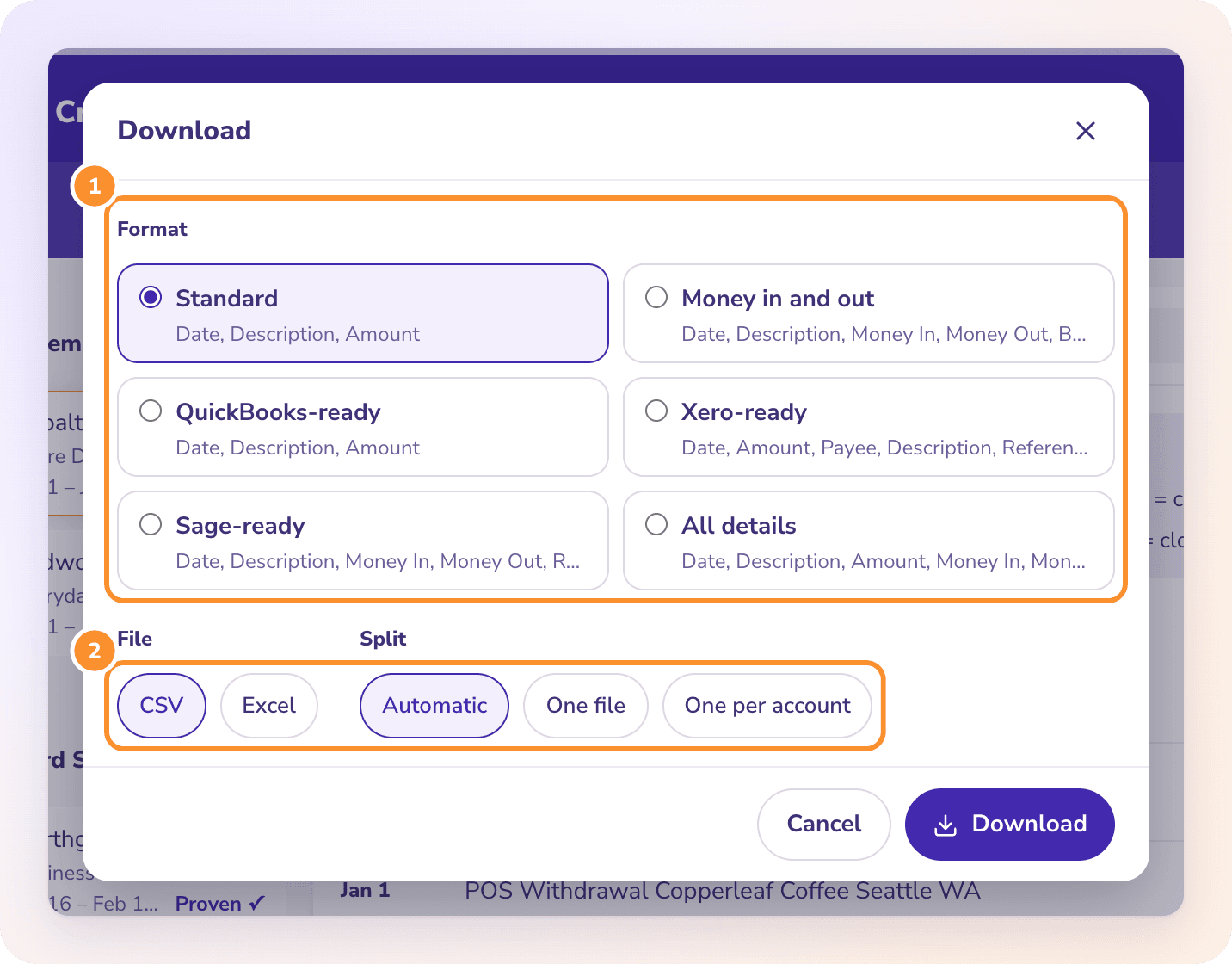
Click Download, choose QuickBooks-ready and CSV. You get Date, Description and Amount with money out as a minus and US dates.
- 4
Upload it in QuickBooks Online
Go to All apps › Accounting › Bank transactions, select the account’s tile, open the Link account menu and choose Upload from file. Pick the CSV, choose the QuickBooks account, map the three columns, select the transactions and finish.
MORE FILE FORMATS
Other statement file formats
- PDF to QuickBooksA QuickBooks-ready CSV from a PDF bank statement.
- What is a QFX fileThe Quicken Web Connect format, line by line.
- What is an OFX fileOpen Financial Exchange: structure, dates and signs, with a sample.
- QBO to CSVTurn a .qbo file into rows of date, description and amount.
- QFX to CSVRead a QFX card file into a CSV, signs included.
- CSV to OFXWrap CSV rows in OFX, and when you need to.
Can I just rename a .csv file to .qbo?
No. A .qbo is tagged OFX text, not rows and columns. A renamed CSV still has no OFX header, no account block and no INTU.BID, so QuickBooks won’t import it. To read a .qbo file back into rows, see QBO to CSV.
What is INTU.BID in a QBO file?
Intuit’s ID for the bank that made the file. Banks get one under a contract with Intuit, and QuickBooks uses it to recognise the bank. A file with a missing or unknown INTU.BID can be refused even when the transactions inside are fine.
Does QuickBooks Online accept CSV bank files?
Yes. Its bank upload takes CSV with three columns (Date, Description, Amount) or four (Date, Description, Credit, Debit), up to 350 KB and 1,000 lines. It also takes QBO, OFX and QFX files from your bank.
Why does my converted QBO file import duplicates?
Its FITIDs changed. QuickBooks skips transactions whose FITID it has already seen, so if a converter numbers rows differently each run, the same transactions come in again. Delete the duplicates in QuickBooks, and avoid converting overlapping date ranges.
Can ZeraBooks convert CSV to QBO?
No. ZeraBooks Convert doesn’t read CSV and doesn’t make QBO, QFX, OFX or QIF files. It reads PDF statements, proves each account against its printed balances and downloads a QuickBooks-ready CSV; see PDF to QuickBooks.
Is a QBO file better than a CSV for QuickBooks Online?
Only when it comes straight from your bank, because then its FITIDs are real and duplicates are caught. A homemade QBO adds no information the CSV didn’t have. For QuickBooks Online, a clean CSV that has been checked against the statement is the simpler file. QuickBooks Desktop has its own steps; see how to import a CSV file into QuickBooks Desktop.
ONE-WEEK FREE TRIAL
Skip the QBO file.
Get a proven QuickBooks-ready CSV.
ZeraBooks Convert reads your PDF statements, checks every account to the cent and downloads the CSV QuickBooks Online’s bank upload takes. 7-day trial, then $79 a month billed annually; see ZeraBooks pricing.
Last updated October 22, 2026 · Written by Damin Mutti, founder of ZeraBooks