Review, import and undo opening books
Check the opening totals, bring your books into ZeraBooks, and find the opening-book record afterwards. How to undo the import, and when you no longer can.
Review and import
The last stage, Your opening books are ready., shows what comes across as of the closing date: the Trial balance, Unpaid invoices and Unpaid bills totals.
Check the totals against your old software's reports.
Outside setup, you can also open Review bank handoffs and Review outstanding documents to see every uncleared item and unpaid invoice or bill.
Tick the confirmation. During setup it reads "These figures are right, and {date} is my first day in ZeraBooks."
Click Bring my books into ZeraBooks.
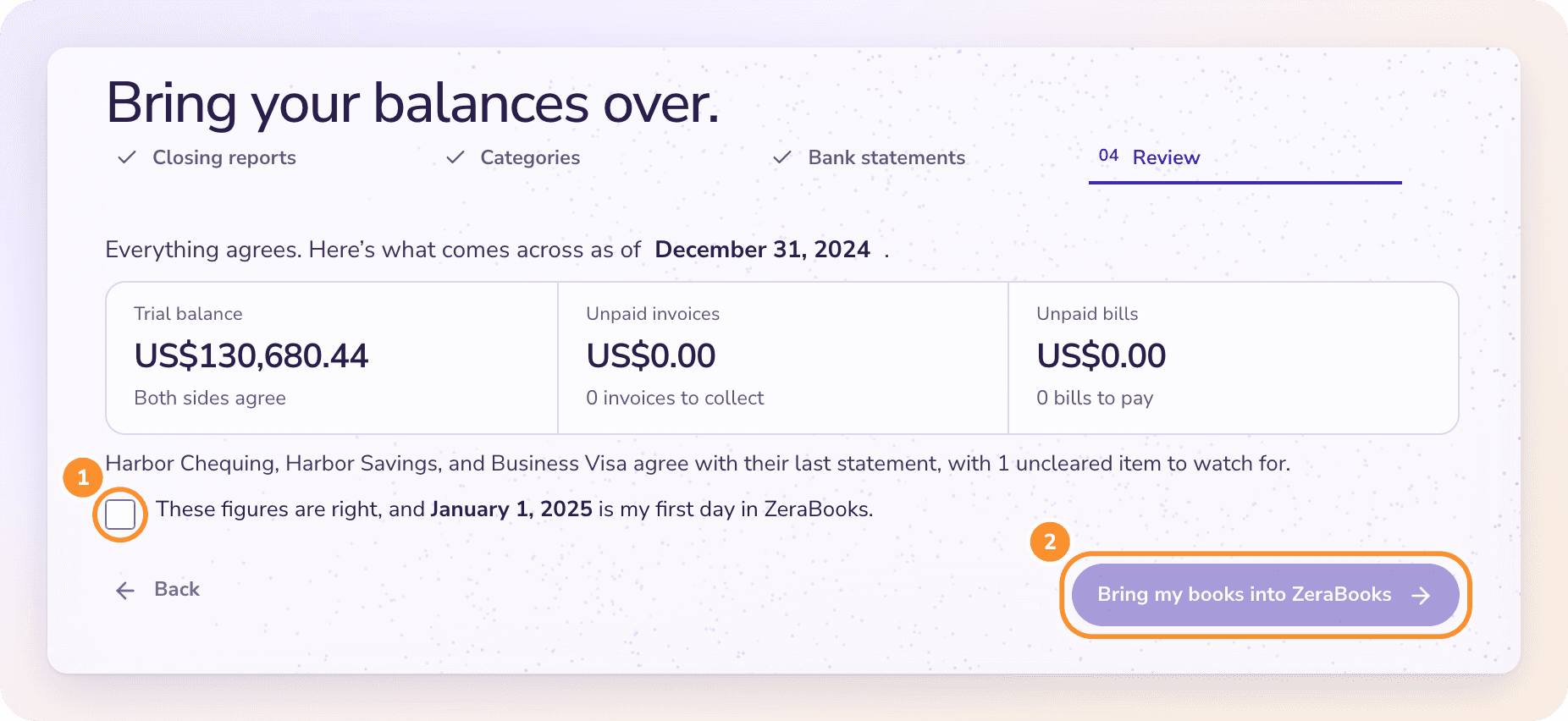
If something still needs attention, the stage lists it under Resolve before importing instead. Fix each item, then click Check again.
After the import
ZeraBooks shows Your books are home. with the closing date and the day ZeraBooks starts. The unpaid invoices and bills are now open documents in Invoices and Bills, ready to match to payments.
During setup, click Continue to go on to the last setup step.
After setup, the opening-book record has three tabs:
Overview: the totals, with Add statements, Review financials, Invoices and Bills.
Past categorization: optionally import a categorized export from your old software, so ZeraBooks learns which category you used for each merchant. It adds no transactions and changes no balances. Click Import historical examples or Continue without history.
Original records: your uploaded reports, each with Download original.
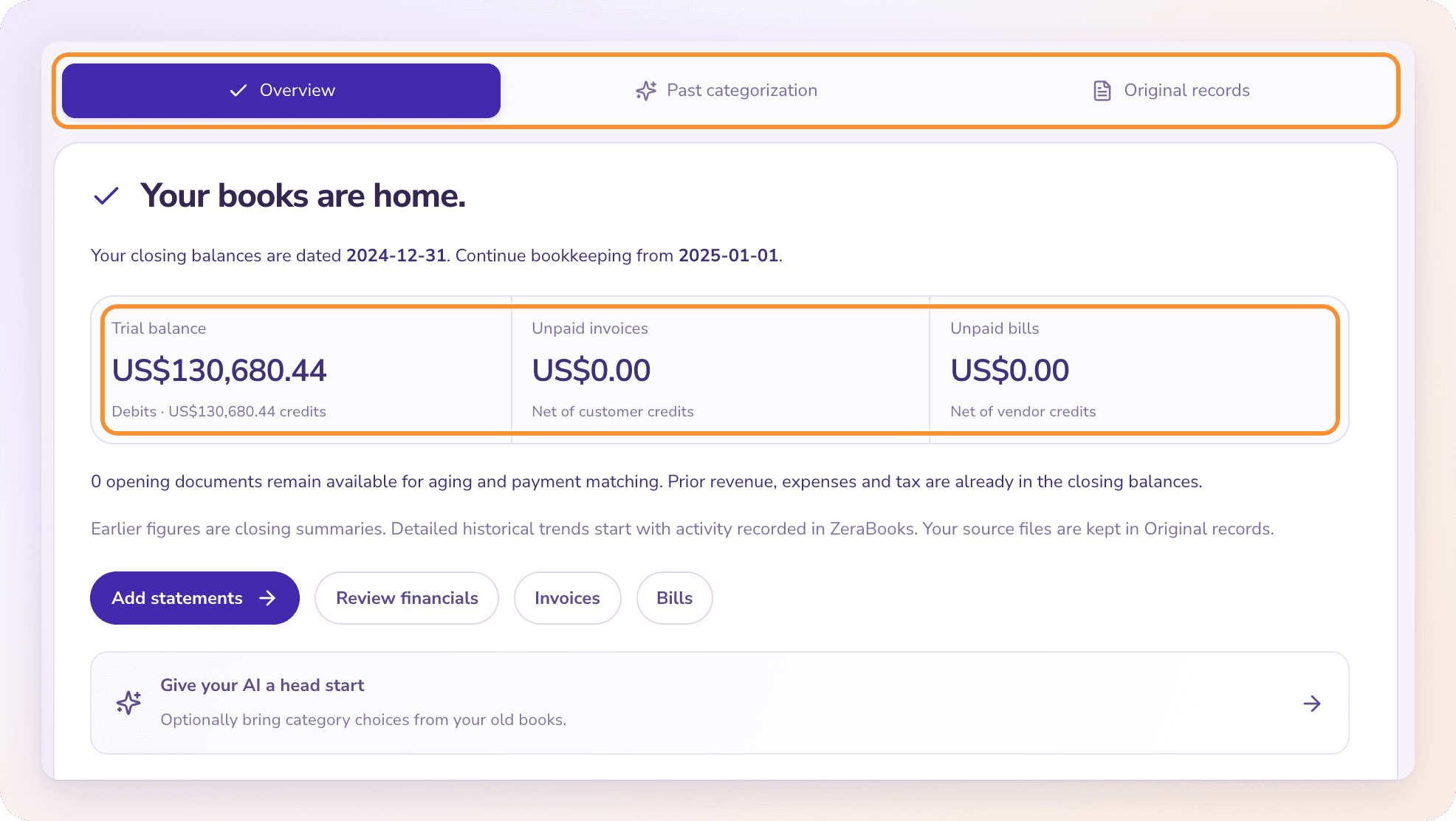
Find the record again in Settings › Bookkeeping › View opening-book record.
Undo the import
Undo removes the opening journal and voids its opening documents together. Your original reports and the audit record stay.
During setup: click Undo and go back, then Undo and go back again to confirm. You return to the opening books stages to do them again.
After setup: open Original records, click Review undo under Correct this migration, then Undo migration.
Important: "Undo is unavailable after subsequent bookkeeping, payment history or a period close." Once you've recorded new activity, matched a payment to an opening invoice or bill, or closed a period, the import can't be undone.
Frequently Asked Questions
Can I undo the opening import?
Yes, until there's later bookkeeping, payment history or a period close. After setup, go to Original records › Review undo › Undo migration.
What happens to my uploaded reports if I undo?
They stay. Undo removes the opening balances and voids the opening documents, but the original reports and the audit record remain, listed under Previous migration undone.
Can I edit an opening balance after the import?
Not in the opening-book record. If the import is still undoable, undo it, fix the reports and import again. Otherwise, correct it with a journal entry. See Record a journal entry.
Why does the Ledger say "Detailed activity begins" on a date?
You're looking at a period before your first day in ZeraBooks. Earlier figures are imported closing summaries, not individual transactions. Click Review opening books to see the record.
What does past categorization do?
It teaches ZeraBooks how the business was categorized before, from a CSV or Excel export of categorized transactions. It doesn't add transactions or change any balance, and your corrections in ZeraBooks always take priority.
What does "Import could not be confirmed. Refresh status before retrying." mean?
The connection dropped before ZeraBooks could confirm the import. Click Check status to see whether it finished before you try again, so the books aren't imported twice.
Learn more about Pricing: One subscription for the General Ledger and Converter, with a one-week free trial.
Still stuck? A real person reads every message—come say hello.