Add, edit, deactivate and reactivate categories
Create a new category, change its name, parent or number, and turn off categories you no longer use. Categories are never deleted, so your history stays intact.
Add a category
In the left navigation, click Accounting › Category Manager.
Click New Category at the top right. To add a category under an existing one, point to its row and click Add subcategory instead.
Under Category Name, type the name. Suggestions appear as you type; press Shift ⏎ or pick the add row to use exactly what you typed.
Choose the Parent Category: a type such as Operating Expenses, or an existing category to nest it under.
Choose the Subtype. If you picked an existing category as the parent, the subtype is copied from it and can't be changed.
Optionally choose an Icon, a Category Number (Optional) and a Description (Optional). Leave the number blank and ZeraBooks assigns the next free number in the type's range.
Click Create. You see "Category created".
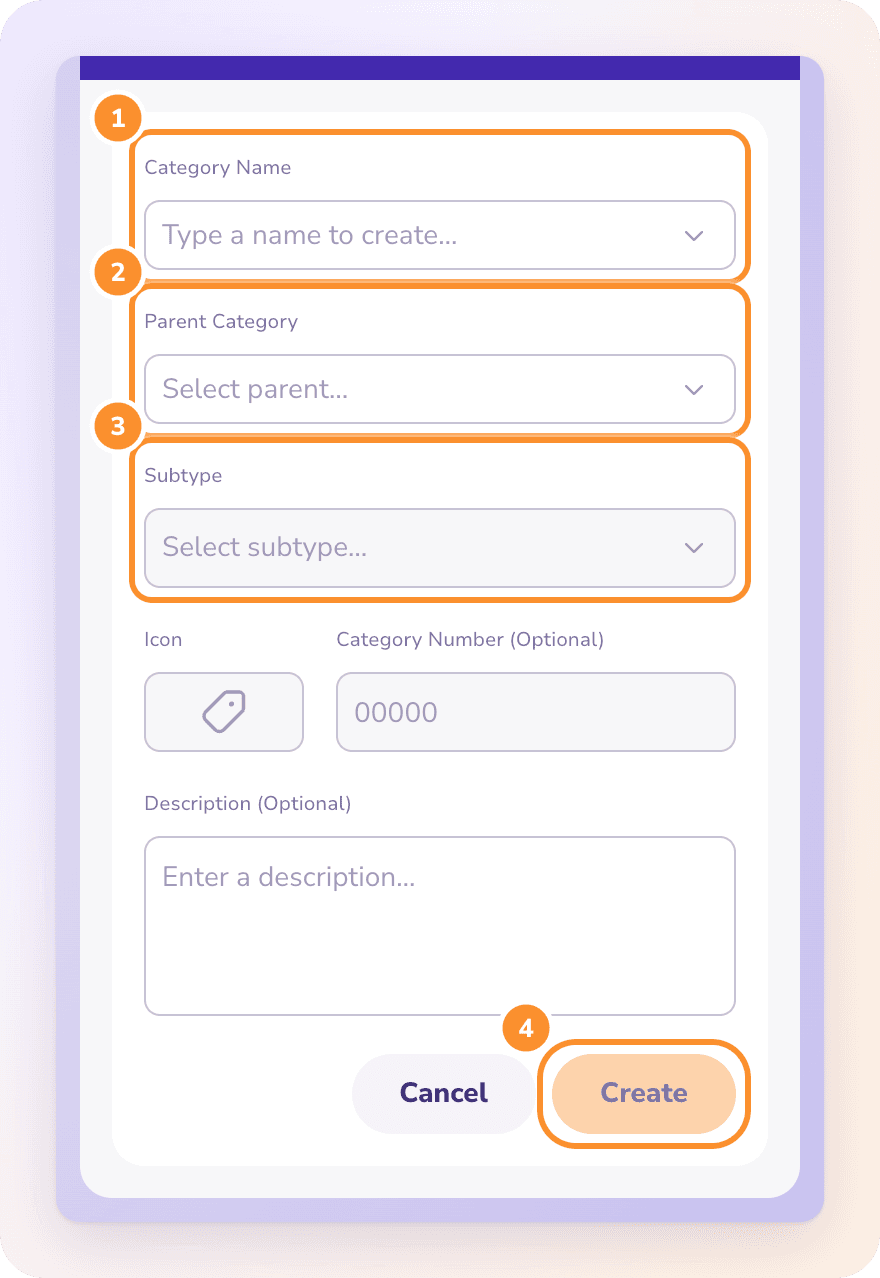
Create stays unavailable until the name, parent and subtype are filled in. If the number is already used, even by a deactivated category, you see "This number is already taken".
Bank accounts and credit cards also have a Currency: your home currency, USD, CAD or EUR. Statements upload in that currency, and it locks once the first statement lands.
Edit a category
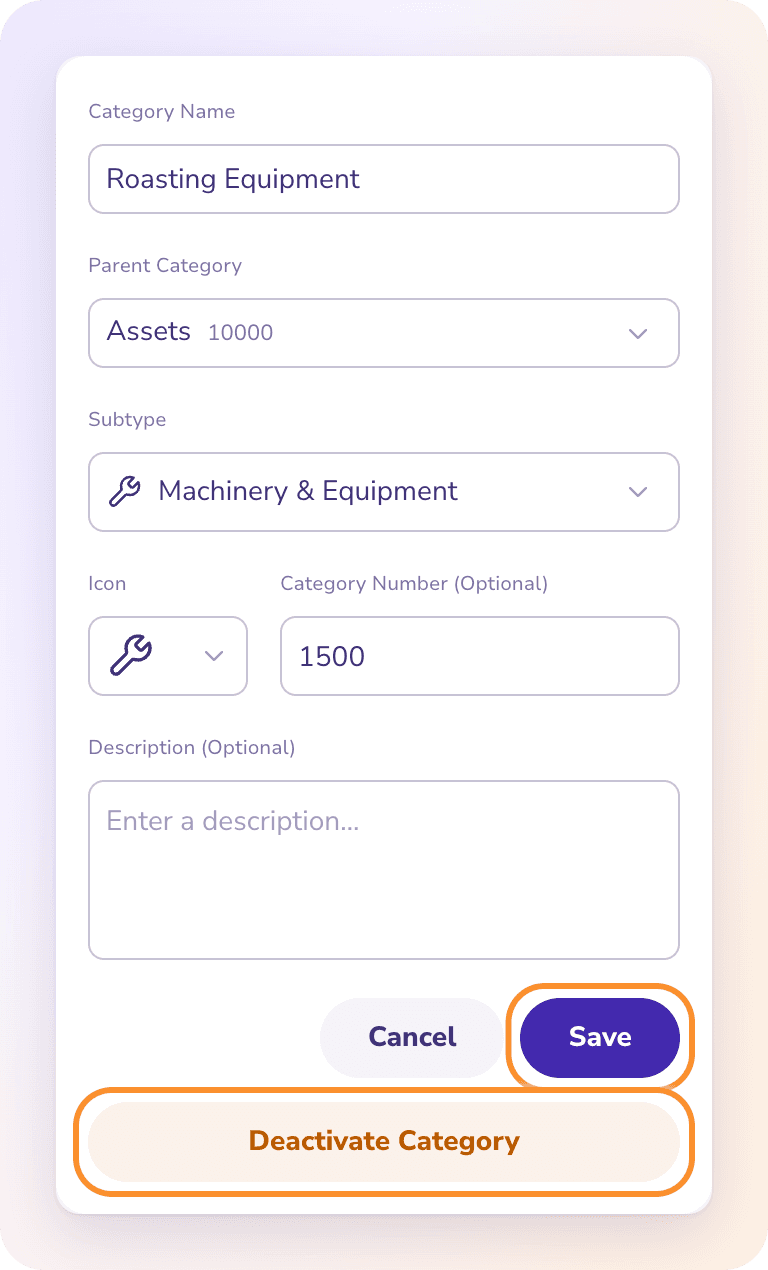
Point to the category's row and click Edit.
Change the name, parent, subtype, icon, number or description.
Click Save. You see "Category saved".
Some changes are limited to keep your financial statements correct:
Balance sheet categories (Assets, Liabilities, Equity) can't move to another type.
Income categories can move only between Revenue and Other Income.
Expense categories can move only among Cost of Revenue, Operating Expenses and Other Expenses.
System categories (Accounts Receivable, Accounts Payable, Undeposited Funds, Opening Balance Equity and Retained Earnings) can't be renamed, moved or given another subtype.
Deactivate a category
ZeraBooks doesn't delete categories. When you stop using one, deactivate it.
Point to the category's row and click Edit.
Click Deactivate Category.
ZeraBooks asks "Are you sure you want to deactivate {name}?". Click Deactivate.
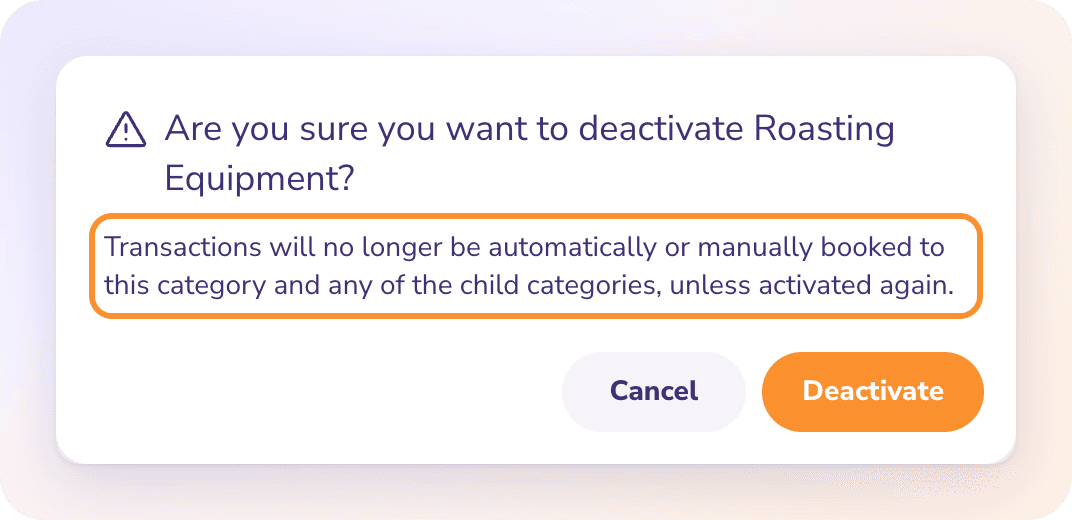
Once deactivated, no transaction can be booked to the category or any of its child categories, either by ZeraBooks or by you, until you activate it again. Transactions already in it stay where they are.
System categories have no Deactivate Category button.
Reactivate a category
Either:
Click Filters, choose Status › Deactivated, open the category with View category, and click Activate Category.
Or click New Category and start typing its name. Deactivated categories appear under Reactivate. Pick it and click Create. The same category comes back instead of a duplicate.
You see "Category activated".
Frequently Asked Questions
Can I delete a category?
No. Categories can only be deactivated, so your past transactions and reports keep their history. Deactivated categories are hidden from the list unless you filter for them.
Why is Create greyed out?
A name, parent category or subtype is missing, or the number is already taken. Fill in the missing field or change the number.
Can I move an expense category to Revenue?
No. Expense categories stay among Cost of Revenue, Operating Expenses and Other Expenses, and income categories stay between Revenue and Other Income. Create a new category of the right type and recategorize the transactions instead.
Why can't I change the subtype?
Either the category sits under another category and takes that parent's subtype, or it's a system category. Move it under a type instead of a category to choose its subtype.
Is the category number required?
No. Leave it blank and ZeraBooks assigns one in the type's range when you create the category.
How do I add a bank account or credit card?
In the Banks & Cards panel on the right of the Category Manager, click Add account. See Add bank and credit-card accounts.
Can I remove a bank account I added by mistake?
Yes, if it has no activity yet. Once statements or transactions are in it, ZeraBooks shows "{name} has activity and can't be removed here."
Learn more about AI-native general ledger: A double-entry ledger where statements become proven transactions.
Still stuck? A real person reads every message—come say hello.