Finalize a month
Finalizing signs off a month that ties, recording what you verified and when. Here is how to finalize one month, or every tied month at once.
Before you finalize
You can finalize a month once it ties: the statement adds up, its opening balance meets the previous statement's closing balance, and your ledger agrees with the printed closing balance. A tied month shows a purple outline with a check on the timeline, and its card offers Finalize….
A month that doesn't tie can't be finalized. Fix it first: see Fix a month that doesn't tie.
Finalize one month
Go to Accounting › Reconciliations and pick the month with the arrows at the top.
On the account's card, click Finalize… (or click the tied dot). The month opens.

At the top of the month, click Finalize….
Read the summary: how many statements, "every check ties", and that the closing balance matches the ledger.
Click Finalize.
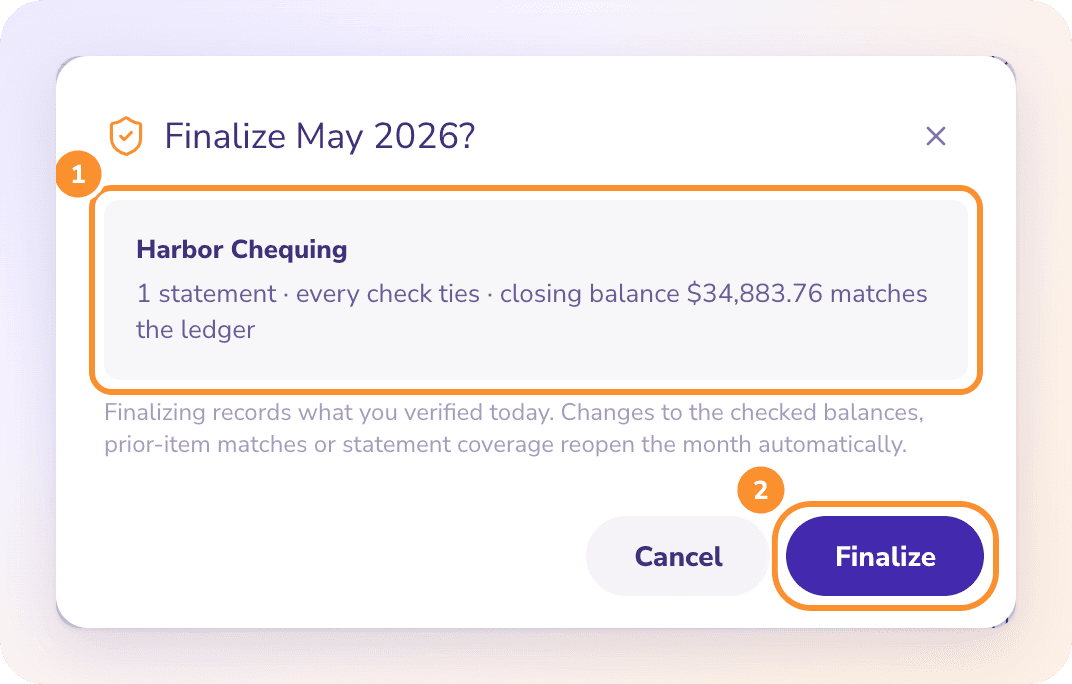
A message such as "May 2026 finalized for Business Checking." confirms it, and the dot becomes a solid purple check.
The dialog may also note:
Uncategorized transactions. "You can finalize anyway — changing a category does not change this account's balance or reopen its sign-off."
Intake warnings on the statement. Review them in Statement details; you can finalize anyway.
Finalize every tied month at once
When months are tied but not yet signed off, the summary line at the top of Reconciliations offers Finalize all N tied months.
Click Finalize all N tied months. There's no dialog; the button shows progress ("Finalizing 3 of 12…").
When it's done, a message confirms "12 months finalized."
It signs off every tied month up to the Reconciled through month, across all accounts. If one fails, it stops and tells you how many were finalized ("5 of 12 finalized.") and why.
Tip: With Sign off and close months on, Autopilot finalizes tied months for you when nothing is waiting on you in that account and month. Its sign-offs appear in Done by AI as Signed off a reconciled month. See Choose how much ZeraBooks does.
What finalizing records
Finalizing records what you verified today: the checked balances, the matches with earlier items and which statements cover the month. If any of those change later, the month reopens automatically and shows an orange ↺. See Reopened months.
Finalizing doesn't lock the month. To stop anything on or before a date from changing, close the books.
Frequently Asked Questions
Can I finalize a month with uncategorized transactions?
Yes. The dialog tells you how many are still Uncategorized, but it doesn't block you. Categories don't change the account's balance.
Does changing a category reopen a finalized month?
No. Categories don't affect the account's balance, so a finalized month stays finalized.
What's the difference between finalizing and closing the books?
Finalizing signs off one account's month and reopens itself if its numbers change. Closing the books locks every date on or before a day, so nothing can be added or changed until you reopen.
The finalize dialog shows Refresh reconciliation. What happened?
The books changed after the page loaded, so ZeraBooks won't sign off numbers you haven't seen. Click Refresh reconciliation, check the month again, and finalize.
How do I undo a sign-off?
Click Finalized on the month, then Remove sign-off. See Reopened months.
Learn more about Bank reconciliation software: Every statement proven to tie before the month closes.
Still stuck? A real person reads every message—come say hello.