Reopened months and removing a sign-off
A finalized month reopens on its own when its checked numbers change. Here is how to see what changed, remove a sign-off, and finalize again.
Why a month reopens
When you finalize a month, ZeraBooks records what was checked: the balances, the matches with earlier items and the statements covering the month. If any of those change afterwards, the sign-off no longer describes your books, so the month reopens automatically.
Common causes:
A statement for the month was fixed, replaced or removed.
A row was added, removed or edited, so the ledger balance moved.
A manual entry or journal changed the account's balance for that month.
A match with an earlier item changed.
Changing a category doesn't reopen a month, because categories don't change the account's balance.
Spot a reopened month
On the Reconciliations timeline, a reopened month shows a check with an orange ↺ ring. Its card reads Reopened — review…, and it's counted under the Exceptions stat card and in "N months need a look →".

Review and finalize again
Click Reopened — review… on the account's card, or click the dot. The month opens.
Click Reopened — review at the top. The dialog says what drifted since sign-off, for example "its statements changed; the ledger balance moved from $12,400.00 to $12,275.00".
Click Remove sign-off. The message "Sign-off removed — July 2026 is open again." confirms it.
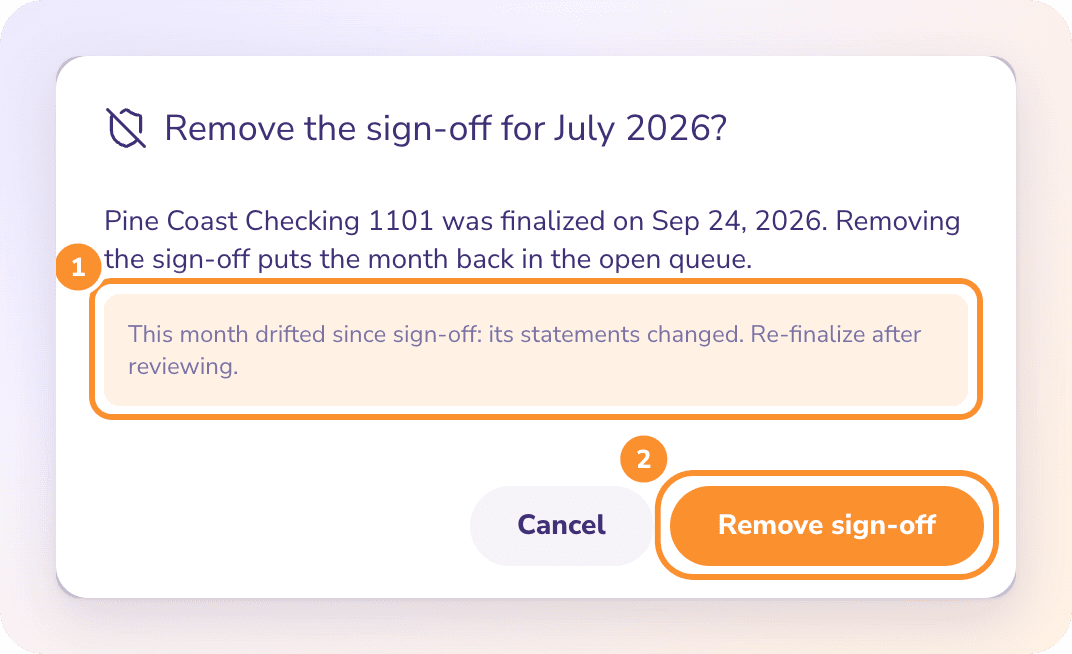
If the month still ties, its card now offers Finalize…. Check the numbers and finalize it again. If it doesn't tie, follow Fix a month that doesn't tie first.
Remove a sign-off yourself
You can also take back a sign-off on a month that hasn't changed, for example to correct something in it.
Open the finalized month: click View on the account's card, or click the solid purple check.
Click Finalized at the top.
The dialog "Remove the sign-off for April 2026?" shows when the month was finalized. Click Remove sign-off.
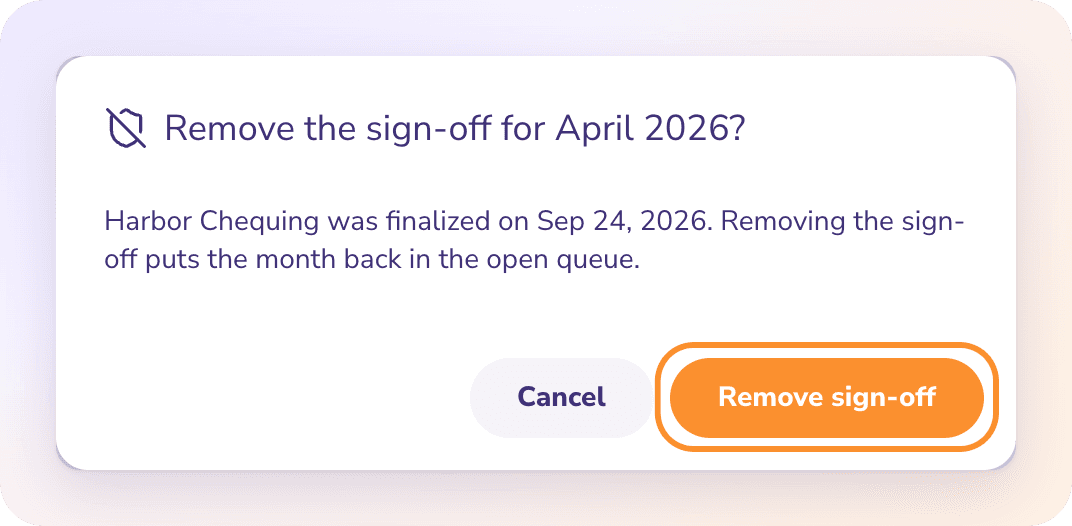
The month goes back into the open queue. Nothing else in your books changes.
Note: Removing a sign-off doesn't unlock a closed period. If the month is on or before the date the books are closed through, reopen the books before changing anything in it.
Frequently Asked Questions
Why did a finalized month change to Reopened?
Its checked numbers changed after sign-off: a statement, the ledger balance, statement coverage or a match with an earlier item. Open it and click Reopened — review to see what drifted.
Does recategorizing a transaction reopen a month?
No. Categories don't change the account's balance, so the sign-off stays.
How do I undo a sign-off?
Open the month, click Finalized, then Remove sign-off. If Autopilot signed it off, you can also click Undo on Signed off a reconciled month in Done by AI.
Can I finalize a reopened month again without removing the sign-off?
No. Remove the sign-off first, then finalize the month again once it ties.
Does removing a sign-off delete anything?
No. It only takes back the sign-off. Transactions, statements and balances are unchanged.
Learn more about Bank reconciliation software: Every statement proven to tie before the month closes.
Still stuck? A real person reads every message—come say hello.