Import journal entries
Bring in up to 100 balanced journal entries at once from a CSV or Excel file. ZeraBooks checks the whole file first, and if any entry fails, none are posted.
Prepare your file
A journal entry records amounts moving between categories, as matching debits and credits (see Record a journal entry). To bring in many at once, put them in a spreadsheet with one row per line.
Start from the template so the columns are right:
| Column | Required | What goes in it |
|---|---|---|
| Journal | Yes | An identifier such as JE-001. Use the same identifier on every line of one entry. |
| Date | Yes | The entry date, such as 2026-09-01. Every line of one entry uses the same date. |
| Reference | No | Your reference number. Must be the same on every line of one entry. |
| Memo | No | A note for the whole entry. Must be the same on every line of one entry. |
| Description | No | A note for this line. |
| Category | Yes | The category's number or its exact name. It must be an active category. |
| Debit | Yes | A positive amount, or blank. |
| Credit | Yes | A positive amount, or blank. Each row has either a debit or a credit, not both. |
| Party | No | The exact name of an existing vendor or customer. |
| Department, Location | No | The exact name of an existing department or location, if you use them. |
Limits
Up to 100 journal entries and 2,000 lines per file.
Each entry needs between 2 and 200 lines.
Amounts can have no more than two decimal places.
Each entry's debits and credits must balance in your home currency.
Import the file
In the left navigation, click Banks & Cards.
Click the arrow next to Add Transaction, then click Import Journal Entries.
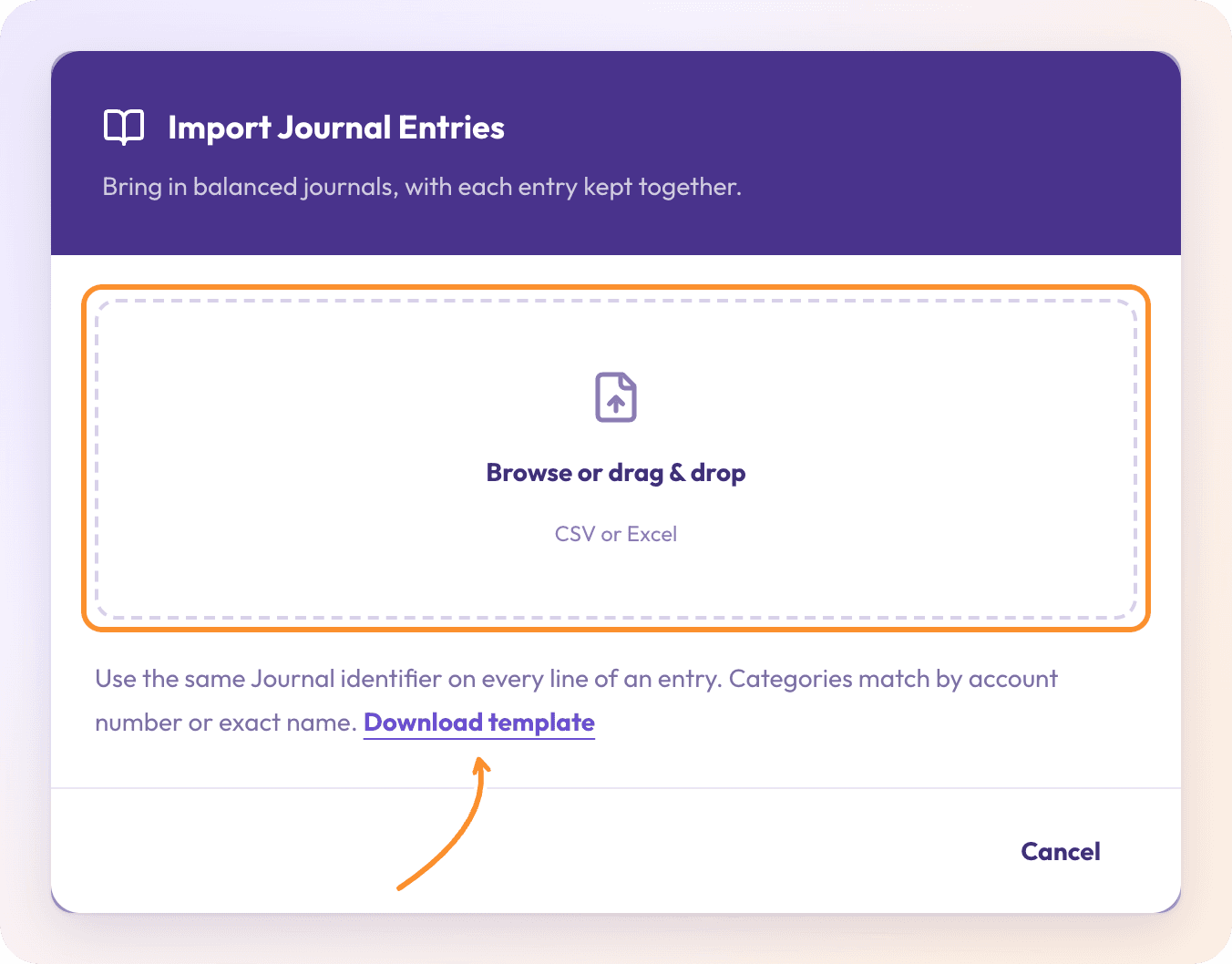
If you don't have a file yet, click Download template and fill it in.
Drop your file on Browse or drag & drop, or click it to choose a CSV or Excel file.
Review the preview: the number of journals and lines, and each entry's Date, Reference / memo and Lines.
Click Import N journals.
When it's done you see "N journals imported". The entries appear in the Ledger and your financial statements right away.
Important: The import is all or nothing. ZeraBooks checks every entry's balance, categories and dates before saving the file. If any entry fails, none are posted, so fix the file and upload it again.
Fix the rows it flags
If something is wrong, the preview shows Correct these rows and upload again with a list of problems. Row numbers count the heading as row 1, so they match your spreadsheet.
| Message | What to do |
|---|---|
| "Row N: enter a journal identifier to group its lines." | Fill in the Journal column. |
| "Row N: use a date such as 2026-09-01." | Write the date as YYYY-MM-DD. |
| "Row N: enter one positive debit or credit, with no more than two decimal places." | Put one positive amount in either Debit or Credit. |
| "Row N: "{x}" must identify one active category by number or exact name." | Use the category number, or its name spelled exactly as in the Category Manager. |
| "Row N: choose one existing party by its exact name ("{x}")." | Spell the party exactly as it appears in Vendors or Customers, or leave it blank. |
| "Row N: all lines in "{label}" need the same date, memo and reference." | Make those three columns match on every line of that entry. |
| ""{label}" needs between 2 and 200 lines." | Add the missing line, or split a very large entry. |
| "Import up to 100 journals at a time." / "Import up to 2,000 lines at a time." | Split the file into smaller files. |
Click Choose another file to upload the corrected file.
Frequently Asked Questions
Can I import journal entries from QuickBooks or Xero?
Yes, if you put them into the template's columns. Export the entries to a spreadsheet, copy them into the template, and make sure each category matches a ZeraBooks category by number or exact name.
Why did nothing get imported when only one entry was wrong?
The import is all or nothing, so your books never end up with half a file. Fix the rows listed under Correct these rows and upload again and import the whole file again.
What if I upload the same file twice?
ZeraBooks refuses it: "This file includes journals already imported into this company. Open the existing entries in the Ledger to review or edit them."
What does "Missing "category" column" mean?
A required column heading is missing or spelled differently. Use the headings from the template: Journal, Date, Category, Debit and Credit are required.
Can I edit an imported entry afterwards?
Yes. Each imported entry is an ordinary journal entry. Open it from the Ledger to edit or remove it. See Edit or remove a manual transaction.
Can I import bank transactions the same way?
No, this import is for journal entries only. Bank and card transactions come from statements: use Import Bank Transactions in the same menu. See Upload a statement.
Learn more about AI-native general ledger: A double-entry ledger where statements become proven transactions.
Still stuck? A real person reads every message—come say hello.