Navigate the Ledger
The Ledger shows every category's register for the period you pick, built from your categorized bank and card activity plus the entries you add yourself.
What the Ledger shows
The Ledger is the full record of your books: one register card per category, listing every amount that went in or out during the period. You don't build it yourself. It fills in from the bank and card statements you upload in Banks & Cards, the bills and invoices you record, and any transaction you add with Add Transaction.
In the left navigation, click Accounting › Ledger (or press G then L).
Pick the period with the arrows or the month button at the top. Presets include This Month, Last Month, Last 3 Months, This Quarter, Year to Date, Last Year and All Time, or choose a custom range.
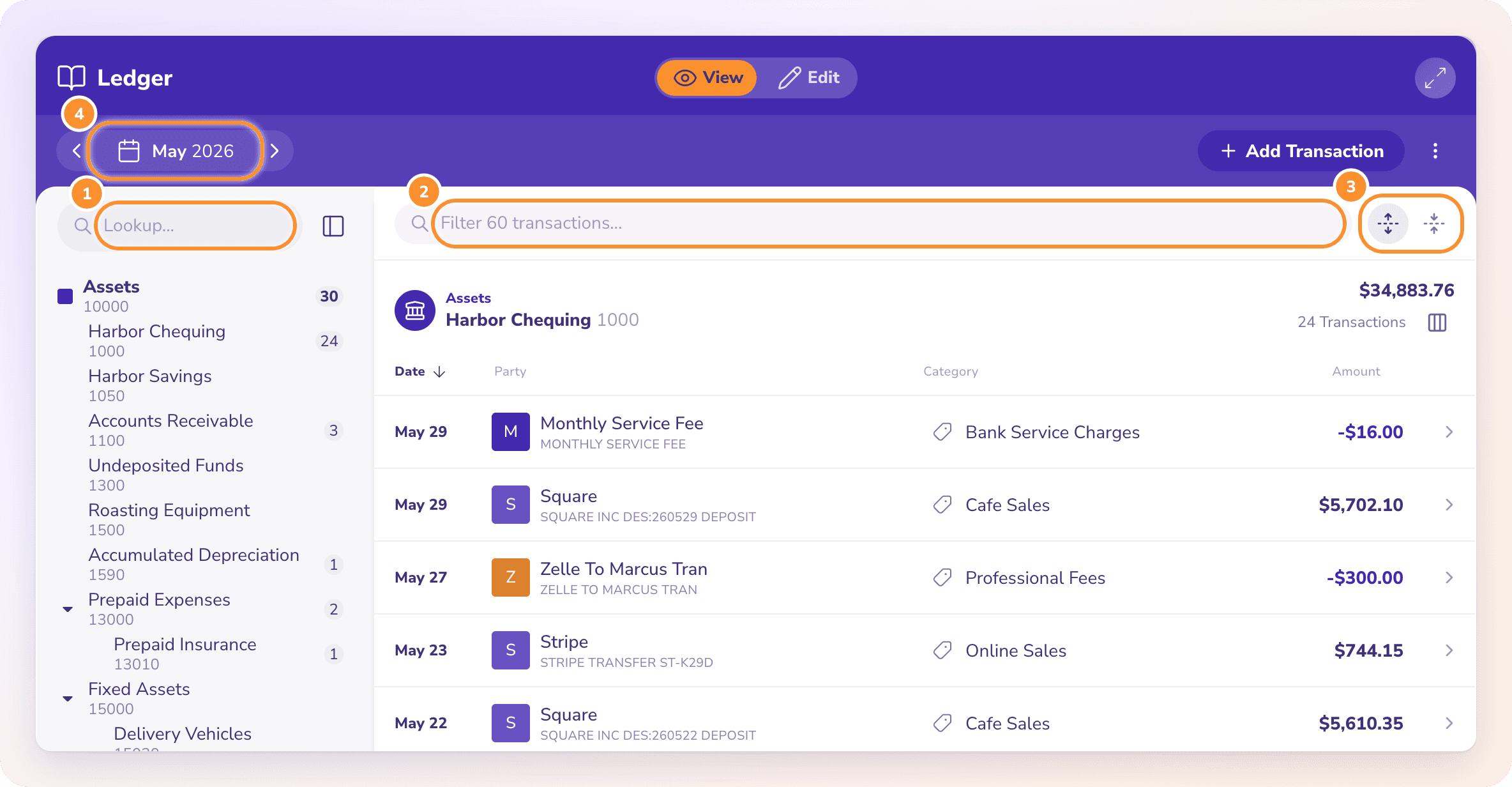
Find what you're looking for
| Control | What it does |
|---|---|
| Lookup… (left rail) | Searches your categories. Click a category to jump to its register card. |
| Rail button next to Lookup… | Collapses or expands the category rail to give the registers more room. |
| Filter N transactions… | Filters the registers by party, description, memo, date, category name or amount. Click Clear to remove the filter. |
| Expand all / Collapse all | Opens or folds every register card at once. |
| View / Edit | Edit lets you change a row's category and opens your own entries for editing. |
Each register card shows Date, Party, Category and Amount, and can also show Source and Balance columns. At the bottom of the page, View followed by the previous period's name steps back one period.
Open a row
What happens when you click a row depends on where it came from:
A bank or card transaction opens its details, with Back to Ledger at the top. See Transaction details and the activity log.
A transaction you added opens its summary. In Edit mode it opens straight into the editor, unless a statement has already matched it. See Edit or remove a manual transaction.
A bill or invoice line opens that bill or invoice.
Tip: In Edit mode, when you change a bank transaction's category, ZeraBooks offers to apply the same category to similar transactions. See Apply a correction to similar transactions.
Frequently Asked Questions
Why is my Ledger empty?
The Ledger fills in from your categorized bank and card transactions. When a period has nothing yet, you see "No Transactions". Upload statements in Banks & Cards and every account's register appears automatically. See Upload a statement.
What does "Detailed activity begins" mean at the top of the Ledger?
Your books were started from an earlier system's closing balances. Amounts dated on the opening date are summaries, not that month's real activity. Click Review opening books to check them. See Review, import and undo opening books.
Why do I see "No Results Found"?
Your filter matches nothing in this period. Click Reset Filters, or pick a longer period at the top of the page.
Can I change a category from the Ledger?
Yes. Switch to Edit and change the category on the row, or open the transaction and change Pay For. The change applies everywhere the transaction appears.
What does "Could not load the ledger" mean?
The page couldn't reach ZeraBooks. Check your connection and click Retry ledger. Nothing in your books has changed.
Learn more about AI-native general ledger: A double-entry ledger where statements become proven transactions.
Still stuck? A real person reads every message—come say hello.