Transaction details and the activity log
Open any transaction to see where it came from, which category it's in and why, how often you pay the same party, and change its category.
Open a transaction
In the left navigation, click Accounting › Ledger (or Banks & Cards).
Click a transaction's row. Its details open, with Back to Ledger (or Back to Banks & Cards) at the top to return.
The header shows the party, the amount, the date and a badge for the type: Pay In, Pay Out, Transfer or Journal. Under it, Memo shows the description exactly as the bank printed it. For a bank or card transaction this text comes from the statement, so you can't edit it.
Read the body
For a bank or card transaction you see two sections:
{Type} Category, such as Pay Out Category: the bank or card account the money moved through. It comes from the statement, so it can't be changed.
Pay For: the category the money was for, marked Debit or Credit.
For a journal entry you see Lines, with each category and its Debit or Credit. These lines are read-only here. To change a journal you recorded, see Edit or remove a manual transaction.
Change the category
Switch to Edit at the top.
Under Pay For, choose a new category.
The change is saved immediately, and ZeraBooks offers to apply it to similar transactions. See Apply a correction to similar transactions.
The category can't be changed in two cases:
The transaction pays a bill or invoice. The bill or invoice already carries the expense or income, so changing it here would count it twice. Change the category on the bill or invoice.
It clears your previous books. The section reads Prior-book clearing, "Cleared prior books · no new accounting entry". The money was already in the balances you brought over.
Insights and Activity
The panel on the right has two tabs.
Insights shows the party, a 12-month trend of your spending or income with them, and Similar Transactions, other transactions with the same party.
Activity shows the Activity Log: where the transaction came from and how its category was chosen.
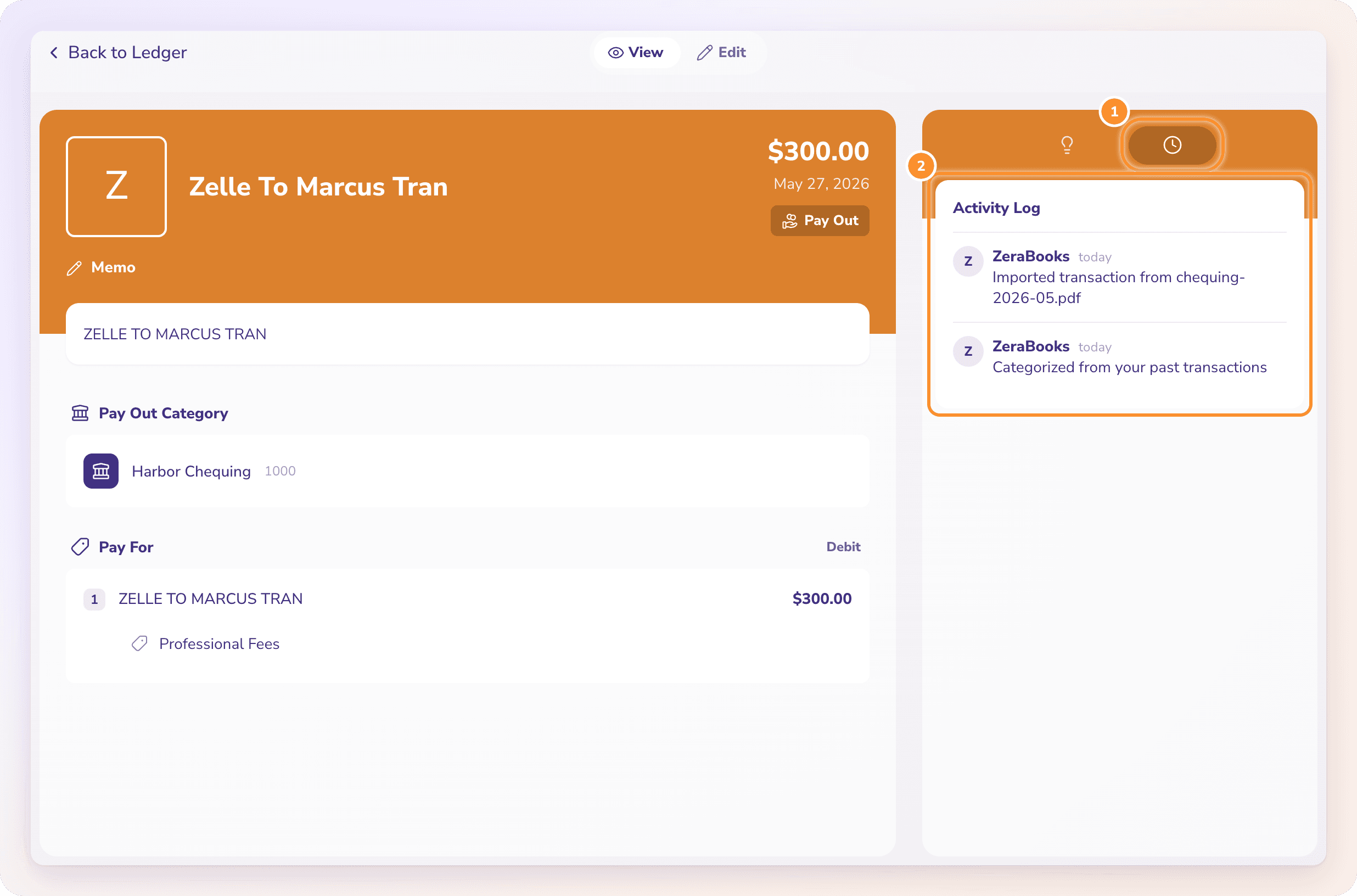
| Activity entry | What it means |
|---|---|
| "Imported transaction from {file}" | It came from that uploaded statement. |
| "Categorized from your past transactions" | ZeraBooks used the category you gave the same party before. |
| "Categorized by ZeraBooks AI" | ZeraBooks AI chose the category. |
| "Matched as a transfer between your accounts" | It's one side of a transfer between two of your accounts. |
| "Applied to a bill — this posts to Accounts Payable, and the expense is on the bill" | It pays a bill you recorded. |
| "Parked in Uncategorized — no confident match" | ZeraBooks wasn't sure, so it's waiting for you to pick a category. |
| "Category set by you" | You chose the category. |
Frequently Asked Questions
How do I see why ZeraBooks chose a category?
Open the transaction and click the Activity tab. The Activity Log says whether the category came from your past transactions, the AI, a transfer match, a bill or you. See also How AI works in ZeraBooks.
Can I change the bank account on an imported transaction?
No. The bank or card account is a fact from the statement. Only the Pay For category can change. If the statement was uploaded to the wrong account, remove it and upload it to the right one. See Remove a statement.
Why is the category locked on a bill payment?
The bill already records the expense. Changing the payment's category would book the same expense twice. Change the category on the bill instead.
Can I attach a receipt or add a comment to a transaction?
No. The transaction view has no attachments or comments. You can write a memo on a transaction you record yourself, and bills and invoices you upload keep their document.
Why can't I switch to Edit on a journal entry?
Journal lines aren't edited in this view. Open a journal you recorded from its row in the Ledger and click Edit. See Edit or remove a manual transaction.
What does "Could not load this transaction." mean?
ZeraBooks couldn't open it, usually because of the connection. Go back and open it again.
Learn more about AI-native general ledger: A double-entry ledger where statements become proven transactions.
Still stuck? A real person reads every message—come say hello.