Match opening balances to categories
Every balance on your old trial balance needs a home in ZeraBooks. How the Categories stage matches them, and how to change a match before you continue.
How balances get their categories
On the Categories stage of opening books, each account on your closing trial balance is matched to a ZeraBooks category. How that happens depends on where you are:
During setup, a new company has no categories yet. ZeraBooks reads your trial balance and creates the categories from it, for you to confirm. Then each balance lands in the category read from it.
After setup, the company already has categories. ZeraBooks suggests a match for each balance, and you review every suggestion.
Confirm the matches during setup
Confirm the categories read from your trial balance.
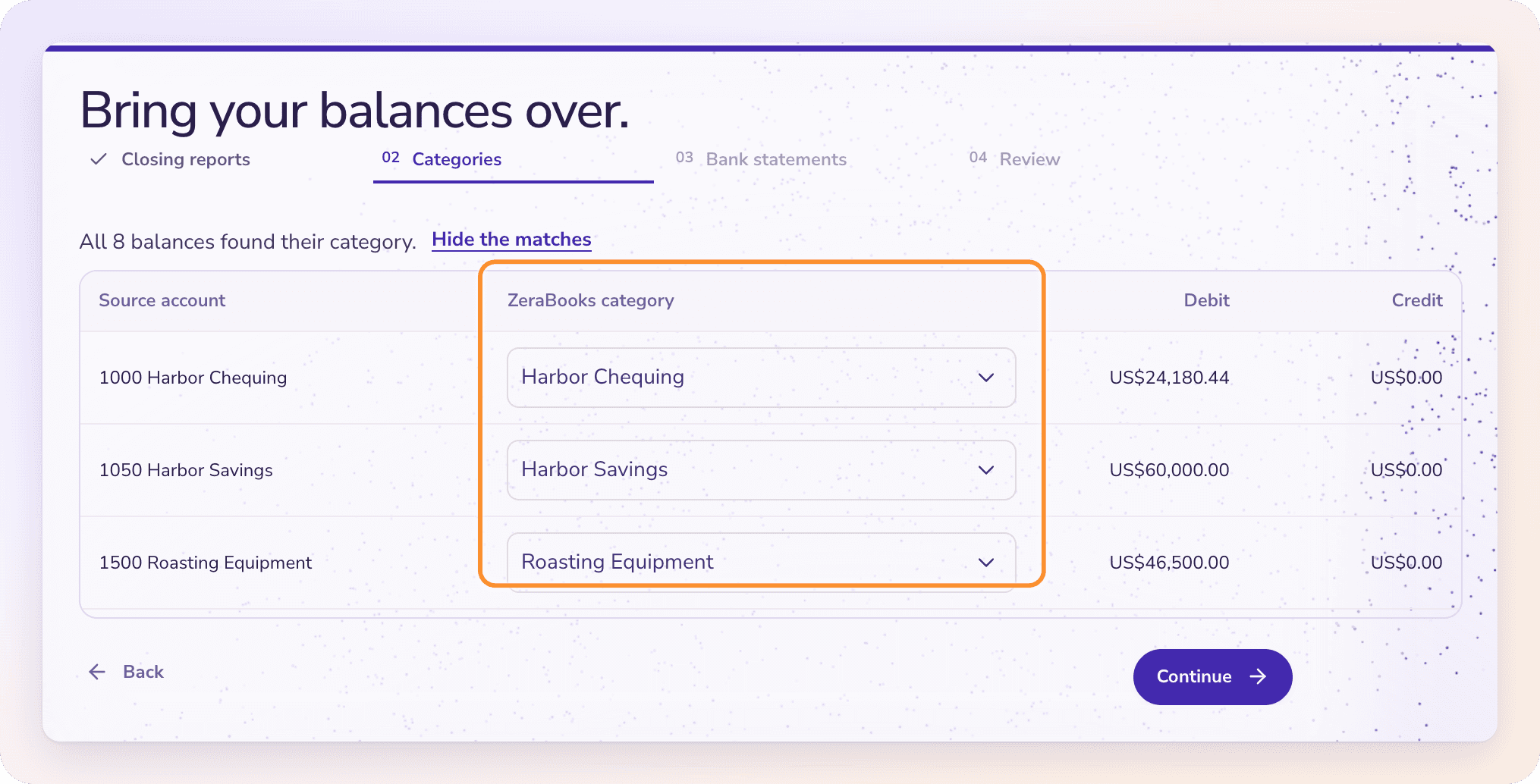
Read the line at the top. "All 8 balances found their category." means everything is matched. Otherwise it says how many still need one.
To change a match, click Change a match, open the balance's category menu and pick another category.
Click Continue.
Match balances after setup
The stage is called Match your familiar categories. and shows a table: Source account (the account in your old books), ZeraBooks category, Debit and Credit.
Check the count at the top right: N to match, or All accounts matched.
Tick Needs a category to show only the balances without one, or search with Search source accounts.
For each balance, click its ZeraBooks category and choose the right one.
For a bank or card, choose the real account you added during setup. If it's missing, open Add a missing bank or card and add it.
Click Continue.
Continue stays disabled until every balance has a category.
Tip: A category you need doesn't exist yet? Click Import your chart to bring your full chart of accounts, or Create categories with AI to draft them from a description of the business.
When the trial balance has no income or expense accounts
Statements need income and expense categories to sort transactions into. If your trial balance has none during setup, ZeraBooks says "Your trial balance had no income or expense categories, and statements need them." and offers three choices:
Create them for my business: describe what the business does and ZeraBooks drafts income and expense categories for you to review.
Use the standard set: add ZeraBooks' standard categories, such as Sales Revenue, Facilities, Business Applications & Software and Payroll Expenses, plus 22 more.
Add them later in Categories: continue now and add them later in the Category Manager.
Frequently Asked Questions
Why is Continue greyed out on the Categories stage?
At least one balance has no ZeraBooks category. Tick Needs a category to find it, then choose a category for it.
Does ZeraBooks map my old categories automatically?
Yes. During setup the categories come straight from your trial balance. After setup, ZeraBooks suggests a match for each balance, and suggested matches still need your review.
Can I bring my whole chart of accounts, including accounts with no balance?
Yes. Click Import your chart on this stage, or import it later from the Category Manager. See Import a chart of accounts.
My bank account isn't in the category list. What do I do?
Open Add a missing bank or card on this stage, add the account, then choose it for that balance.
Can I change categories after the import?
Yes. Rename, add or deactivate categories in the Category Manager at any time.
Learn more about Pricing: One subscription for the General Ledger and Converter, with a one-week free trial.
Still stuck? A real person reads every message—come say hello.