Welcome to ZeraBooks Convert
Convert turns PDF statements, checks, invoices and other financial documents into checked data you can download as CSV or Excel.
What Convert does
ZeraBooks Convert is a document converter. You upload a PDF, Convert reads it, checks it against the totals printed on it, and gives you the data as a CSV or Excel file. The work follows four steps:
Upload a PDF. Each kind of document has its own page: Bank & Credit Cards, Checks, Invoices, Investments and Financial Statements. A file of another kind is filed on its own page for you.
It's read and checked. Every line is read. A bank statement with several accounts is split by account, and a card statement (for example Amex) is split by cardholder. Totals are checked against the balances printed on the statement, to the cent. Anything that doesn't tie is marked Needs a look, with a plain note saying what's off.
Review and fix. On a bank or card statement, correct a row, move it to the right account, add a missing transaction or remove one that shouldn't be there. On checks, correct a check.
Download. Choose a ready-made format, such as Standard, QuickBooks-ready or Xero-ready, and download it as CSV or Excel. Tick several documents in a page's list to download them together in one file.
Note: Convert doesn't connect to banks or to any accounting software. Documents come in only as PDFs you upload, and data goes out only as files you download.
Convert doesn't keep books. If you want ZeraBooks to keep the books, use the ZeraBooks General Ledger.
Find your way around
The left navigation is the same on every Convert page.
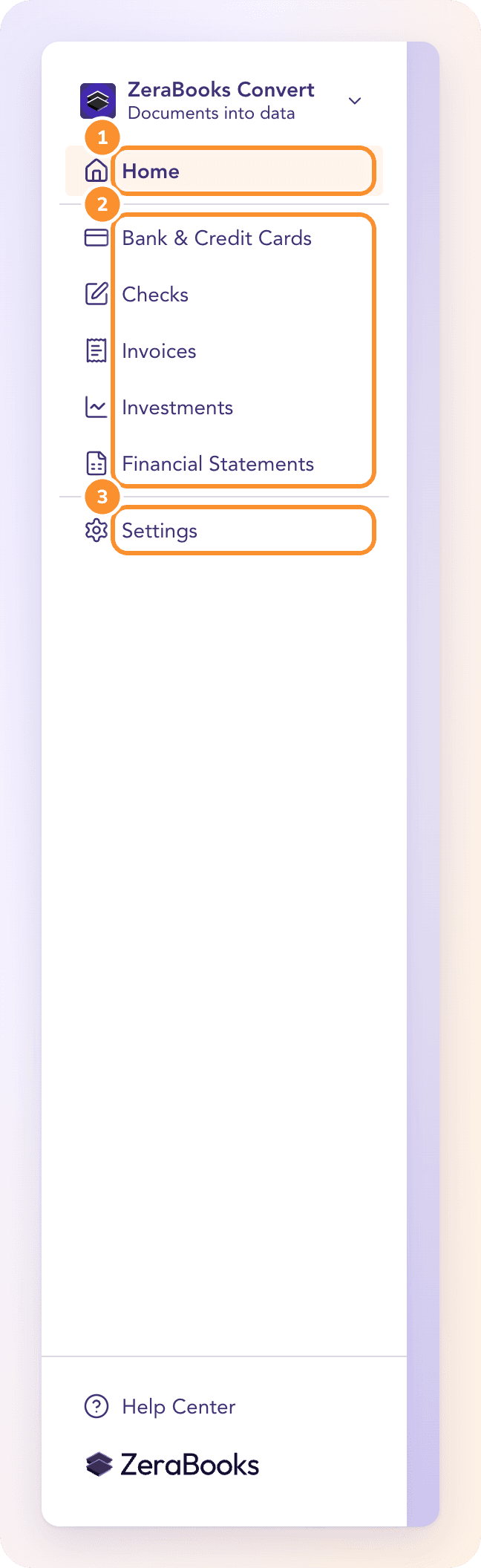
| Item | What you do there |
|---|---|
| Home | See the last 30 days at a glance: documents converted, pages used on your plan, what needs a look and your latest documents. |
| Bank & Credit Cards | Upload bank and card statements, check the proof and fix rows. |
| Checks | Upload checks, with the amount in words checked against the figures. |
| Invoices | Upload invoices and bills, with every line checked against the totals. |
| Investments | Upload brokerage and retirement statements: holdings and cash activity. |
| Financial Statements | Upload profit and loss, balance sheet and cash flow statements, with their totals checked. |
| Help Center | Opens this Help Center in a new tab. |
Click ZeraBooks Convert at the top of the sidebar to open its menu. It holds, in order: Switch to General Ledger (or Keep your books in ZeraBooks if your account doesn't have it yet), Replay the walkthrough, Billing (your plan, pages used, changing plan and Manage billing) and Sign Out.
Where to go next
Frequently Asked Questions
Who is ZeraBooks Convert for?
Anyone who needs clean data from financial documents: bookkeepers, accountants and business owners who work in QuickBooks, Xero, Sage or a spreadsheet. Convert turns the documents into checked CSV or Excel files for that software.
What documents can Convert read?
Bank and credit card statements, checks, invoices and bills, investment statements, and financial statements (profit and loss, balance sheet and cash flow). Each must be a PDF of up to 50 MB. See Upload documents.
Does Convert connect to my bank?
No. You upload statements as PDFs, and each one is checked against its own printed balances.
Can Convert put the data straight into QuickBooks, Xero or Sage?
No. Convert gives you a file. Choose the QuickBooks-ready, Xero-ready or Sage-ready format, download it, and import it into that software. See Choose a download format.
Can Convert do my bookkeeping?
No. Convert turns documents into data. If you want the bookkeeping done, with your accounts reconciled and financial statements prepared, use the ZeraBooks General Ledger. The Open the General Ledger (or Keep your books in ZeraBooks) button at the bottom of Home takes you there.
Why don't I see older documents?
Convert lists the documents uploaded in the last 30 days. After that, they drop off the lists. There are no folders, so download what you need while it's listed.
Learn more about Bank statement converter: Statements to checked Excel or CSV, split by account and cardholder.
Still stuck? A real person reads every message—come say hello.