Download your data
Download converted documents as CSV or Excel in a ready-made format. Download one document from its toolbar, or tick several in a page's list and download them together in one file. Checks, investments and financial statements download in one click.
Download one document
What Download does depends on the kind of document.
Bank and card statements, and invoices
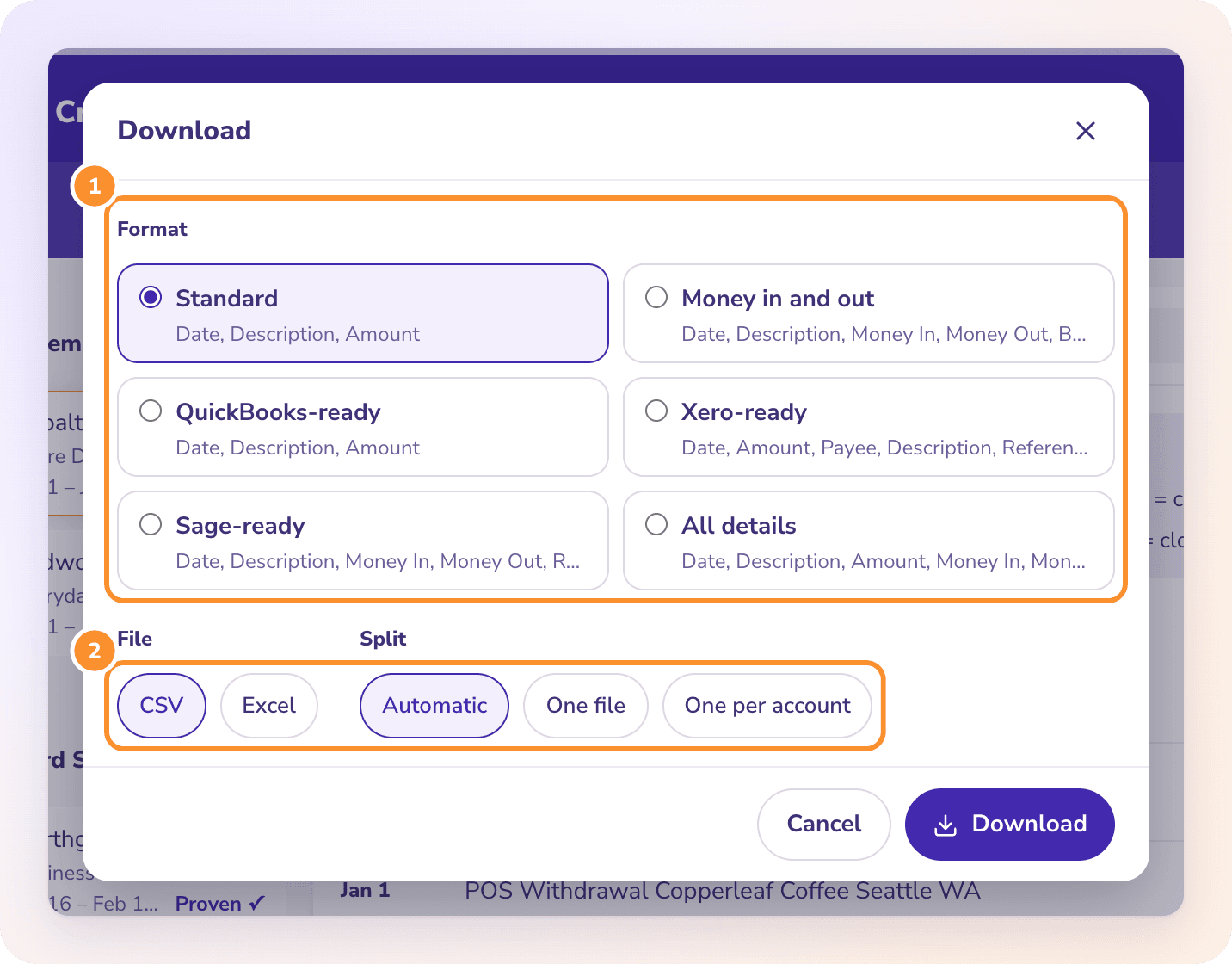
These have more than one format to choose from, so Download opens a dialog.
Open the document on its page, for example a statement in Bank & Credit Cards.
Click Download in the toolbar. The Download dialog opens.
Choose a Format, a File type and, for statements, a Split (see below), then click Download. It reads Making the file… while the file is made.
Checks, investments and financial statements
These have one format, All details, so there's nothing to choose but the file type. Download opens a small menu instead of a dialog:
Open the document on its page, for example a check document in Checks.
Click Download in the toolbar.
Click Excel or CSV. The file downloads at once. The button reads Making the file… while it's made.
Under each choice, the menu says what you'll get:
| Choice | One table (checks, financial statements) | Several tables (investments: Summary, Holdings, Activity) |
|---|---|---|
| Excel | One spreadsheet | One workbook, a tab per table |
| CSV | One file | A file per table, in one ZIP |
If the document still needs a look, the menu says so at the top: you can still download, but check it first. Press Esc or click elsewhere to close the menu without downloading.
Download several documents together
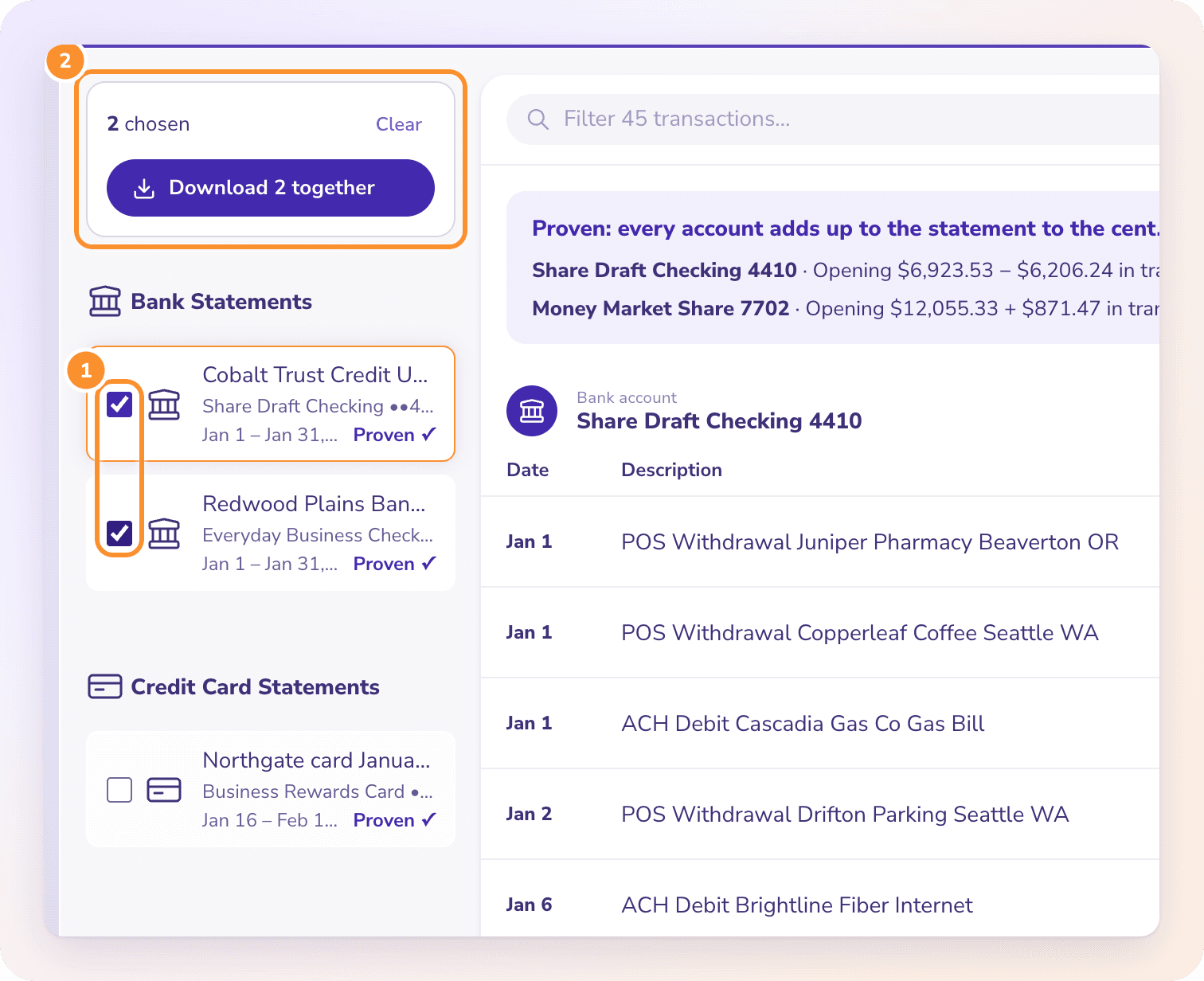
Every document page lets you put several documents of its kind into one file, for example a whole month of bank and card statements in one QuickBooks-ready CSV.
Check what's chosen
A box appears at the top of the list, for example "2 chosen". Click Clear to untick them all. If a chosen document still needs a look, the download dialog or menu says so: you can still download, but check it first. See Fix a statement.
Download
Click Download n together (with one ticked, it reads Download). For statements and invoices, choose the options in the dialog and click Download. For checks, investments and financial statements, click Excel or CSV in the menu. While the file is made, the button reads "Making the file…", then your browser saves it.
A file holds one kind of document, because each page lists only its own kind. To download statements and checks, make one file on each page.
The download options
The same options appear whether you download one document or several. Your browser remembers your last File and Split. Checks, investments and financial statements skip the dialog: you choose Excel or CSV in the menu.
Format
A ready-made format sets the columns, how amounts are written and the date format. Each format shows its columns under its name in the dialog. Bank and card statements have Standard, Money in and out, QuickBooks-ready, Xero-ready, Sage-ready and All details. Checks, investments and financial statements have All details; invoices have All details and Bills import (one row per line). See Choose a download format.
File
CSV or Excel. An Excel file has one sheet (tab) per group, with a bold header row. A CSV that would need more than one sheet comes as a ZIP of CSV files.
For bank and card statements, when one sheet holds several accounts (for example with One file), an Account column is added so every row says which account it belongs to. When a card statement with several cardholders isn't split by cardholder, a Cardholder column is added the same way. Formats that already have these columns, such as All details, keep them as they are.
Split (bank and card statements)
Automatic: one per cardholder on a card statement with several cardholders, one per account when there are several accounts, otherwise one file.
One file: everything together.
One per account: a separate sheet or file for each bank or card account.
One per cardholder: a separate sheet or file for each cardholder. Offered only when the statements have cardholders.
In Excel, each account or cardholder gets its own tab in one file. As CSV, several files come together in a ZIP.
Empty cells
A value the document doesn't show is an empty cell. ZeraBooks never guesses. See Blank cells and missing values.
Note: Downloads are made from your corrected rows, so edits you made on a statement are in the file.
Frequently Asked Questions
Can I combine a month of statements into one file?
Yes. On Bank & Credit Cards, tick every statement for the month, click Download n together, choose One file and click Download.
Which format should I use for a QuickBooks bank upload?
QuickBooks-ready. It has exactly the three columns QuickBooks Online's bank upload takes: Date, Description and Amount. See Choose a download format.
Why did my CSV download come as a ZIP?
The file needed more than one sheet, for example one per account or cardholder, the two sheets of an invoice's All details, or the Summary, Holdings and Activity sheets of an investment statement. A CSV file holds only one sheet, so the CSV files come together in a ZIP. Choose Excel to get one file with a tab for each.
Can I choose my own columns?
No. Downloads use the ready-made formats only. Pick the one that matches your software; All details has every column Convert reads.
Why can't I put statements and checks in one file?
Each page lists one kind of document, so a file holds one kind. Download the statements from Bank & Credit Cards and the checks from Checks.
Why didn't a dialog open when I downloaded checks?
Checks, investment statements and financial statements have one format, All details, so Download opens a small menu instead. Click Excel or CSV and the file downloads straight away.
Why doesn't an older document appear in the list?
Convert lists only the documents uploaded in the last 30 days. Older ones drop off the lists, so download what you need while it's listed.
Why is there no tick box beside a document?
It hasn't finished reading, or it couldn't be read. Only documents that show Proven ✓ or Needs a look can be ticked.
What does "Some documents are still being read" mean?
A chosen document hasn't finished reading. Wait a moment, then click the download button again.
Learn more about Bank statement converter: Statements to checked Excel or CSV, split by account and cardholder.
Still stuck? A real person reads every message—come say hello.