Upload documents
Upload PDFs of statements, checks, invoices and other documents on each document page. Each one is recognized, filed on its own page, read line by line and checked against its own totals.
Where to upload
ZeraBooks Convert reads PDFs. Each document type has its own page in the left navigation, and you upload on that page:
| Page | Header button |
|---|---|
| Bank & Credit Cards | Upload statements |
| Checks | Upload checks |
| Invoices | Upload invoices |
| Investments | Upload statements |
| Financial Statements | Upload statements |
Home has no upload. It's a read-only dashboard of the last 30 days. See The Home page.
Upload one or more files
In the left navigation, click the page for the document type, for example Bank & Credit Cards.
Click the Upload button in the page header, for example Upload statements, and choose your PDFs. You can choose several files at once.
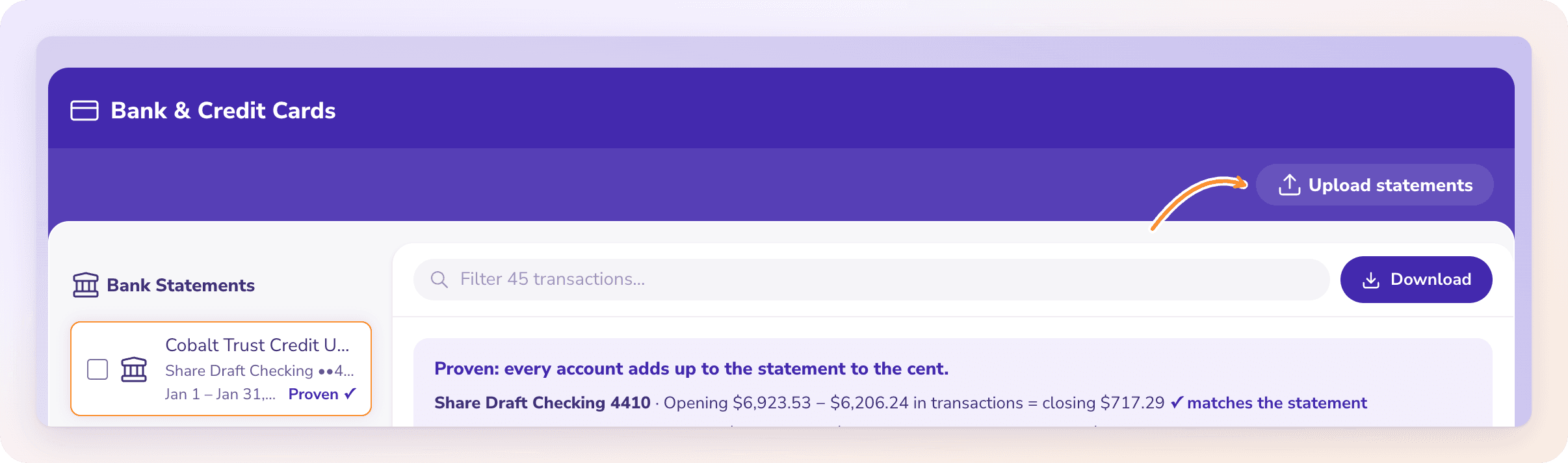
Or drag your PDFs anywhere onto the page. While you drag, the page shows where to drop them, for example "Drop bank and credit card statements".
While the files upload, the button reads "Uploading 1 file…" or "Uploading n files…".
Each document then appears in the page's list with the status Reading. Reading usually takes under a minute, and the list refreshes on its own.
When a page has no documents from the last 30 days, it shows a large drop area instead of the list: "No statements in the last 30 days", the upload button, and "or drop PDFs anywhere on this page".
A file of another type
You don't have to sort files first. Convert works out what each file is. If you upload a check or an invoice on another page, it's filed on its own page. On Checks, Invoices, Investments and Financial Statements, a note tells you where it went, for example "{file} is an invoice, so it was filed in Invoices." The page name in the note is a link.
Accepted files and limits
| What | Rule |
|---|---|
| File type | PDF only. Images, CSV and Excel files are refused with "Only PDF files can be converted." |
| Size | Up to 50 MB per file. A larger file is refused with "{file name} is over 50 MB." |
| Pages | Up to 500 pages per file. A longer PDF is refused with a message to split it into parts and upload each one. |
| Several at once | Yes. Choose or drop as many PDFs as you like. |
| Document types | Bank statements, credit card statements, checks, invoices, investment statements and financial statements. |
Note: Convert doesn't connect to banks. Documents come in only as PDFs you upload.
What happens next
Each document is read line by line and checked against the totals printed on it. Its status then shows in the list on its page:
| Status | What it means |
|---|---|
| Reading | The document is still being read. You can't open it until it finishes. |
| Proven ✓ | Every check passed: the document adds up to its own printed totals. |
| Needs a look | Something doesn't add up, or there's a note to review. Open it to see a plain note saying what. |
| Couldn't read | The document could not be read. Its page shows the reason. Upload the file again, or a clearer copy. |
When a proof doesn't tie, Convert reads the document again automatically, up to two more times, and keeps the best attempt. Documents that need a look or couldn't be read also show on the Needs a look card on Home. See The Home page.
Pages and your plan
Each document's page count comes from the PDF, and those pages count toward your plan's pages. Pages that couldn't be read never count. A document that's already uploading or reading always finishes, even if it takes you past your plan's pages. After that, new uploads wait: the notice says your file is waiting and shows Get more pages and convert it (…convert them for several files). Move up in the dialog that opens, and the waiting files upload and convert automatically. From 80% of your pages, a banner on the page offers Get more pages before you run out. See Plans and pages.
The 30-day list
Convert's lists show the documents uploaded in the last 30 days. After that, documents drop off the lists. There are no folders, so download what you need while it's listed.
Frequently Asked Questions
Can I upload on the Home page?
No. Home is a read-only dashboard. Upload on the page for the document type: click its header button, such as Upload statements, or drop PDFs anywhere on the page.
Can I upload images, Excel or CSV bank statements?
No. Convert reads PDFs only. Other files are refused with "Only PDF files can be converted." If your bank offers a PDF statement, download that and upload it.
How big can a file be?
Up to 50 MB per PDF. A larger file is refused with "{file name} is over 50 MB." Split the PDF into smaller files and upload each one.
Where did my file go after I uploaded it on the wrong page?
It was recognized and filed on the page for its type, such as Checks or Invoices. On a type page, a note names the page it went to, with a link.
How long does reading take?
Usually under a minute. The document shows Reading until it finishes, and the list updates on its own.
Why doesn't a document I uploaded last month show?
Lists only show the last 30 days, so older documents drop off. Upload the PDF again if you need it.
What does "This document could not be read. Try again, or upload a clearer copy." mean?
Convert couldn't read the file. Upload it again, or upload a clearer copy of the PDF. A document that can't be read never counts toward your pages. See When a document can't be read.
What if reading stops part way?
The document shows Couldn't read with "Reading was interrupted. Upload the file again to finish it." Upload the same PDF again.
Learn more about Bank statement converter: Statements to checked Excel or CSV, split by account and cardholder.
Still stuck? A real person reads every message—come say hello.