Bank and credit card statements
The Bank & Credit Cards page lists every statement by bank and card, splits the transactions by account and cardholder, checks them against the printed balances and lets you download them, one at a time or several together.
Open a statement
In the left navigation, click Bank & Credit Cards.
On the left, statements are listed in two groups: Bank Statements and Credit Card Statements.
Click a statement to open its transactions on the right.
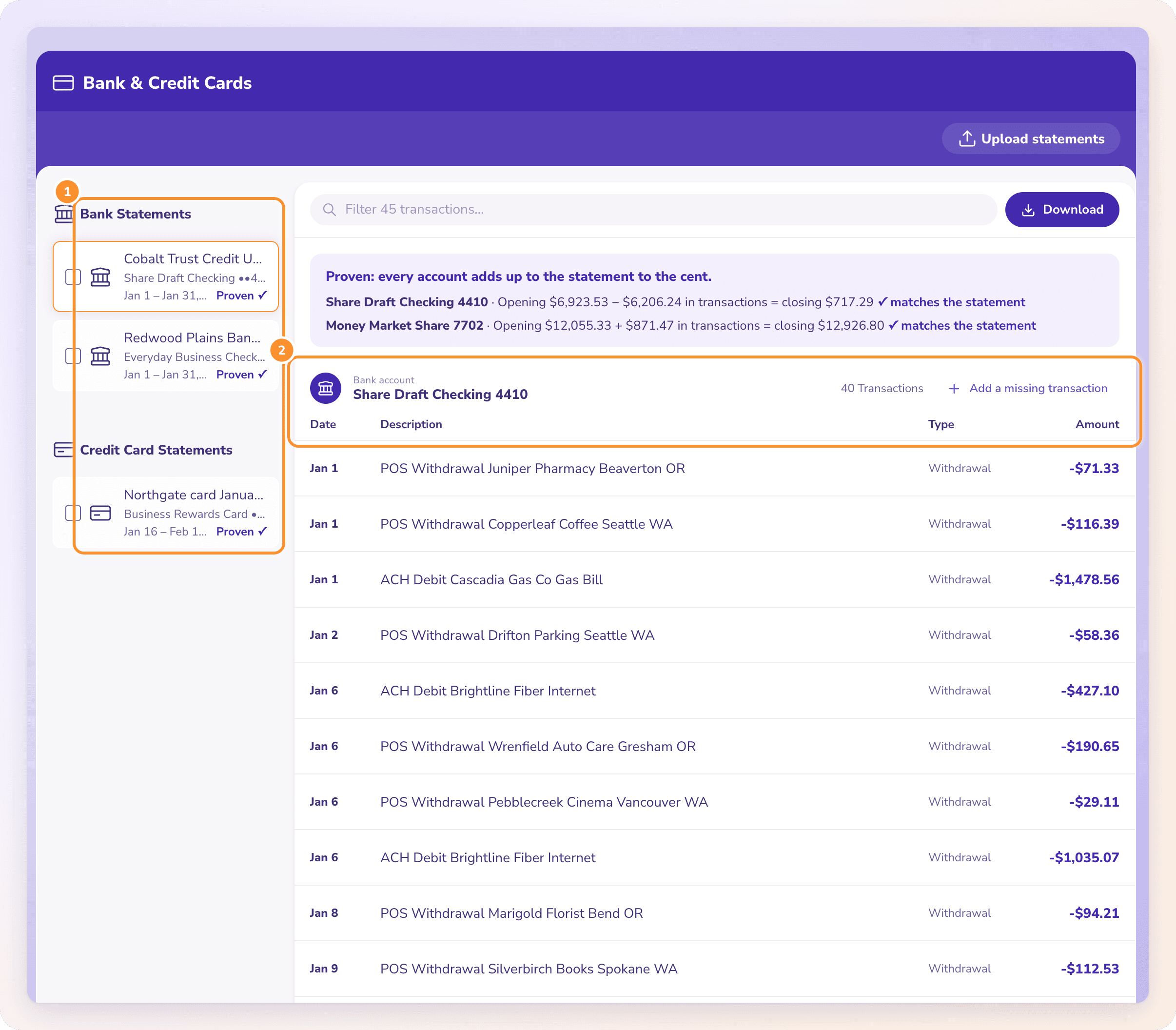
Each statement's tile shows:
the file name you uploaded;
the account name and last 4 digits, with "+n" when the statement holds more than one account;
the statement period;
its status: Reading, Proven ✓, Needs a look or Couldn't read;
a tick box, once the statement has been read, for downloading several statements together (see below).
The list shows every statement uploaded in the last 30 days, newest first. To add more, click Upload statements in the page header, or drop PDFs anywhere on the page. See Upload documents.
Accounts and cardholders
One PDF can hold more than one account. Convert splits the transactions by account, and each account gets its own group with:
"Bank account" or "Credit card" above the account name and last 4 digits;
the number of transactions, for example "42 Transactions";
Add a missing transaction, for a line the statement shows that wasn't read (see Fix a statement).
If a transaction landed under the wrong account, click it and choose the right one in the Account picker. See Fix a statement.
On a card statement with several cardholders, such as an Amex statement with extra cards, each transaction is assigned to its cardholder and shown in a Cardholder column. Transactions that belong to no cardholder show "Account". On a bank account whose statement lists spending by debit card, the column is called Card and shows the card, for example "Card ••5164".
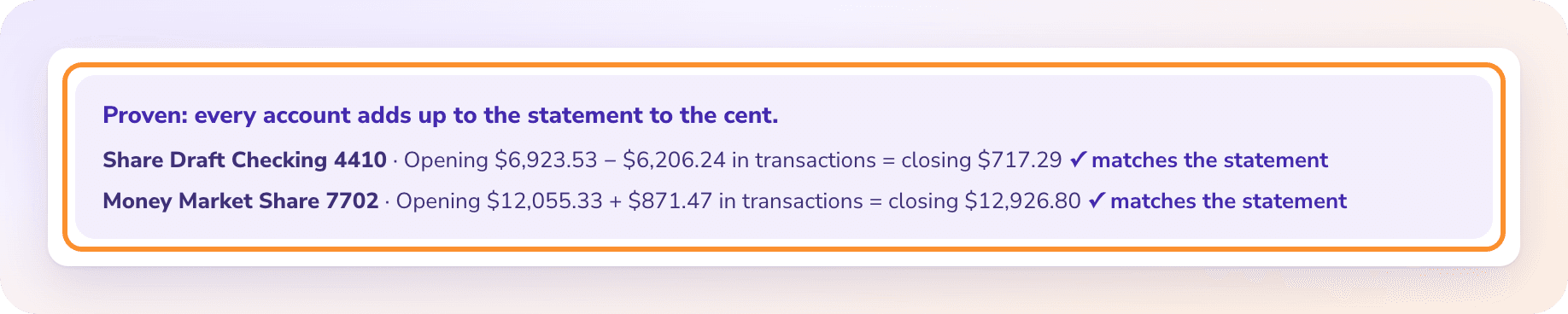
Above the groups, the proof shows whether each account adds up to the balances printed on the statement. See How Convert proves a statement.
The columns
| Column | What it shows |
|---|---|
| Date | The transaction date, for example "Jan 4". |
| Description | The description as printed. "edited" is added after you correct it. |
| Cardholder or Card | Shown only when the statement splits spending by cardholder or card. |
| Type | The section the line was printed in: Deposit, Withdrawal, Check, Fee, Interest, Payment, Credit, Charge, Transfer or Other. If the statement has no sections, the direction decides: Charge or Payment on cards, Withdrawal or Deposit on bank accounts. |
| Amount | The amount. Money out is shown as a negative amount. |
The toolbar

| Control | What it does |
|---|---|
| Filter n transactions… | Type to show only the rows whose description, amount or date contains what you typed. |
| Download | Opens the Download dialog for this statement. See below. |
Download a statement
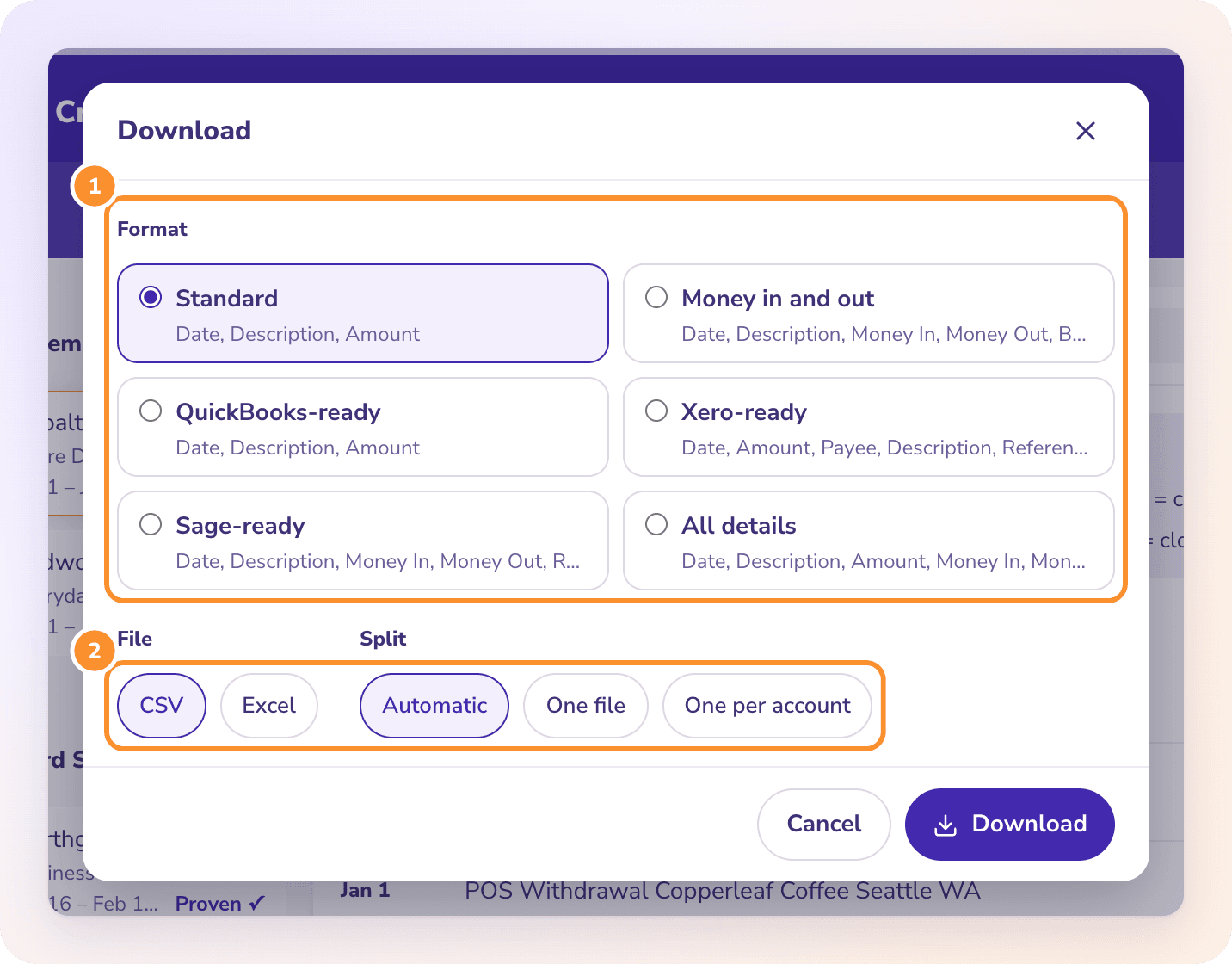
Click Download in the toolbar. The Download dialog opens.
Choose the options:
Format: Standard, Money in and out, QuickBooks-ready, Xero-ready, Sage-ready or All details. Each format shows its columns under its name. See Choose a download format.
File: CSV or Excel.
Split: Automatic, One file, One per account, or One per cardholder (shown only when the statement has cardholders).
Click Download. The button reads Making the file… while the file is made.
Your File and Split choices are remembered in this browser. If the statement still needs a look, the dialog says so: you can still download it, but check the rows first.
Download several statements together
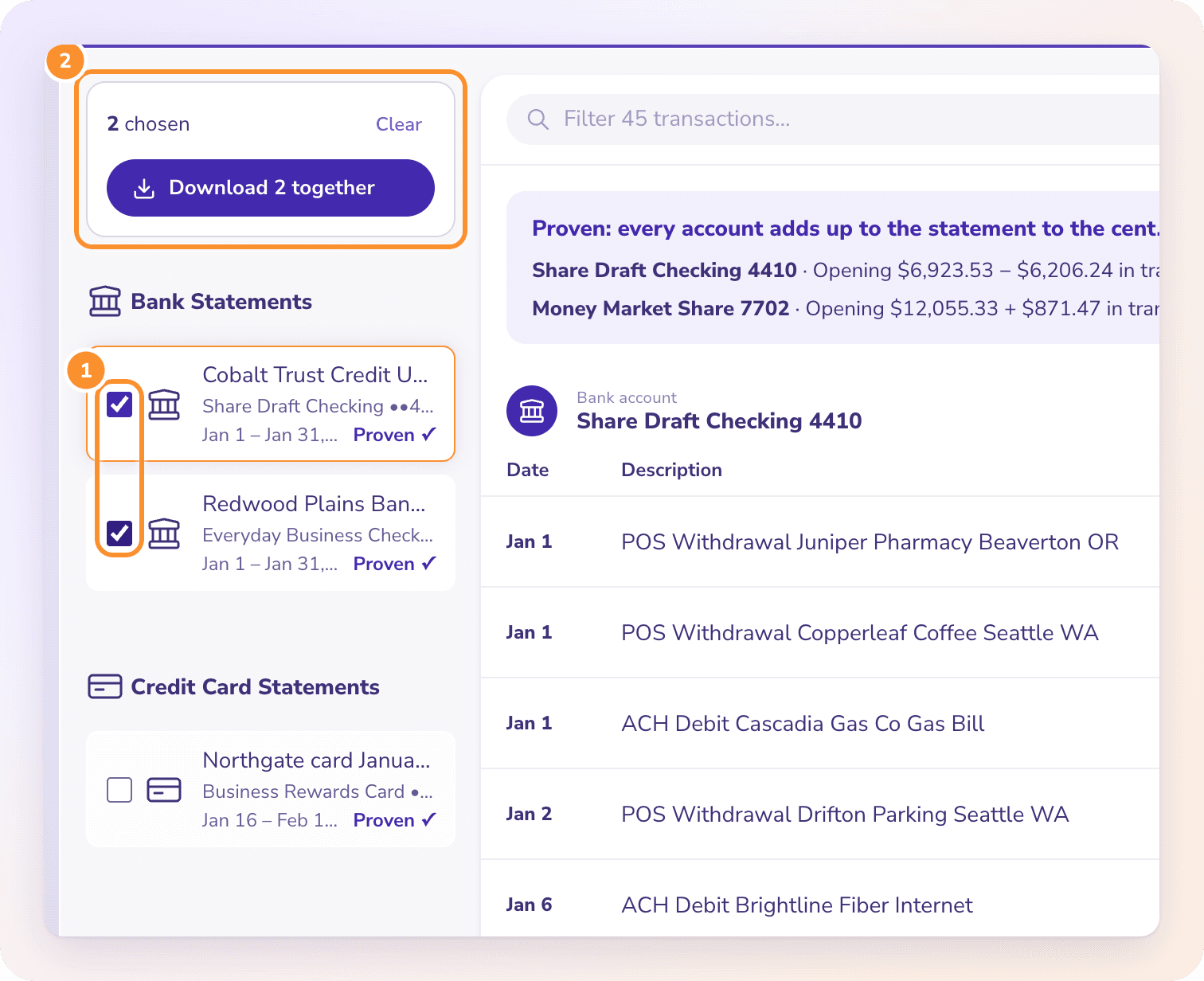
In the list on the left, tick the box beside each statement you want. Only statements that have been read (Proven ✓ or Needs a look) have a box.
A box appears at the top of the list: "2 chosen", with Clear to untick them all.
Click Download 2 together (the number follows how many you ticked), choose the options as above, and click Download.
The statements come in one file. With One per account (or Automatic when there are several accounts), each account gets its own tab in Excel; as CSV, the files come together in a ZIP. See Download your data.
Frequently Asked Questions
Why does one PDF show more than one account?
Some banks print several accounts in one statement. Convert splits the transactions by account and proves each account against its own balances. The tile shows "+n" for the extra accounts.
How are Amex and other card statements with several cardholders handled?
Each charge is assigned to the cardholder it's printed under, and each cardholder's charges are checked against the total the statement prints for them. When you download, choose One per cardholder (or Automatic) to get a sheet or file for each cardholder.
Can I download a statement that needs a look?
Yes, but check it first. The proof reads "Needs a look before you download." until every account adds up. Fixing it first means the file matches the statement. See Fix a statement.
Can I put a month of statements in one file?
Yes. Tick each statement in the list, then click Download n together. Choose One file to have every transaction together, or One per account for a tab or file per account.
Learn more about Bank statement converter: Statements to checked Excel or CSV, split by account and cardholder.
Still stuck? A real person reads every message—come say hello.