Fix a statement
When a statement doesn't add up, correct a misread row, move a transaction to the right account, add a line that was missed or remove one that isn't on the statement. The proof is checked again every time you save.
Find what's wrong
In the left navigation, click Bank & Credit Cards and open the statement marked Needs a look.
Read the proof above the transactions. An account that doesn't add up says how far off it is: "— the statement says $A, off by $B. Fix a row or add a missing one."
Open your PDF of the statement and compare its lines with the transactions for that account. The difference is often the amount of a missed or misread line.
See How Convert proves a statement for what each line of the proof means.
Correct a row
Click the row (or select it and press Enter). It opens for editing.
Change what was misread:
Date
Description
Account (statements with more than one account only; see below)
Cardholder (card statements with cardholders only; choose Account (no cardholder) for a line that belongs to no cardholder)
Amount (minus for money out)
Click Save (or press Enter in the amount). Cancel closes the row without changes.
The row then shows "edited" beside its description.
Type amounts with a minus sign for money out, for example -42.10. You can also type $1,234.56 or (1,234.56); brackets mean money out. If Convert can't read what you typed, you'll see "Enter the amount, with a minus sign for money out (e.g. -42.10)."
Move a transaction to the right account
On a statement that holds more than one account, a transaction is sometimes put under the wrong one. When that happens, both accounts are off by the same amount.
Click the row to open it.
In the Account picker, choose the account it belongs to. Each choice reads "Account:" or "Card:" with the account's name and last 4 digits.
If the new account has cardholders, choose the Cardholder again; changing the account clears it.
Click Save.
The transaction moves to that account's group, and the proof for both accounts is worked out again. The Account picker only appears when the statement has more than one account.
Add a missing transaction
Each account has its own Add a missing transaction button, beside its name and number of transactions.
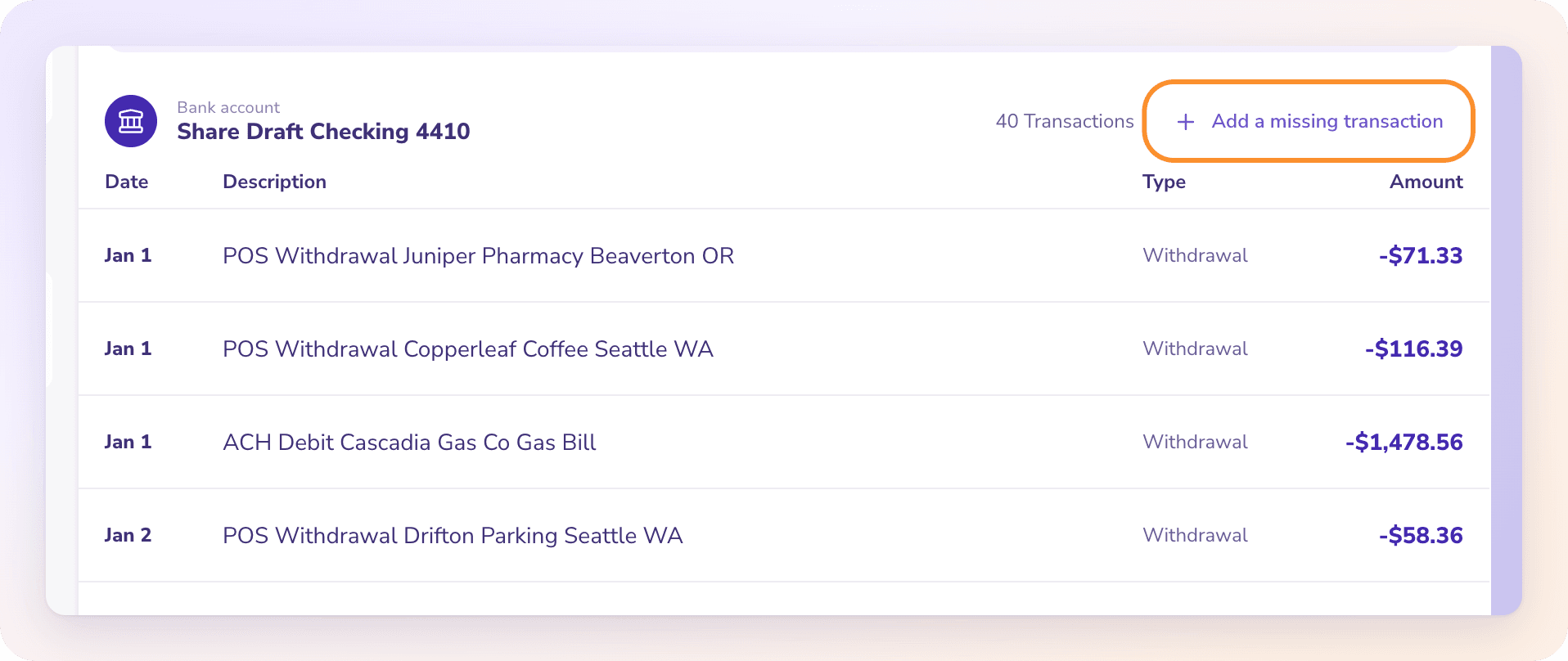
Click Add a missing transaction on the account the line belongs to.
Enter the Date, Description and Amount (minus for money out) exactly as printed, and the Cardholder if the statement has cardholders.
Click Save.
The new transaction is added to that account. Its Type is set from its direction: Charge or Payment on a card, Withdrawal or Deposit on a bank account.
Remove a transaction
For a line that was read but isn't on the statement (for example, a line read twice):
Click the row to open it.
Click Remove this transaction.
A removed transaction can't be brought back. If you remove one by mistake, add it again with Add a missing transaction.
The proof re-checks after every change
Each time you save an edit, move a transaction, add one or remove one, Convert works the proof out again from the saved transactions. When every account ties and nothing is left to review, the statement turns Proven ✓.
Downloads use your corrected transactions.
If most of the statement was read badly, uploading a clearer copy of the PDF may be faster than fixing it row by row. See When a document can't be read.
Frequently Asked Questions
I fixed every row but the statement still says "Needs a look". Why?
There may be a note that isn't about the balances, such as "3 row amount(s) could not be read." Notes like that stay after edits. Or the statement prints no balances for an account, so it can't be proven. Compare it with your PDF and download it as usual.
How do I enter money out?
With a minus sign, for example -42.10, or in brackets, (42.10). Money in has no sign.
What does "Enter the date as a full date." mean?
The date isn't complete. Pick or type the full date, with day, month and year.
Can I change the account a transaction belongs to?
Yes, on a statement with more than one account. Click the row, choose the right account in the Account picker and click Save. The proof updates for both accounts. See Move a transaction to the right account.
Will my corrections carry over if I upload the statement again?
No. A file uploaded again is read as a new document, without your edits. Keep fixing the one you have, or download it first.
Do my corrections show up in the download?
Yes. Every download is made from the transactions as they are now, with your edits, moved rows, added rows and removed rows.
Learn more about Bank statement converter: Statements to checked Excel or CSV, split by account and cardholder.
Still stuck? A real person reads every message—come say hello.