The Invoices board and statuses
Every customer invoice sits in one lane on the Invoices board, from Draft to Paid. Here is what each lane and status means and how an invoice moves between them.
Open the board
In the left navigation, click Bills & Invoices › Invoices (or press G then I).
Each card is one invoice or credit memo, placed in the lane that matches its status.
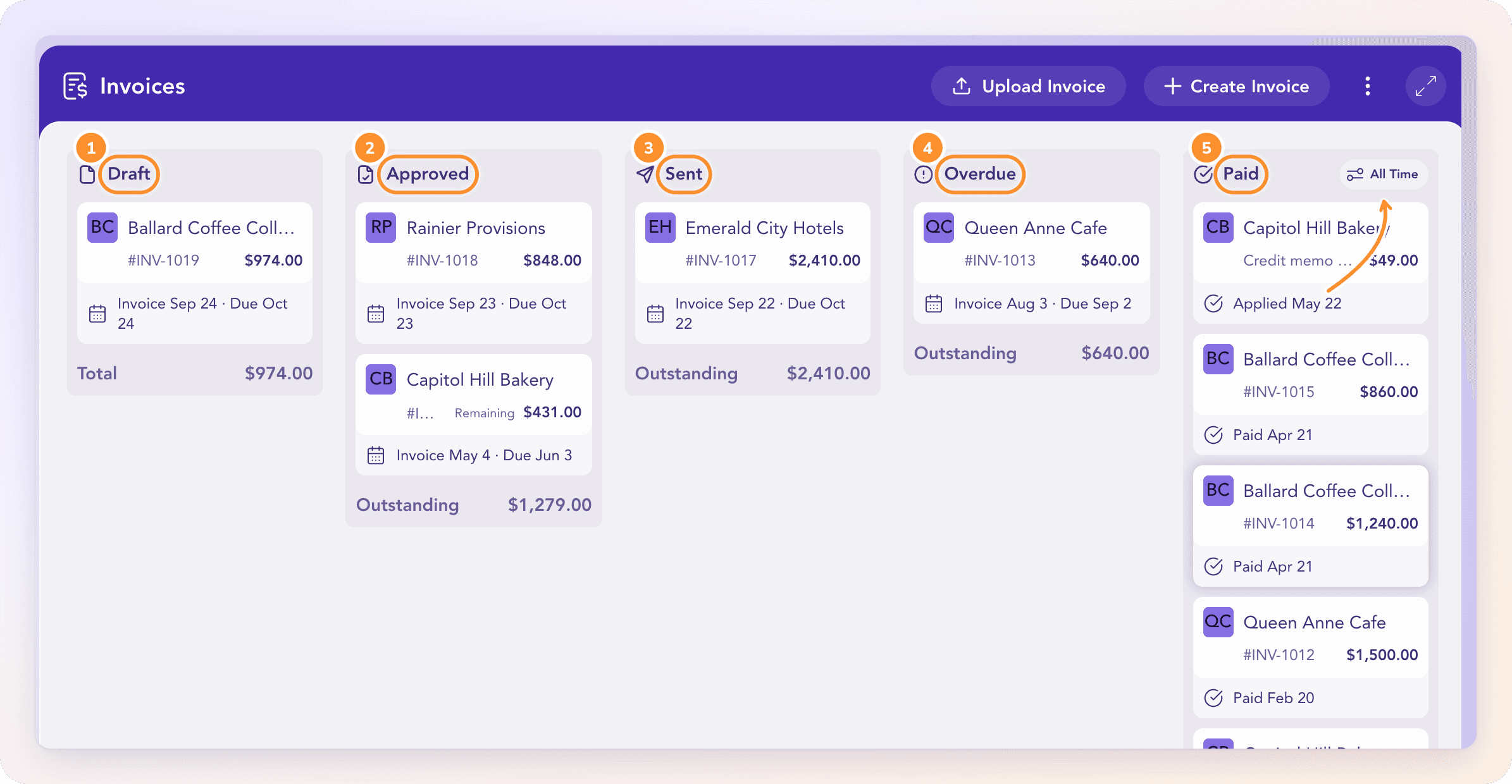
The header has Upload Invoice, Create Invoice and a More Actions menu (the three dots) with Show Voided Invoices and Invoice accounting settings. Minimize and Maximize change how much of the board you see.
What each lane means
| Lane | What it means | How it gets there |
|---|---|---|
| Draft | Not in your books yet. You can still change or delete it. | Create Invoice, Upload Invoice or Duplicate |
| Approved | Posted to your books, not yet sent to the customer. | Approve |
| Sent | Posted and delivered. | Send from ZeraBooks, or Send manually |
| Overdue | Sent, still unpaid, and past its due date. | Happens on its own after the due date |
| Paid | Fully settled by payments or credits. A credit memo lands here once all of its credit is applied. | A matched deposit, an applied credit, or Mark as Paid… |
| Void | Canceled. Hidden until you choose More Actions › Show Voided Invoices. | Void Invoice… |
The Overdue lane only appears when at least one invoice is overdue. An approved invoice that was never sent stays in Approved even after its due date, because the customer may not have it yet.
Tip: Each lane's footer adds up its cards. Approved, Sent and Overdue show what is Outstanding; the other lanes show the Total.
Read a card
The foot of a card shows Invoice date · Due date. Paid cards show Paid, Marked as Paid or (for a credit memo) Applied with the date. Voided cards show Voided and the date. Credit memos show Credit issued and the date.
A card that has been partly paid shows what is Remaining. A credit memo that is partly used shows what is still Available.
Inside an overdue invoice, the status chip counts the days, for example "12 days overdue".
The Paid lane has a Filter By menu: Past 30 Days, Past 90 Days, Past 6 Months, Past 1 Year or All Time. Your choice is remembered in this browser.
Before you can invoice
Invoices post to your chart of accounts, so the board asks for setup first:
With no categories yet: "Invoices post to your chart of accounts — create the categories first, then create or upload invoices here."
With categories but no bank accounts: "Categories are in — declare your bank and credit-card accounts so incoming deposits can settle invoices."
Frequently Asked Questions
Why don't I see an Overdue column?
No invoice is overdue right now. The Overdue lane only appears when at least one sent invoice is unpaid past its due date.
Why isn't my past-due invoice marked Overdue?
It hasn't been sent. An invoice becomes Overdue only after it has been emailed from ZeraBooks or marked with Send manually. Until then it stays in Approved.
How do I see voided invoices?
Click More Actions (the three dots) at the top of the board, then Show Voided Invoices. A Void lane appears at the end. Choose Hide Voided Invoices to remove it again.
How do I know if an invoice was paid?
It moves to the Paid lane. Open it and the Payment tab lists every deposit, credit or outside payment that settled it. See Record payments and credits.
What does "Remaining" on a card mean?
Part of the invoice has been paid or credited. The card shows the balance still owed instead of the original total.
What does "Invoices could not be verified" mean?
ZeraBooks couldn't load the current details and payment history. Your invoices are still saved. Click Retry.
Learn more about AI-native general ledger: A double-entry ledger where statements become proven transactions.
Still stuck? A real person reads every message—come say hello.