Create an invoice
Build an invoice from scratch: choose the customer, add line items, set the dates and discounts, then preview it before you approve.
Start a draft
Go to Bills & Invoices › Invoices.
Click Create Invoice. ZeraBooks creates a draft dated today and opens it.
Nothing is in your books yet. A draft only posts when you approve it.
Fill in the invoice
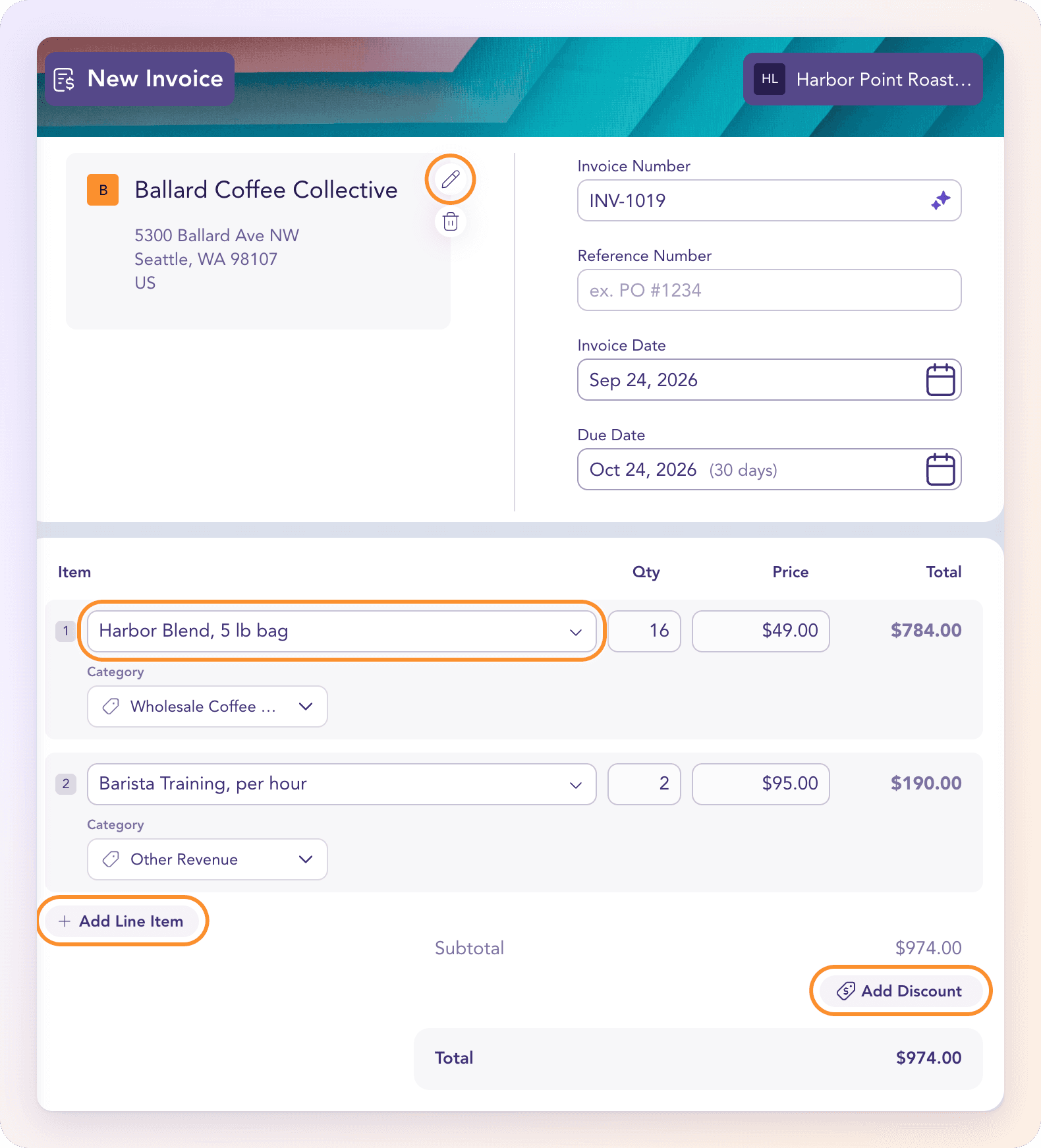
Customer: click it and pick a customer. Type to Filter by name or email, or choose Add Customer to create one on the spot.
Invoice Number: ZeraBooks fills in the next number. You can type your own.
Reference Number (optional): a purchase order or job number, for example
PO #1234.Invoice Date and Due Date: the due date picker offers terms: Upon receipt, 15 days, 30 days, 45 days, 60 days or 90 days. Changing the invoice date moves the due date with it.
For each line, fill in Item, Qty and Price. Picking a product or service from your catalog fills in its price and category. Total is calculated as quantity × price.
Choose a Category for every line: the income category the sale posts to. Select or Create New lets you add one without leaving the invoice.
Click Add Line Item for more lines. Add Description adds a second line of detail under an item.
To give a discount, click Add Discount and pick one, or choose Add New Discount to create it (a Percent or Fixed Amount).
Tip: The Tax field on each line appears once you've declared a sales tax account, and Retainage / holdback appears once you've declared a holdback account. Both are set in Invoice accounting settings.
Add a message and branding
The panel on the right has Branding (a colour or cover image) and Memo, the message shown on the invoice. See Invoice branding.
Preview and approve
Click Save & Preview (or Preview) to see the invoice as your customer will.
Click Approve to post it, or open the arrow next to it for Approve & Close. See Approve an invoice.
To stop for now, open More Actions (the three dots) and choose Save Draft or Save Draft & Close.
If Preview is unavailable, hover over it to see what's missing. ZeraBooks checks the same things when you save:
| Message | What to do |
|---|---|
| "Choose a customer before saving." | Pick a customer. |
| "Choose a due date on or after the invoice date before saving." | Move the due date. |
| "Add at least one line item." | Add a line. |
| "Replace Uncategorized Income on line N before saving." | Pick a specific income category for that line. |
| "Invoice date is in a closed period" | The books are closed through a later date. Use a date after it, or reopen the books. |
| "Quantities can’t be negative. For a credit, keep the quantity and enter a negative price." | Make the price negative instead. See Credit memos. |
Frequently Asked Questions
Can I change the invoice number?
Yes. Type over it in Invoice Number. Otherwise ZeraBooks numbers invoices INV-<year>-0001, INV-<year>-0002 and so on by invoice-date year, or continues your own series (for example INV-1008 → INV-1009) if you never used the year series. A number that was assigned once is never reused, even if you delete that draft.
What payment terms are available?
Upon receipt, 15 days, 30 days, 45 days, 60 days and 90 days. You can also pick any due date on the calendar, as long as it's on or after the invoice date.
Can I put invoice lines in different income categories?
Yes. Every line has its own Category, and the approved entry credits each category with its own line.
Can I create a product or a discount while building an invoice?
Yes. A line's category picker offers Select or Create New, and the discount picker offers Add New Discount. A new discount posts to a Sales Discounts & Allowances category; if you have none, ZeraBooks says "Declare a Sales Discounts & Allowances category before applying this discount."
Does ZeraBooks calculate sales tax for me?
No. Enter the tax amount on each line. The Tax field appears once a "Tax charged on sales" account is declared in Invoice accounting settings.
Can I create recurring invoices or estimates?
No. ZeraBooks has no recurring invoices or estimates. To reuse an invoice, open it and choose Duplicate, which makes a new draft with the same lines.
Learn more about AI-native general ledger: A double-entry ledger where statements become proven transactions.
Still stuck? A real person reads every message—come say hello.