Approve an invoice
Approving an invoice posts it to your books. Here is what ZeraBooks checks first and the exact journal entry it records.
Approve it
Open a draft from the Draft lane.
Click Preview to see the finished invoice.
Click Approve. The send screen opens next so you can email it.
To approve without sending yet, open the arrow next to Approve and choose Approve & Close.
You see "Invoice approved" and the invoice moves to the Approved lane.
What posts
Approval records one balanced entry, dated on the invoice date:
| Account | Debit | Credit |
|---|---|---|
| Accounts Receivable | Invoice total, less any retainage | |
| Holdback receivable (only with retainage) | The retainage | |
| Each line's income category | That line's amount, before tax | |
| Tax charged on sales (only with tax) | The total tax |
A discount is its own line on your Sales Discounts & Allowances category, so it reduces revenue rather than hiding inside it. Tax you charge is held for the government, so it goes to a liability, not to income.
Open the Accounting tab on the right of an approved invoice to see "The immutable double entry captured when this invoice was approved." with a Balanced badge. Before approval, choose View as › Journal on the draft to preview the same entry.
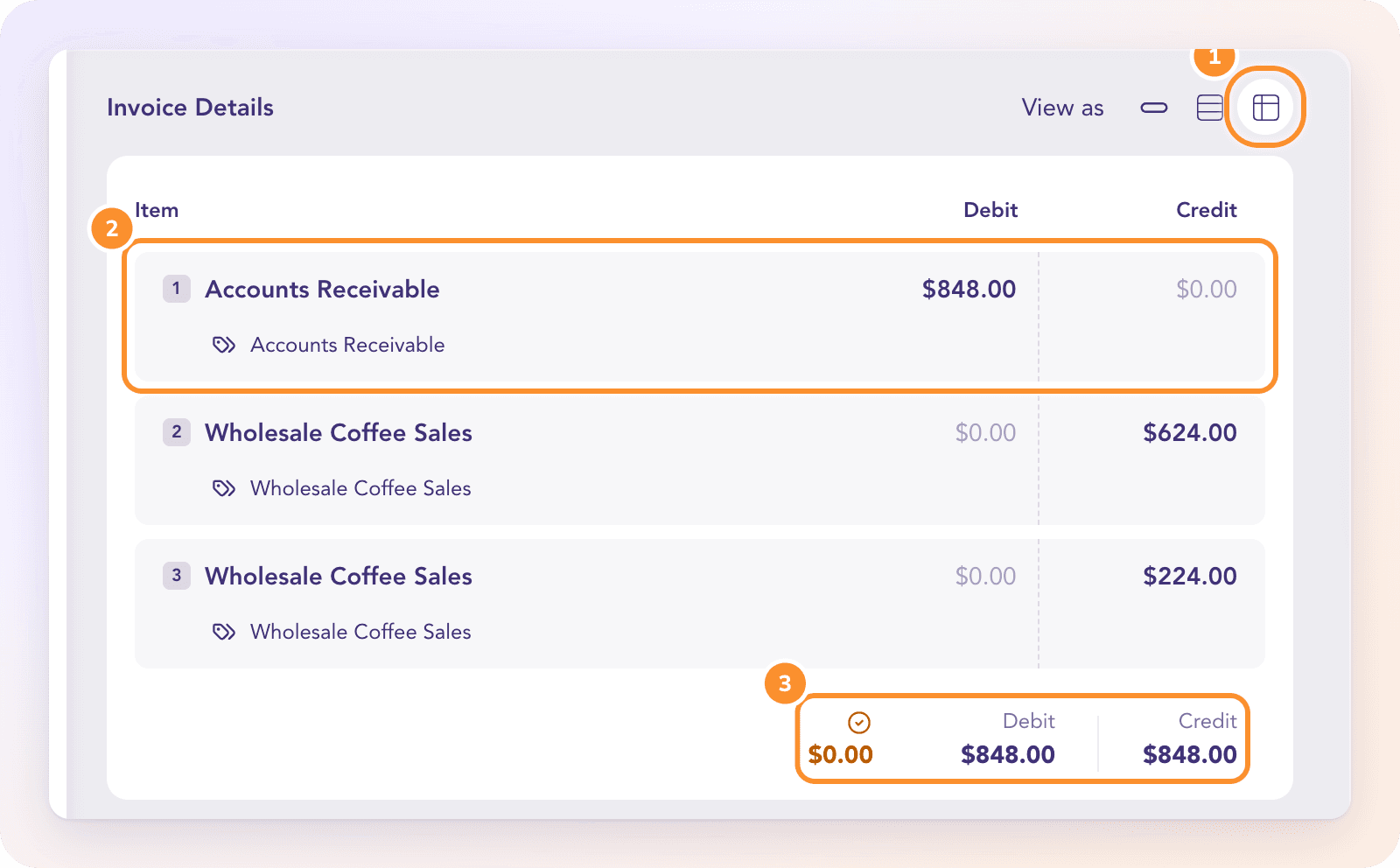
No money moves. Cash is recorded later, when a deposit is matched to the invoice. See Record payments and credits.
Why Approve isn't available
Hover over Preview or Approve to see the reason. The common ones:
| Message | Fix |
|---|---|
| "Choose an active customer before previewing this invoice." | Pick a customer. |
| "Choose a category for every invoice line before previewing." | Every line needs a category. |
| "Replace Uncategorized Income with a specific income category before previewing." | Change the line's category. |
| "Declare this client’s books currency before approving invoices — open Manage Clients and edit the client to set it." | Set the company's currency. |
| "This invoice has tax on a line, but no account is declared for tax charged on sales. …" | Declare Tax charged on sales in Invoice accounting settings. |
| "This invoice has retainage held back, but no Holdback Receivable account is declared …" | Declare Holdback receivable in the same settings. |
| "Invoice date is in a closed period" | Use a date after your closing date, or reopen the books. |
If you see "This invoice looks already paid — a deposit in the bank settles it exactly.", the customer's payment is already in an uploaded statement. Apply that payment so the revenue is counted once, or choose Not this payment if it's unrelated.
Frequently Asked Questions
Does approving an invoice record revenue?
Yes. Approval credits each line's income category and debits Accounts Receivable on the invoice date. Payment later only clears Accounts Receivable, so revenue is never counted twice.
Can Autopilot approve invoices for me?
Yes, uploaded invoices that pass every check, when Approve bills and invoices is on (it is by default). Turn it off on the Autopilot page to approve every invoice yourself. See Choose how much ZeraBooks does.
Can I change an invoice after approving it?
Yes. Click Edit, make the change and save; ZeraBooks reposts the entry. See Edit, duplicate, void or delete an invoice.
What if the invoice is in another currency?
Once its currency is confirmed, it posts at that date's exchange rate. Differences when it's paid land on Exchange Gain or Loss.
Is there an approval workflow for a second person?
No. ZeraBooks has no approvers or roles. Whoever is working in the company approves the invoice.
Learn more about AI-native general ledger: A double-entry ledger where statements become proven transactions.
Still stuck? A real person reads every message—come say hello.