Edit, duplicate, void or delete an invoice
Change an approved invoice, copy it into a new draft, cancel it with a void, or delete a draft. Here is when each one is allowed and what it does to your books.
Which action to use
| You want to… | Use | Allowed on |
|---|---|---|
| Fix a mistake | Edit | Drafts and approved invoices (including sent and overdue) |
| Bill the same thing again | Duplicate | Any invoice that isn't a draft |
| Cancel an invoice that was approved | Void Invoice… | Approved, sent, overdue and paid invoices |
| Throw away a draft | Delete… | Drafts only |
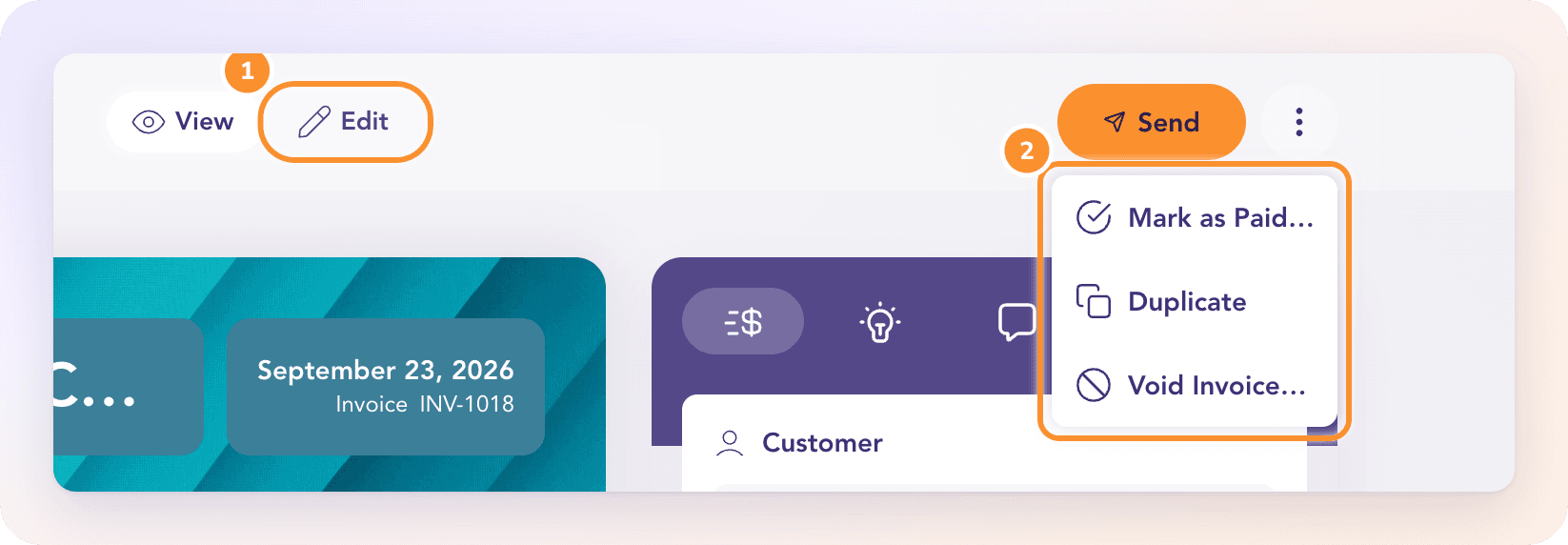
Edit an approved invoice
Open the invoice and switch the toggle at the top from View to Edit.
Make your changes.
Open More Actions and choose Save & Close.
ZeraBooks reposts the entry, and the Activity tab records "Edited and reposted the invoice." If the invoice was already sent and you changed something the customer sees, a Recipient-visible changes dialog asks what to do: Save Without Resending, or Continue to Preview to send the new version.
Edit is greyed out ("This invoice cannot be edited") on a voided invoice and on unpaid invoices brought over from your previous books, which are corrected together in Settings › Bookkeeping › Opening books.
Duplicate an invoice
Open the invoice, click More Actions › Duplicate (on a paid or void invoice, the Duplicate button at the top). You see "New duplicate invoice created" and a new draft opens with the same customer and lines and a new number. Change the dates and approve it.
Void an invoice
Open the invoice and click More Actions › Void Invoice….
Optionally add an Internal Memo saying why.
Click Void Invoice.
You see "Invoice Voided". Voiding takes the invoice's entry out of your books and releases any payments or credits applied to it. The invoice stays on record in the Void lane (More Actions › Show Voided Invoices on the board) with who voided it and when.
A void can't be undone: "This action cannot be undone." If you voided by mistake, open the voided invoice, click Duplicate and approve the copy.
Delete a draft
Open the draft and click More Actions › Delete….
The dialog warns "This invoice will be permanently deleted from ZeraBooks." Click Delete.
Only drafts can be deleted, because they never reached your books. An approved invoice is voided instead, so its history stays. A number that was assigned to a deleted draft is never reused.
Frequently Asked Questions
Can I edit an invoice after it's been sent?
Yes. Switch to Edit, make the change and save. ZeraBooks asks whether to save without resending or continue to preview and send the customer the new version.
What's the difference between void and delete?
Delete removes a draft that never posted. Void cancels an approved invoice: its entry comes out of your books but the invoice stays on record in the Void lane.
Can I undo a void?
No. Voiding can't be undone. Duplicate the voided invoice and approve the copy if you need it back.
Why can't I delete an approved invoice?
It's already in your books. Use Void Invoice… instead, which reverses it and keeps a record.
What happens to a payment matched to an invoice I void?
It's released from the invoice. Check that deposit in Banks & Cards and give it the right category or match it to the correct invoice.
Can I edit an invoice dated in a closed period?
No. Changes on or before your closing date are refused with "Invoice date is in a closed period". Reopen the books first.
Learn more about AI-native general ledger: A double-entry ledger where statements become proven transactions.
Still stuck? A real person reads every message—come say hello.