Switch between clients
Move between the businesses you keep books for from the company menu, All Clients or search. Every page then shows the client you picked.
From the company menu
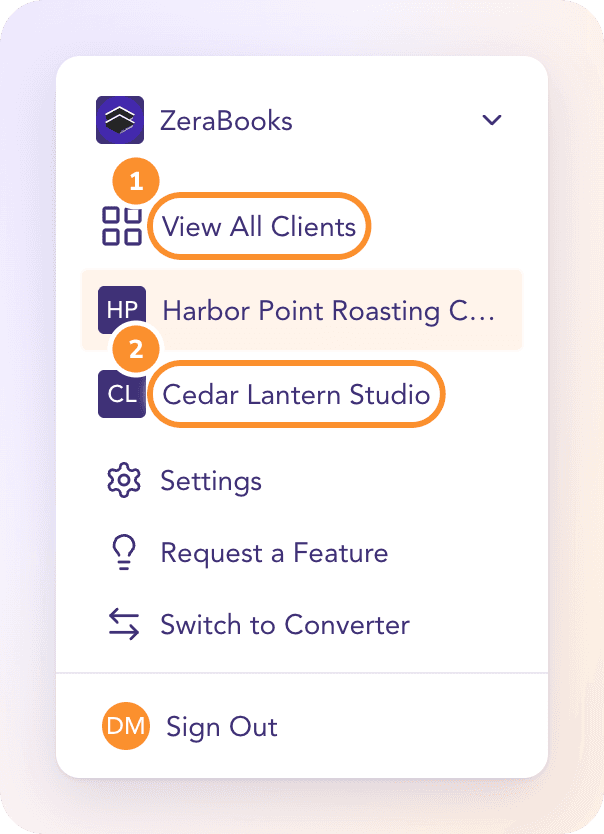
The company menu is the business name at the top of the left navigation. Everything you see in ZeraBooks belongs to the client named there.
Click the business name at the top of the left navigation.
Click a client in the list. The menu shows up to five clients: the ones you used most recently first, then the newest.
ZeraBooks shows "Preparing your workspace for {client}" while it opens the client's books. You stay on the same page, now showing the new client.
From All Clients
If the client isn't in the company menu, click View All Clients in the menu (or press G then C), then click the client's card or row to open its Dashboards. You can also click one of a client's numbers to go straight to that page, for example its Review count opens the transactions that need review. See All Clients.
From search
Press ⌘ K (Ctrl K on Windows).
Start typing the client's name.
Pick it under Switch company and press Enter. The client opens on its Dashboards.
Tip: Archived clients don't appear in the company menu. Find them in All Clients under the Inactive filter. See Archive, restore or delete a client.
Frequently Asked Questions
Does search look across all my clients?
Search finds pages, quick actions and your clients by name. Vendors and customers are searched only within the client you're in.
What does "Retry loading clients" mean?
ZeraBooks couldn't load your client list into the menu. Click it to try again.
Is there a keyboard shortcut for All Clients?
Yes. Press G then C. Press ? to see every shortcut. See Navigation & shortcuts.
Learn more about For accountants: Run every client’s books in one ledger with AI doing the routine work.
Still stuck? A real person reads every message—come say hello.