Let Zera apply changes by itself (Auto-approve)
Auto-approve lets Ask Zera apply changes to your books as it makes them and keep going on its own, instead of waiting for you to approve each card. Every change can still be undone, and anything that can't be undone, such as emailing a customer, still asks first.
What are Ask first and Auto-approve?
Ask Zera has two approval settings. You switch between them with the pill in the chat footer, beside New chat.
| Setting | What happens to a change | Best for |
|---|---|---|
| Ask first (the default) | Each change waits as a card with Approve and Skip. Nothing is written until you approve it. | Checking each step, or your first few jobs with Zera |
| Auto-approve | Changes apply as Zera makes them, and it keeps going on its own. | Catching up months of books without clicking through every card |
In both settings, anything that can't be undone still waits for you. For example, emailing an invoice to a customer always asks first.
How do I turn on Auto-approve?
Open Ask Zera: click the Ask Zera… bar, or press ⌘ J (Ctrl J on Windows).
At the bottom of the chat, beside New chat, click the Ask first pill.
Choose Auto-approve: "Changes apply as Zera makes them, and it keeps going. Each can be undone; anything that can't still asks."
The pill now reads Auto-approve, and the note under the chat changes to say so: "Auto-approve is on: changes apply as Zera makes them, and each can be undone. Anything that can't be undone still asks."
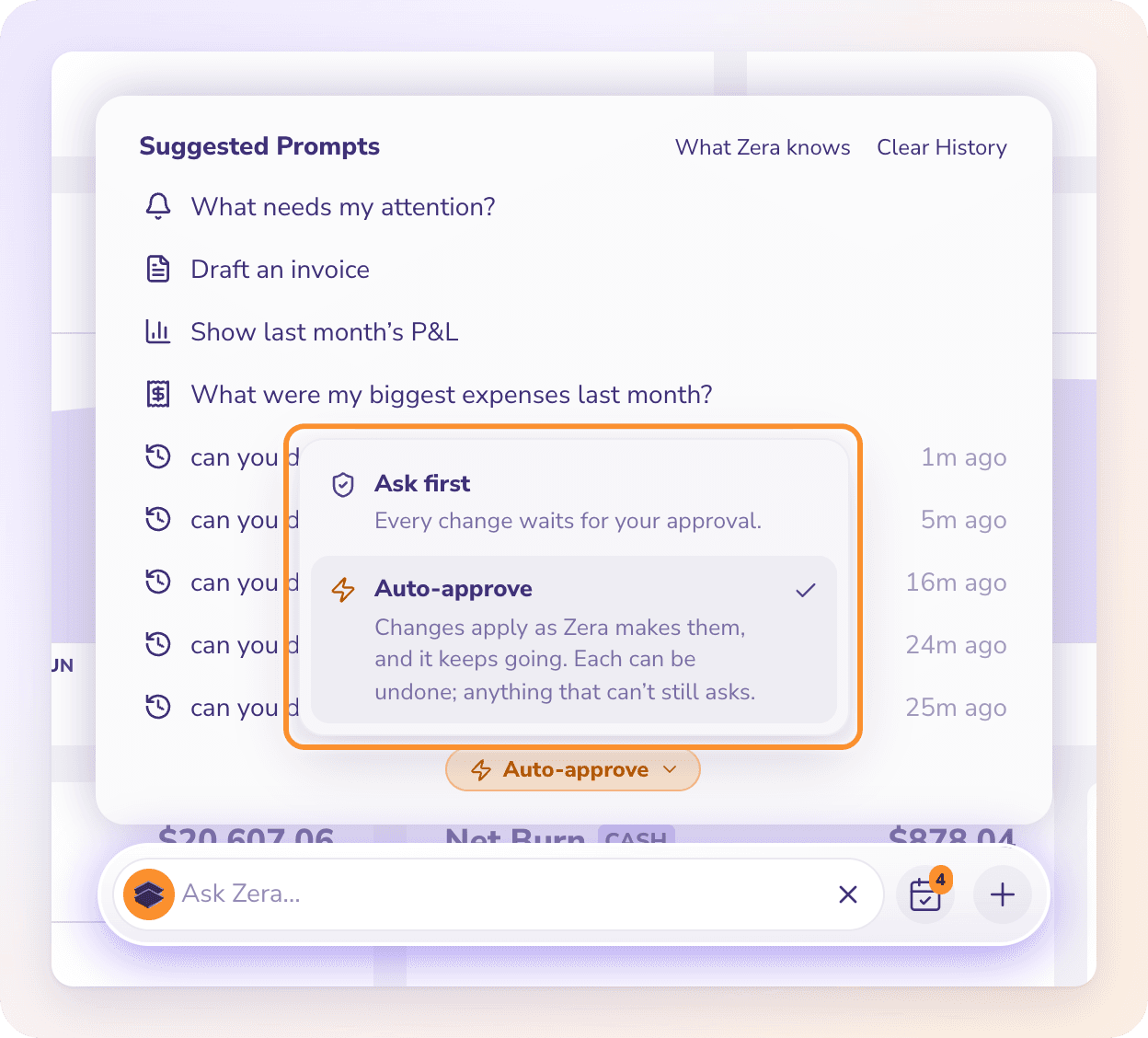
Note: Switching Auto-approve on also applies the changes already waiting in the chat, except any that can't be undone.
To go back, click the pill and choose Ask first. From then on, every change waits for you again.
What does a card look like with Auto-approve on?
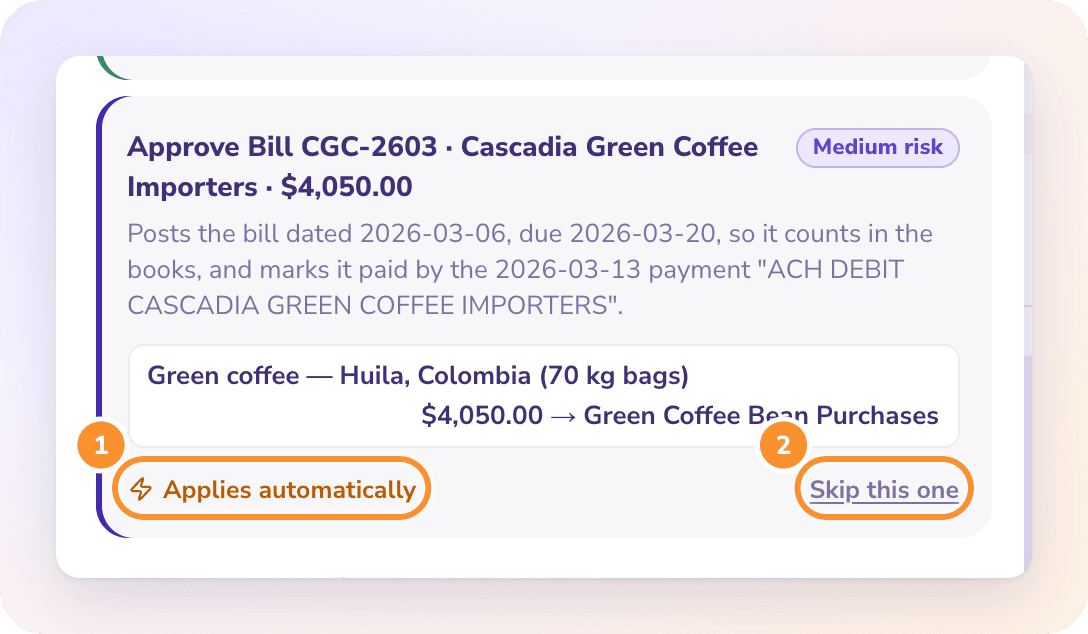
Cards still appear in the chat, so you can see every change. Instead of Approve and Skip, a card that's about to apply reads Applies automatically, with a Skip this one link. Click Skip this one to leave that change out.
Once it's applied, the card becomes a receipt marked Done, with Undo, exactly as when you approve it yourself. See Approve, skip and undo with Ask Zera.
What still asks, even with Auto-approve on?
Anything that can't be undone. Emailing an invoice, a payment reminder or financial statements, merging two vendors or customers, and other changes listed in What can't be undone.
Questions only you can answer. Whether a charge was personal, what a cash withdrawal was for, whether someone is a contractor. Auto-approve lets Zera apply changes; it doesn't let Zera guess.
How do I check what Zera did?
In the chat. Every applied change stays as a receipt, with Undo where it can be reversed.
In Autopilot. Every change Zera applies is also listed in the Done by AI log. See Review and undo AI actions.
In the summary. At the end of a job, Zera tells you what it did and anything still waiting on you.
Who does the setting apply to?
The setting belongs to the company. It stays on for that company until someone switches it back to Ask first, and it doesn't change your other companies or clients.
Frequently Asked Questions
Is Auto-approve safe to use?
Every change goes through the same checks as doing it yourself on the page, every applied change can be undone from its card, and anything that can't be undone still asks you first. Zera still asks you anything it would otherwise be guessing.
Can Zera email my customers with Auto-approve on?
Not without you. An email can't be unsent, so sending an invoice, a reminder or financial statements always waits for your Approve.
How do I undo something Zera applied automatically?
Click Undo on its card in the chat, or find it in Autopilot under Done by AI and undo it there.
Does Auto-approve change how Autopilot works?
No. Autopilot keeps its own mode (Cautious, Balanced or Autopilot). Auto-approve only decides whether Ask Zera's cards wait for you. See Choose how much ZeraBooks does.
Does Auto-approve stay on for all my companies?
No. It's saved for each company separately. Turning it on for one client leaves your other companies on Ask first.
Learn more about AI bookkeeping: Autopilot and Ask Zera keep the books inside a real general ledger.
Still stuck? A real person reads every message—come say hello.