The Vendors and Customers pages
See everyone you pay and everyone who pays you, with their activity for the period, what's still owed, and every transaction behind the totals.
Open the pages
In the left navigation, click Vendors or Customers. The two pages work the same way: Vendors shows money going out and what You Owe; Customers shows money coming in and what is Owed to You.
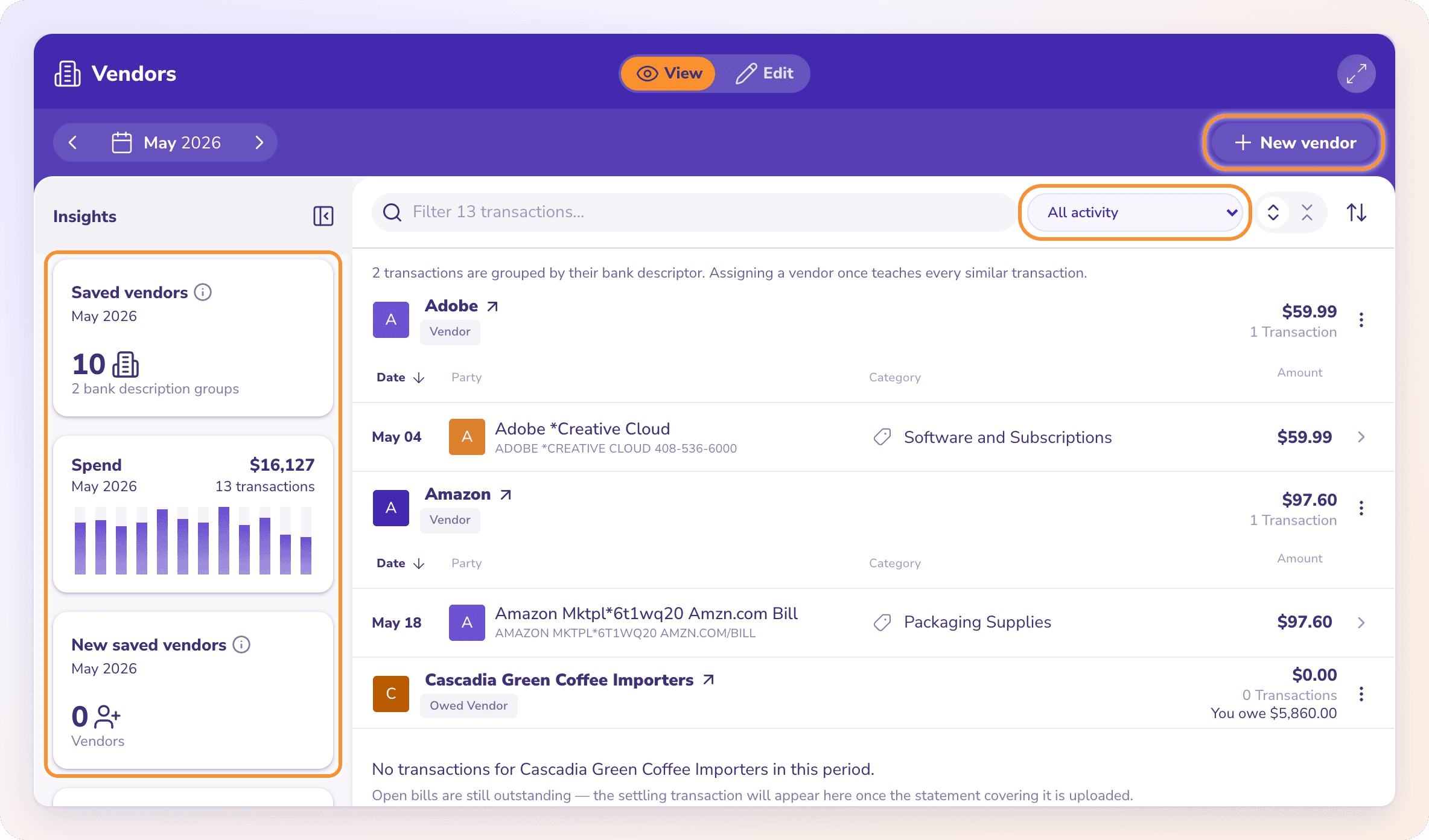
What's on the page
The period at the top sets which months the activity covers. Use the arrows to step back or forward.
The Insights rail on the left shows how many saved vendors and bank description groups had activity, the Total Spend (or Total Revenue) for the period, and You Owe (or Owed to You): what is still owing on open bills or invoices at the end of the period. Open Bills (or Open Invoices) jumps to the board. Hide or show the rail with its arrow button.
One card per vendor, listing each transaction with its Date, Party, Category and Amount.
Saved vendors and bank description groups
A card is one of two kinds:
A saved vendor: a record you created, or one created from a bill.
A bank description group: transactions from your statements that aren't linked to a saved vendor yet, grouped by the name the bank printed.
Use the filter above the cards to show All activity, Saved vendors (or Saved customers) or Bank description groups. Linking a group to a saved vendor puts its activity under that vendor. See Link bank descriptions to saved vendors.
Search, sort and export
Type in Filter N transactions… to find a vendor or transaction.
Use Expand all or Collapse all to open or fold every card.
Sort By orders the cards by Vendor Name, Total Spend or Transaction Count.
On a card, the ⋮ menu has Download CSV, which exports that card's transactions.
Open a vendor
Click a vendor's name to open its details. The Transactions, Categories and Bills tabs (Invoices for a customer) show its full history, which categories its spending lands in, and its bills filtered by All posted, Paid / settled or Outstanding. Click Edit vendor to change its details.
Tip: Press ⌘ K (Ctrl K on Windows) and type a vendor or customer name to open it across all time.
Frequently Asked Questions
Why is there a vendor I never created?
It's probably a bank description group: transactions from your statements grouped by the name the bank printed. Choose Bank description groups in the filter to see only those, and link them to a saved vendor if you want.
What does "You Owe" mean?
The amount still owing on your open bills at the end of the period you're viewing. For customers, Owed to You is what's still owing on open invoices.
How do I export a vendor's transactions?
On the vendor's card, click the ⋮ menu and choose Download CSV. The file lists the date, party, description, category and amount of each transaction.
Why is the page empty?
Nothing happened in the period you're viewing. Step the period back, upload a statement in Banks & Cards, or add a vendor by hand with New vendor.
Does ZeraBooks track 1099 vendors?
No. ZeraBooks doesn't flag 1099 vendors or total 1099 spend. Sort by Total Spend and export the card with Download CSV to prepare the figures yourself.
Can a business be both a vendor and a customer?
Yes. The same record can appear on both pages, with its bills on one and its invoices on the other.
Learn more about AI-native general ledger: A double-entry ledger where statements become proven transactions.
Still stuck? A real person reads every message—come say hello.