Link bank descriptions to saved vendors
Put bank transactions under the vendor they belong to. ZeraBooks suggests links it's sure of, and every similar transaction in every month follows.
Why link bank descriptions
Banks print their own version of a business name, such as ULINE *SHIP SUPPLIES for Uline. Until a transaction is linked to a saved vendor, it sits in a bank description group on the Vendors page (or Customers page), grouped by that printed name.
Linking a group to a saved vendor puts its activity under the vendor, so the vendor's totals, history and bill matching are complete. You do it once: ZeraBooks remembers the link and applies it to similar transactions in every month and on future statements.
Accept suggested links
When a bank description group clearly names one of your saved vendors, ZeraBooks suggests the link. A banner reads, for example, "2 bank groups look like saved vendors" and lists each one as bank name → vendor.
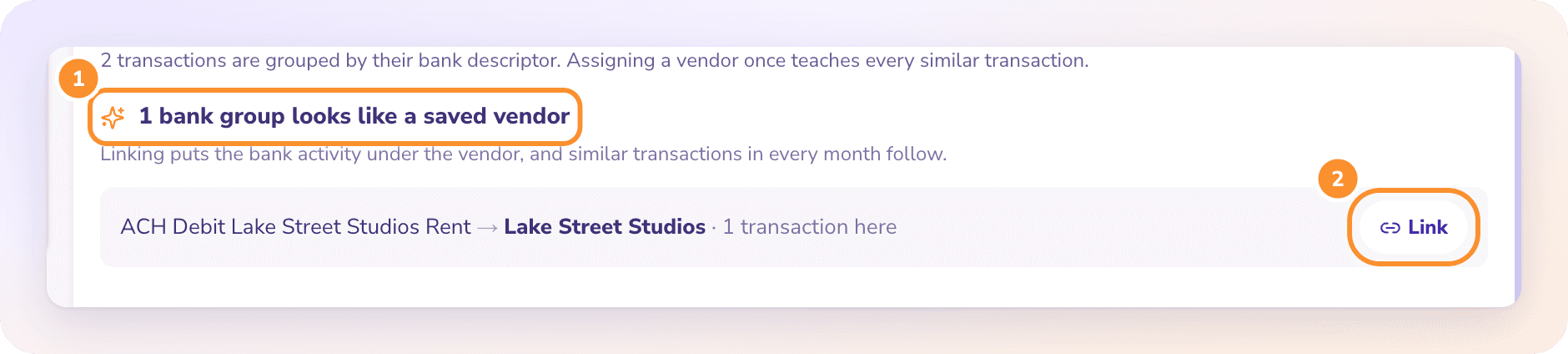
In the left navigation, click Vendors (or Customers).
Review the suggestions in the banner.
Click Link beside one, or Link all to accept every suggestion.
A message confirms how many transactions were linked, for example "Uline linked to 14 transactions."
A suggestion appears only when the bank text contains every word of exactly one saved vendor's name. For near misses, where the bank shortens or abbreviates the name, ZeraBooks asks AI whether they're the same business, and only a confident yes becomes a suggestion. Inactive vendors are never suggested.
Link a group yourself
On the Vendors page, switch to Edit at the top.
On a bank description group or a transaction, click Assign a vendor.
Search for the vendor, or type a new name to create one.
ZeraBooks asks whether to also apply it to the similar transactions it found. Click Apply to all N, or Just this one.
Similar means transactions with the same bank description family. To change or remove a link later, click the vendor on the row in Edit mode and choose again.
Tip: The note above the cards, "N transactions are grouped by their bank descriptor", tells you how many transactions still have no vendor. Choose Bank description groups in the filter to see only those.
Frequently Asked Questions
Why does a vendor appear twice, once as a saved vendor and once as a bank group?
The bank group is transactions not yet linked to the saved vendor. Accept the suggested link, or assign the vendor yourself in Edit mode, and the two come together.
Do I have to link every month separately?
No. Linking applies to similar transactions in every month, and ZeraBooks stamps future statements the same way.
Why can't I link these transactions?
They're in a closed period. The message reads "This period is closed. Reopen the books from Reconciliations to link these, then close them again."
Why wasn't a bank group suggested for my vendor?
Suggestions appear only when ZeraBooks is sure: the bank text must match exactly one saved, active vendor. Assign the vendor yourself in Edit mode instead.
Does linking change my categories?
No. Linking sets who the transaction was with. Its category stays the same. To change categories for a vendor, see Recategorize a vendor's transactions.
I linked the wrong vendor. How do I fix it?
Switch to Edit, click the vendor on one of the transactions, and choose the right one or remove it. ZeraBooks offers to apply the change to the similar transactions too.
Learn more about AI-native general ledger: A double-entry ledger where statements become proven transactions.
Still stuck? A real person reads every message—come say hello.