Publish, copy, share and email a custom report
Publish a custom report as a final snapshot, make an editable copy, download it as a PDF or a package with its files, and email the PDF to your client.
Publish the final report
Publishing freezes the report exactly as it is: the figures, text, cover and supporting files.
Open the draft from Custom Reports.
Wait for All changes saved in the top bar. Publish Final stays greyed out while changes are saving.
Click Publish Final.
Check the summary of Report, Period and Pages in Publish this report?, then click Publish Final.
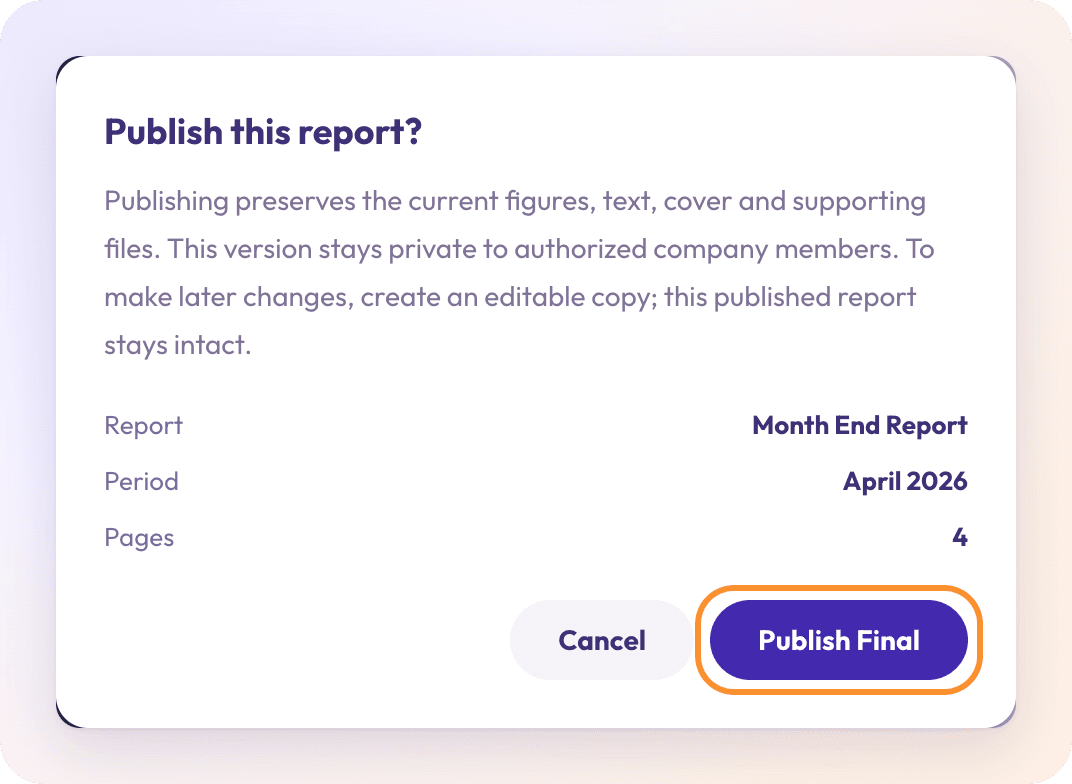
You see "Report published. Its content and supporting files are preserved." The card in Custom Reports now shows Published on with the date, and its button reads View.
Important: A published report can't be edited or deleted, and later changes to your books don't change it. To make changes, create an editable copy (below).
If the report has no sections, you see "Add at least one section before publishing." If a statement in the period hasn't reconciled, the dialog shows a note with Review in Reconciliations →; you can still publish.
Make an editable copy
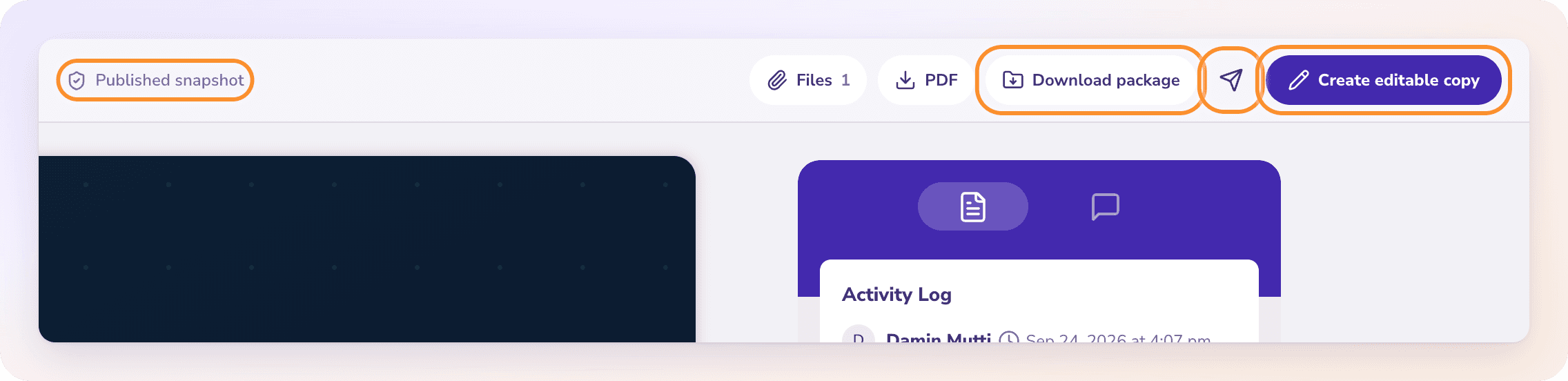
Open the published report. The top bar reads Published snapshot.
Click Create editable copy.
A new draft opens with the same pages, text, cover and files: "Editable copy created. The published report is preserved." Edit the copy and publish it when it's ready.
To start next month's report from this one instead, use ⋮ › Duplicate Report… on its card. See Create a month-end custom report.
Download the report
The top bar offers two downloads, on drafts and published reports alike:
| Button | What you get |
|---|---|
| The cover and every page as one PDF, ending with a page that lists the supporting files | |
| Download package | A ZIP with the report PDF, report-content.txt (the report's text) and a Supporting files folder holding the original files |
A statement page also has its own download menu, with Download PDF and Download XLS (an Excel .xlsx file) for that page alone.
Email the report
Click the send icon (Email report PDF) in the top bar.
Enter the recipients in To. It starts empty. Add CC if you need it.
Check the Subject, "{Company} — {Title} — {period}", and the Message.
Click Send report.
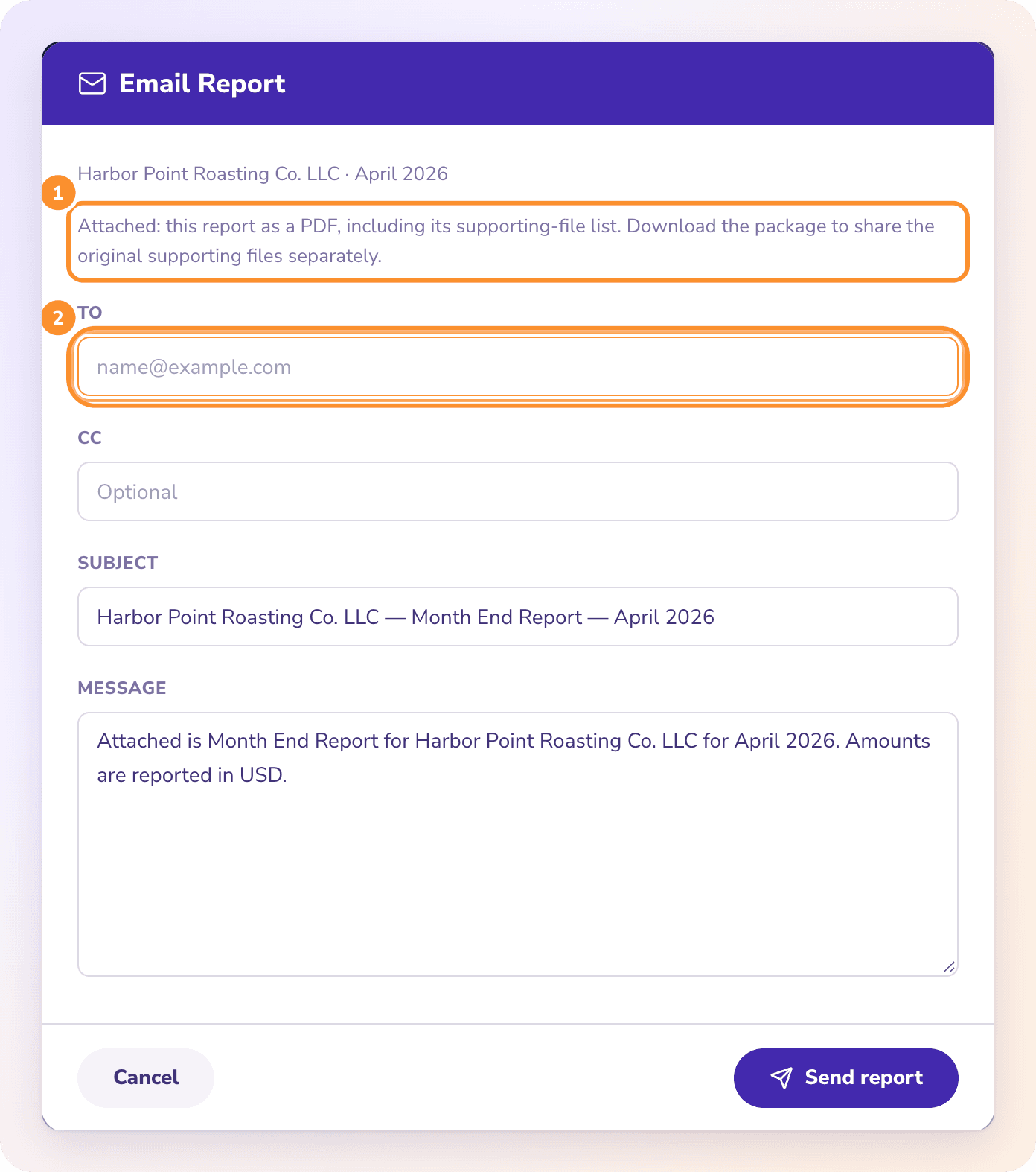
The email carries the report as one PDF, including its list of supporting files. The files themselves aren't attached: send them separately from Download package. The same limits as Financials apply: up to 10 addresses across To and CC, a subject of 200 characters or fewer, and 25 MB. See Email financial statements.
Frequently Asked Questions
Can I edit a report after publishing it?
No. Click Create editable copy to get a new draft with the same content. The published report stays as it was.
Can I delete a published report?
No. Only drafts can be deleted. Published reports are kept as the record of what you delivered.
Are supporting files attached to the email?
No. The email carries the report PDF, which lists the supporting files. Use Download package to share the original files.
Do published figures change if I fix a transaction later?
No. A published report is a snapshot of the figures when you published it. Make an editable copy and publish it again to show the corrected figures.
Can I get a statement from the report in Excel?
Yes. On the statement's page, open its download menu and choose Download XLS. It saves an .xlsx file.
Learn more about AI-native general ledger: A double-entry ledger where statements become proven transactions.
Still stuck? A real person reads every message—come say hello.