Create a month-end custom report
Build a branded month-end, quarter-end or year-end report with your statements, charts and notes, starting fresh or from last month's report.
Before you start
A custom report is a report pack for one period: a cover, an executive summary, statements, charts and your own notes. You build it from your live books, then publish it, download it or email it. Reports are kept per company and per period.
In the left navigation, click Custom Reports. The list shows only the reports for the period selected at the top, so pick the period first.
Run a new report
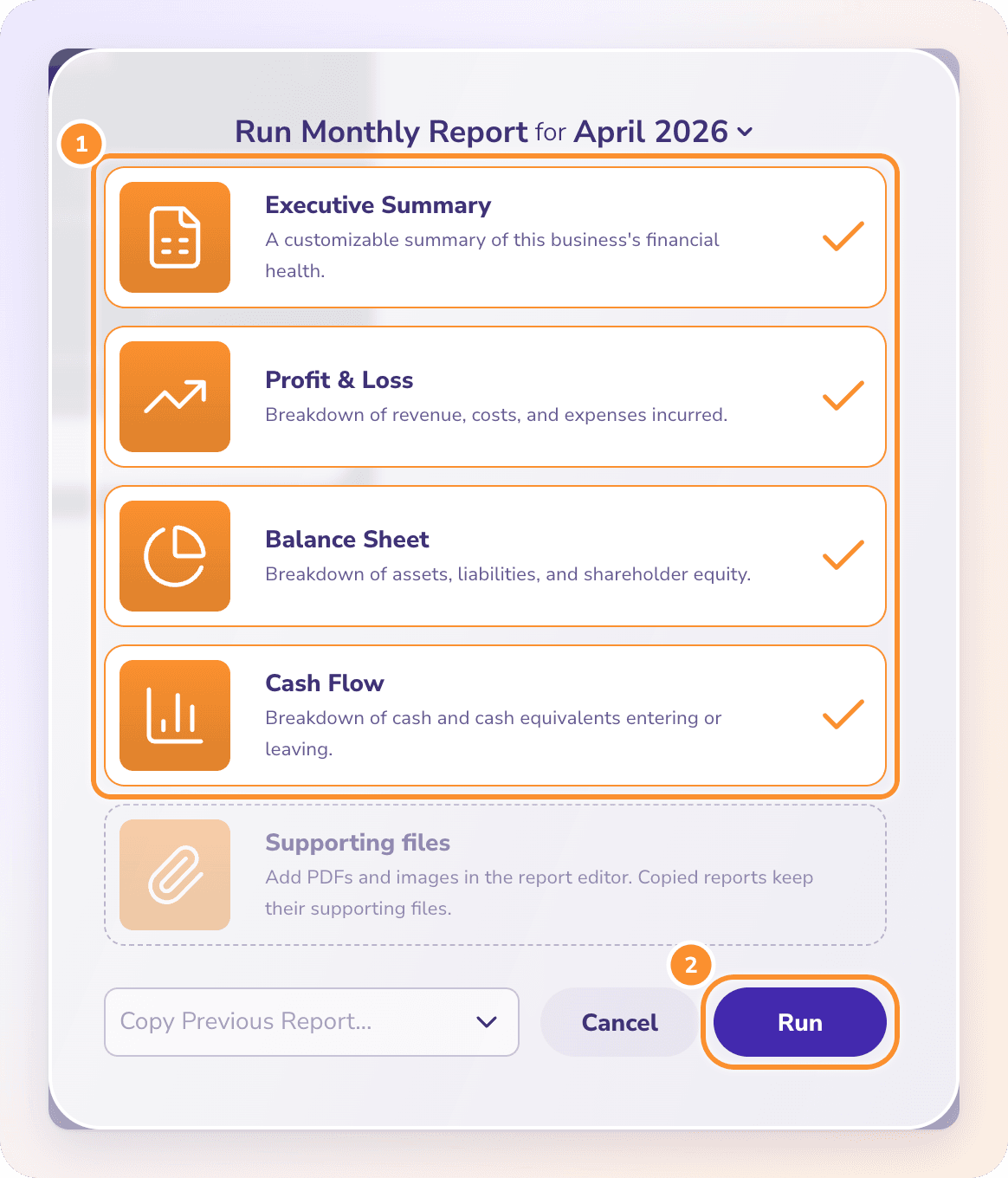
Choose the sections
Tick the sections to include. All four are ticked to start with:
| Section | What it adds |
|---|---|
| Executive Summary | A page for your written summary, the Revenue Analysis and Expenses Analysis, and the Total Cash, Net Burn and Runway cards |
| Profit & Loss | The Profit & Loss for the period |
| Balance Sheet | The Balance Sheet at the period's end |
| Cash Flow | The Cash Flow for the period |
Run it
Click Run. The button reads Running…, then the report opens in the editor, ready for you to write and arrange. A new report is named Month End Report, Quarter End Report or Year End Report to match the period, and a copy keeps the title of the report it came from. Change the title in the cover options. See Customize pages and the cover, and attach supporting files.
Tip: With All Time selected, the report saves a fixed date range covering your posted books through today, so it doesn't keep growing later.
Add pages and charts
On a draft, every page has Options and Add at the top. Click Add to put a new section after that page. The library has five tabs, each with a live preview:
| Tab | Sections |
|---|---|
| Graphs | Cash Flow, Total Cash, Runway, Net Burn, Gross Income |
| Statements | Profit & Loss, Balance Sheet, Cash Flow |
| Lists | Top Expense Categories, Top Vendors, Top Income Categories, Top Customers (five each) |
| Dimensions | Empty for now (see the FAQ) |
| Custom | Revenue Analysis, Expenses Analysis, Text |
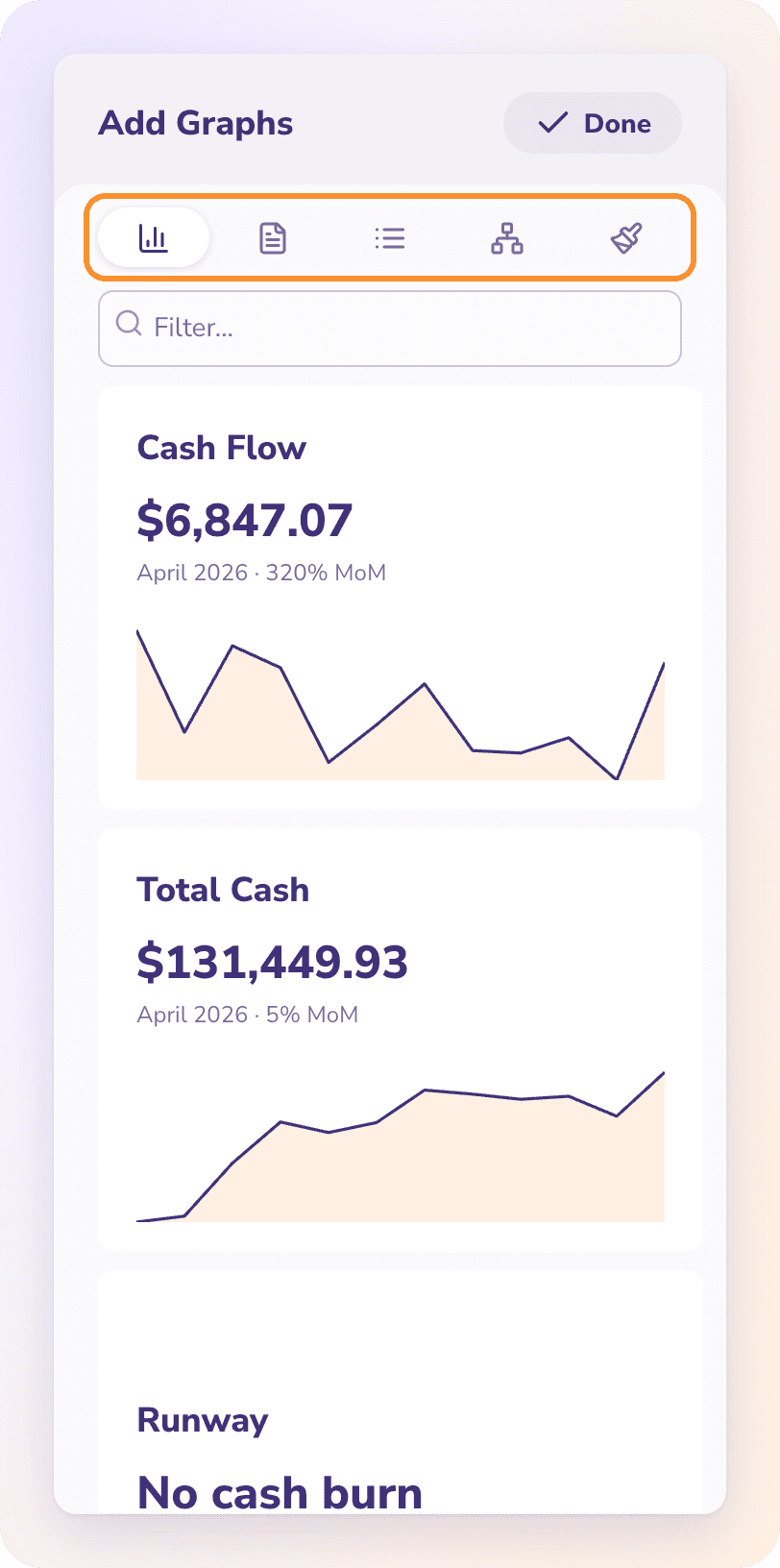
Type in Filter… to find a section by name. To add a notes page at the end, click Add text in the top bar. Text sections hold up to 20,000 characters.
Your drafts save themselves
Every change saves half a second after you stop typing. The top bar shows All changes saved, Saving changes… or Changes waiting to save. If a save fails, you see "Your changes could not be saved. Check your connection and try again." with Retry save and Reload saved version. Your browser also warns you before you leave a page with unsaved changes.
To pick up a draft later, go to Custom Reports, pick its period and click Resume Editing on its card.
Reuse a report next month
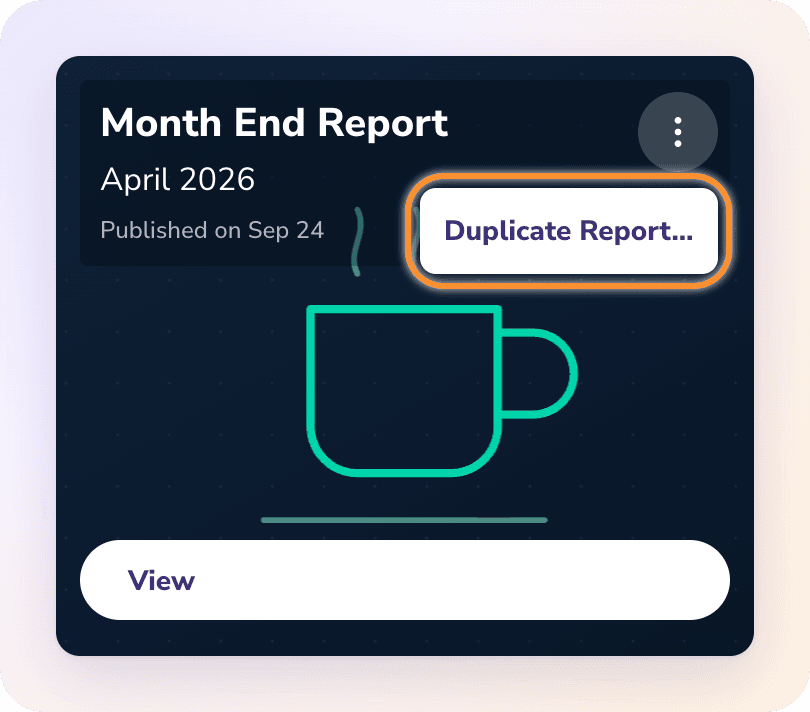
On any report card, click ⋮ › Duplicate Report…. Run Report opens with that report chosen under Copy Previous Report…. Pick next month's period in the title and click Run.
Frequently Asked Questions
Do I need to save my report?
No. Drafts save automatically about half a second after each change. Look for All changes saved in the top bar.
Why can't I see the report I made last month?
The list shows only reports for the period selected at the top. Pick last month in the period picker.
Can I schedule a report to run every month?
No. ZeraBooks doesn't schedule reports. Each month, use Duplicate Report… on last month's report to start from the same layout.
Can I break a report down by department or location?
Not yet. The Dimensions tab is empty: "Departments and locations are recorded on documents, not on bank rows, so there is nothing to break down yet."
Do the figures update when my books change?
Yes, on a draft. Click Refresh figures in the top bar to reload them from your books. A published report keeps the figures it had when you published it.
How do I delete a draft report?
On its card, click ⋮ › Delete draft…, then Delete draft. Only drafts can be deleted; other reports and published copies keep their own text and files.
What does "Could not run the report" mean?
The report couldn't be created. Check your connection and click Retry report.
Learn more about AI-native general ledger: A double-entry ledger where statements become proven transactions.
Still stuck? A real person reads every message—come say hello.