Create a bill by hand
Enter a bill without a document: pick the vendor, add each line with its price and category, and add a holdback or reverse charge when you need one.
Start a new bill
In the left navigation, click Bills & Invoices › Bills.
Click Create Bill. A blank New Bill opens. Nothing is saved until you save or approve it.
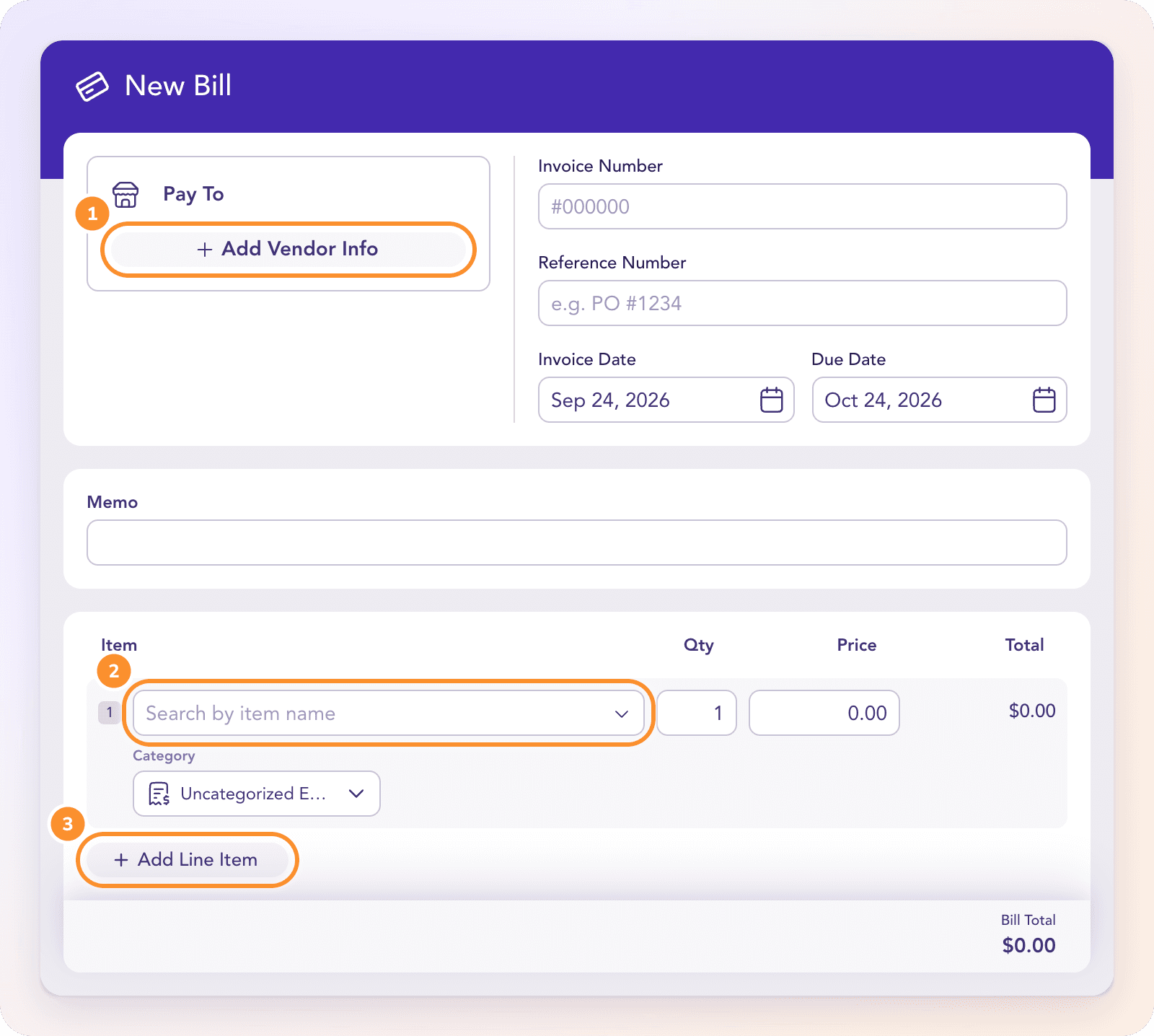
Under Pay To, click Add Vendor Info and pick a saved vendor, or type a new name.
Fill in Invoice Number (the vendor's bill number), an optional Reference Number such as a PO, the Invoice Date and the Due Date. The due date starts 30 days after the invoice date; change it or choose No due date.
Add a Memo if you want a note on the bill.
Add the lines
On the first line, search for a saved item under Item, or type a description.
Enter the Qty and Price. The Total fills in.
Choose a Category for the line. Picking a saved item fills in its buy price and expense category. See Create a product or service.
Click Add Line Item for each extra line. Use Add Description for a longer note on a line, and Remove Item to delete one.
The Bill Total at the bottom is the sum of your lines. (On an uploaded bill, the footer instead compares the Bill Amount printed on the document with the Items Amount of its lines, and shows any Difference. It can't be approved until they agree.)
Tip: For a credit from a vendor, keep the quantity positive and enter a negative price. Negative quantities are refused.
Add a holdback
A holdback (also called retainage) is part of a bill you're allowed to hold back and pay later, common with subcontractors.
Click Add a holdback under the dates.
Enter the amount held back.
The holdback is kept apart from what you owe now and is settled on its own later. Add a holdback only appears once you've chosen a holdback account in Bill accounting settings… (the ⋮ menu on the Bills board).
Mark a reverse-charge purchase
For a purchase from a business in another EU country where the supplier charged no VAT, tick Reverse charge. ZeraBooks then records the VAT on those lines as both reclaimed and owed, and the bill still owes the supplier the amount before tax.
Reverse charge only appears when your books have an account for tax charged on sales.
Finish the bill
Click Approve Bill to post it to Accounts Payable. See Approve or reject a bill.
Or click the arrow beside it and choose Save Draft & Close to keep it in In Review.
Cancel leaves without saving. If you have unsaved changes, ZeraBooks asks whether to Discard Changes or Save & Continue.
Frequently Asked Questions
Can I create a bill without uploading a document?
Yes. Click Create Bill on the Bills board and enter the vendor, dates and lines yourself. You can attach a document later with Add document… in the ⋮ menu.
Why won't my bill approve? It says the lines are off.
On an uploaded bill, the lines must add up to the printed total. Fix a line's quantity or price, or add the missing line, until the Difference disappears. A bill with no lines, or lines that total zero, can't be approved either.
What does "Vendor is required" mean?
The bill has no vendor. Click Add Vendor Info under Pay To and choose or create one, then approve again.
Why don't I see "Add a holdback"?
No holdback account is set yet. On the Bills board, open the ⋮ menu, choose Bill accounting settings…, and pick an account under Holdback (retainage).
Can I enter a bill in another currency?
A bill you create by hand is in your books currency. Bills in another currency come from uploaded documents: ZeraBooks reads the currency and posts the bill at its date's exchange rate once you confirm it.
Why isn't my product offered on a bill line?
Only items marked I purchase this appear on bill lines. Open the item in Products & Services and turn that on.
Learn more about AI-native general ledger: A double-entry ledger where statements become proven transactions.
Still stuck? A real person reads every message—come say hello.