Create a product or service
Save what you sell or buy once, with its price and category, and every invoice or bill line that uses it fills itself in.
Create an item
In the left navigation, click Bills & Invoices › Products & Services.
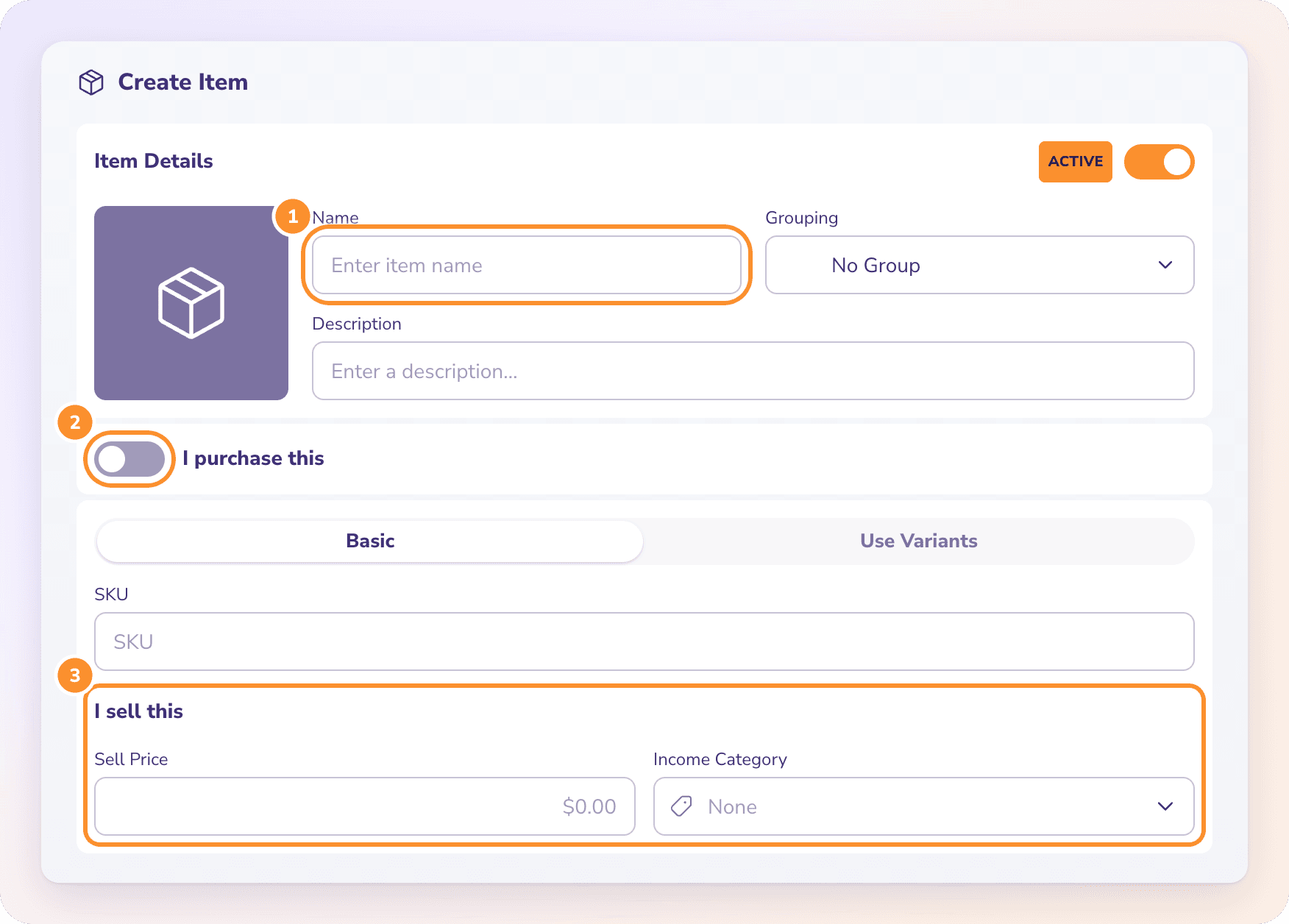
Click New Item. The Create Item screen opens.
Enter the Name, and optionally a Description.
Under Grouping, choose a group or leave No Group. See Variants and groups.
Leave Basic selected for an item with one price. Enter a SKU if you use one.
Under I sell this, enter the Sell Price and choose the Income Category the sale posts to.
If you also buy this item, turn on I purchase this and enter the Buy Price and Expense Category.
Click Save & Close.
How items are used
On an invoice line, pick the item and its sell price and income category fill in.
On a bill line, pick the item and its buy price and expense category fill in. Only items with I purchase this turned on are offered on bills.
You can still change the price or category on any single line.
Edit or deactivate an item
Click an item in the list to open it, click Edit, make your changes and click Save & Close.
Items aren't deleted. To stop offering one, open it in Edit and turn off the Active switch at the top right. To change several at once, switch the list to Edit, tick the items, choose Active or Inactive under Status, and click Apply to N.
Find items
Type in Filter N items… to search, use Filters to narrow the list, and click a column heading (Name, Source, Sell price) to sort. Show insights adds Product revenue by month and Top Sellers beside the list. An item's own Insights tab shows its Latest Transactions.
Frequently Asked Questions
How do products and services speed up invoices?
Picking a saved item on an invoice or bill line fills in its price and category, so you don't retype them or choose the wrong income or expense account.
Why isn't my item offered on a bill?
It isn't marked as something you buy. Open it, click Edit, turn on I purchase this, and add a buy price and expense category.
Can I delete a product or service?
No. Set it to Inactive instead. It stays on the invoices and bills that already use it, but isn't offered on new ones.
Can I create an item I only buy and never sell?
No. Every item you create here is sold, so I sell this is always on. Turn on I purchase this as well to use it on bills, and choose the category you want its sales to post to.
What does "An item must be sold, purchased, or both" mean?
The item has neither a sell nor a purchase side. Give it a sell price and income category, or turn on I purchase this.
Does ZeraBooks track inventory quantities?
No. Items carry a name, prices and categories. ZeraBooks doesn't count stock on hand or cost of goods by quantity.
Learn more about AI-native general ledger: A double-entry ledger where statements become proven transactions.
Still stuck? A real person reads every message—come say hello.