Approve or reject a bill
Approving a bill posts it to Accounts Payable in one click. Here is how to approve, what happens with a new vendor, and how to return a bill for correction.
Approve a bill
In the left navigation, click Bills & Invoices › Bills.
Click a bill in In Review to open it. Check the vendor, dates and lines against the document beside them.
Click Approve Bill.
The bill posts to Accounts Payable: each line's amount goes to its category, and the total is owed to the vendor. The bill moves to Awaiting Payment and a "Bill approved" message confirms it.
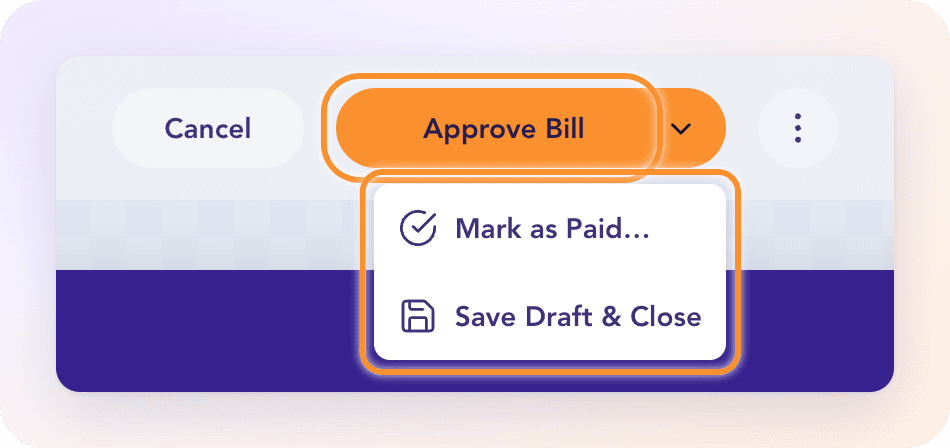
The arrow beside Approve Bill offers two other ways to finish:
Mark as Paid… approves the bill and records a payment you made outside your uploaded statements. See Mark a bill as paid.
Save Draft & Close keeps your changes and leaves the bill in In Review.
A bill from a new vendor
When ZeraBooks reads a vendor name it has no record for, the vendor shows with a NEW label and a Complete Vendor Profile button.
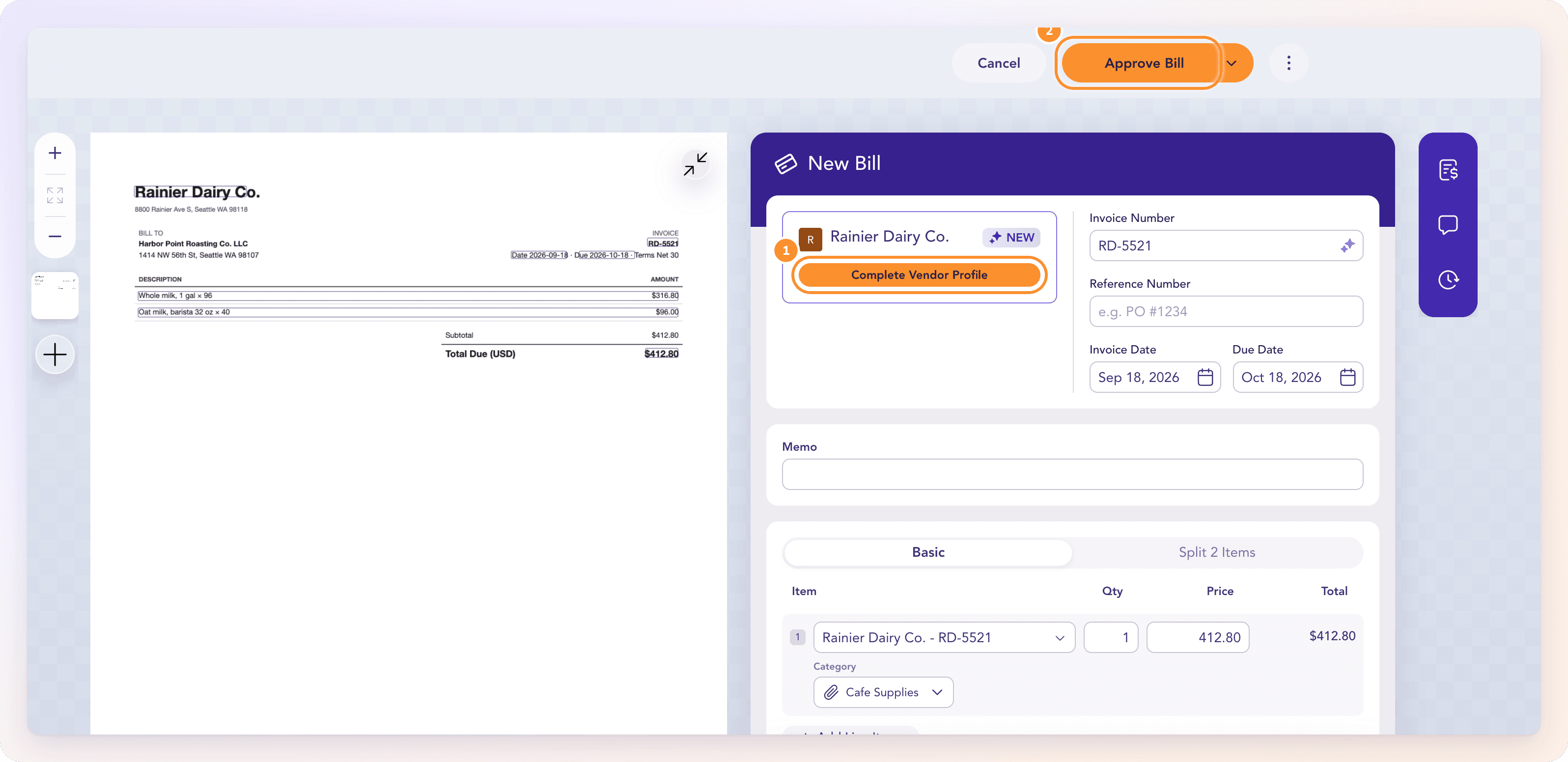
Click Approve Bill directly, and ZeraBooks creates the vendor from the name it read, then approves the bill.
Or click Complete Vendor Profile first to check the Vendor Name and add an email, then click Save.
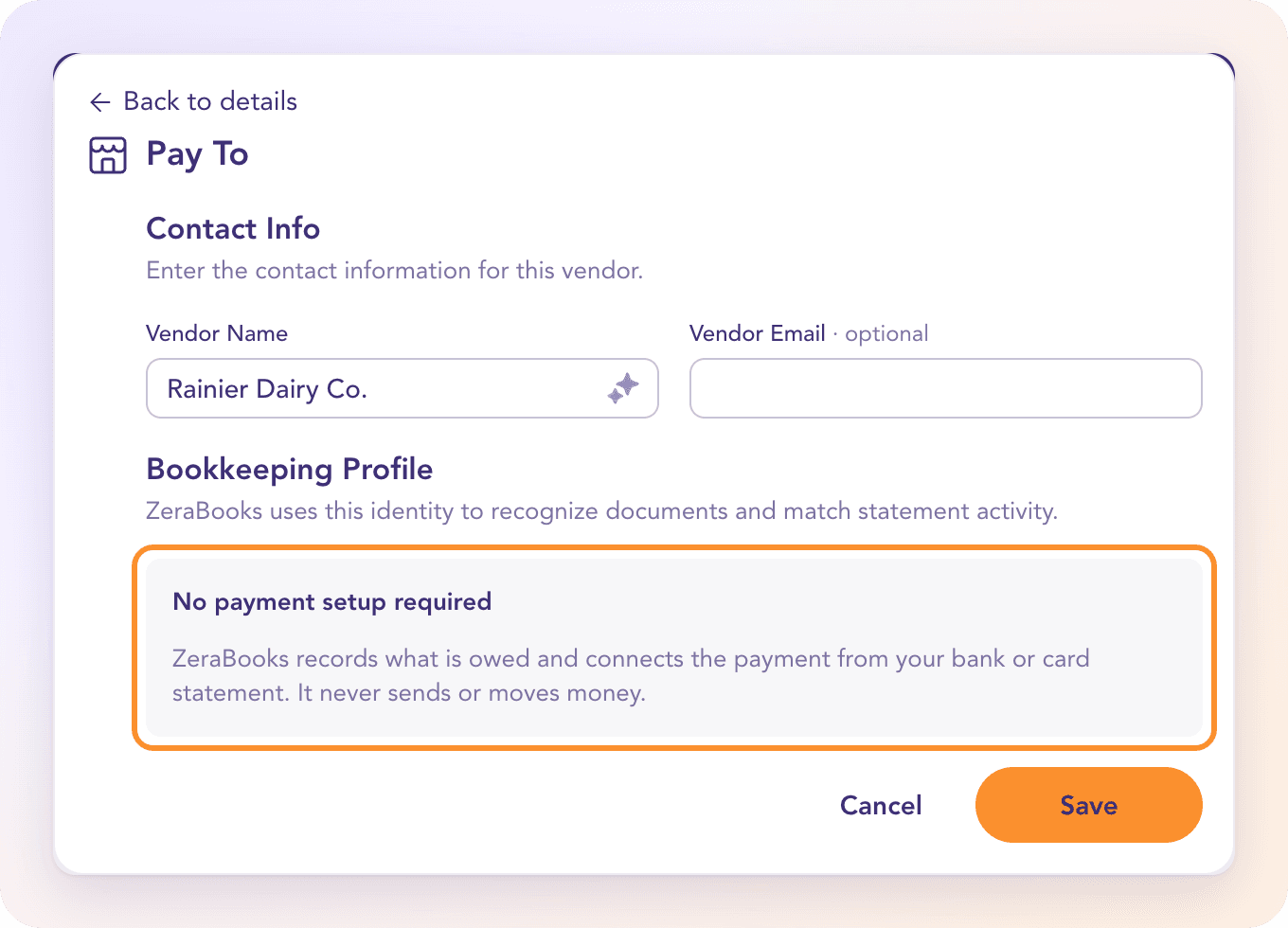
There is no payment setup. ZeraBooks records what you owe and matches the payment from your bank or card statement. It never sends or moves money.
After the first bill, later bills from the same vendor are recognised and can post on their own.
When Approve Bill won't post
If something must be fixed first, clicking Approve Bill opens the details on the right and names it: lines that don't add up, a tax line, a date, or a bank payment you need to decide on. If the bill has no vendor, "Vendor is required" shows under Pay To. See Why a bill is waiting.
Reject a bill in Pending Approval
ZeraBooks has no teams or approval chains, so you approve your own bills. A bill that was sent for approval earlier waits in the Pending Approval lane with two buttons at the top:
Click Approve to post it, or
Click Reject, enter What should be corrected?, and click Reject & Return.
A rejected bill goes back to In Review so it can be corrected. Nothing posts to the books.
Frequently Asked Questions
What happens in my books when I approve a bill?
The bill posts to Accounts Payable. Each line's expense is recorded in its category on the invoice date, and the total shows as owed to the vendor until a payment is matched.
Can I send a bill to someone else to approve?
No. ZeraBooks has no team members, roles or approval chains. Whoever keeps the books approves bills directly with Approve Bill.
Do I need to set up payment details for a vendor?
No. ZeraBooks never pays vendors. It records what you owe and links the payment once it appears on your bank or card statement.
Can I change a bill after approving it?
Yes. Open it, click the ⋮ menu, choose Document actions…, then Reopen for editing. See Delete, void or reopen a bill.
What does "Bill returned for correction" mean?
Someone clicked Reject on a bill in Pending Approval. It's back in In Review with the reason. Correct it and approve again.
Can I approve bills automatically?
Yes. Turn on Post bills from vendors I already use in Bill accounting settings…. Bills then post on their own when all seven checks pass. See Why a bill is waiting.
Learn more about AI-native general ledger: A double-entry ledger where statements become proven transactions.
Still stuck? A real person reads every message—come say hello.