The Bills board
Every bill you owe sits in one board, sorted into lanes by where it is: waiting for your review, posted and still owing, or paid.
Open the board
In the left navigation, click Bills & Invoices › Bills (or press G then V).
The board shows every vendor bill in lanes. Each card shows the vendor, the bill number, the amount and a date line such as Due Oct 2, Paid Sep 30 or Marked as Paid Sep 30.
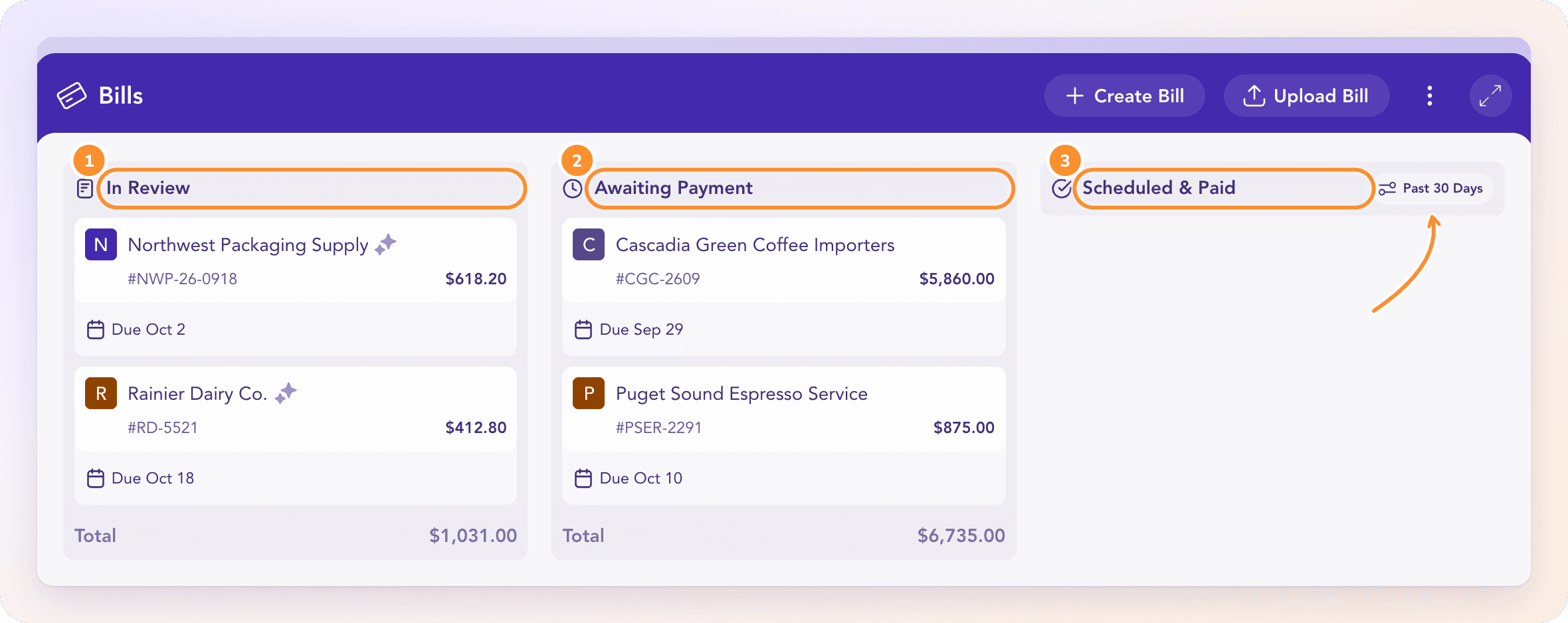
The lanes
| Lane | What's in it | The Total at the bottom adds up |
|---|---|---|
| In Review | Bills being read, and drafts that haven't posted yet | The printed bill totals |
| Pending Approval | Bills sent to an approver. This lane appears only while a bill is waiting in it | The printed bill totals |
| Awaiting Payment | Bills posted to Accounts Payable that are still owed | What is still owed |
| Scheduled & Paid | Posted bills with nothing left to pay | What was paid |
A bill moves to Awaiting Payment when you approve it, and to Scheduled & Paid once its payment is matched from a statement or you mark it as paid. ZeraBooks doesn't schedule or send payments, so bills reach this lane only when a payment has been recorded.
Tip: Only the Scheduled & Paid lane is limited by date. The other lanes always show everything still open, whatever the month.
Filter the paid lane
Click the filter at the top of Scheduled & Paid and choose Past 30 Days (the default), Past 90 Days, Past 6 Months, Past 1 Year or All Time. Your browser remembers the choice.
Card labels
| Label | Meaning |
|---|---|
| New | You haven't opened this bill yet |
| Reading… | ZeraBooks is still reading the uploaded document |
| Overdue | Past its due date and still owed |
| Part paid | A payment covers part of the bill |
| Paid | Nothing is left to pay |
| Available credit | A vendor credit that can be applied to other bills |
| Voided | Kept for the record, posts nothing |
Header buttons
Create Bill opens a blank bill. See Create a bill by hand.
Upload Bill reads a PDF or photo for you. See Upload a bill.
The ⋮ menu (Bill Dashboard Actions) has Show Voided & Refunded, which adds a fifth lane for voided bills, and Bill accounting settings…, where you choose the accounts bills post to and whether bills post themselves.
On a narrow screen, scroll sideways to see every lane, or focus the board and use the arrow keys.
Frequently Asked Questions
Why can't I see an old paid bill?
The Scheduled & Paid lane shows the Past 30 Days by default. Click the filter at the top of the lane and choose All Time.
How do I see voided bills?
Click the ⋮ menu in the header and choose Show Voided & Refunded. A fifth lane shows every voided bill. Choose Hide Voided & Refunded to remove it.
What does "Overdue" mean on a bill?
The bill's due date has passed and part of it is still owed. It stays in Awaiting Payment until a payment is matched or recorded.
Does "Scheduled & Paid" mean ZeraBooks will pay the bill?
No. ZeraBooks never sends or moves money. A bill lands in this lane only after you pay it yourself and the payment is matched from your statement or recorded with Mark as Paid….
Why doesn't my board show a Pending Approval lane?
That lane only appears while a bill is waiting for an approver. ZeraBooks has no teams, so you normally approve bills yourself and they go straight from In Review to Awaiting Payment.
Why does the Bills page ask me to set up categories first?
Bills post their lines to your chart of accounts, so the page waits until you have categories. Click Set up categories, then come back to upload or enter bills.
Learn more about AI-native general ledger: A double-entry ledger where statements become proven transactions.
Still stuck? A real person reads every message—come say hello.