Upload a bill
Upload a PDF or photo of a vendor bill and ZeraBooks reads the vendor, number, dates, lines and categories for you.
Upload a bill
In the left navigation, click Bills & Invoices › Bills.
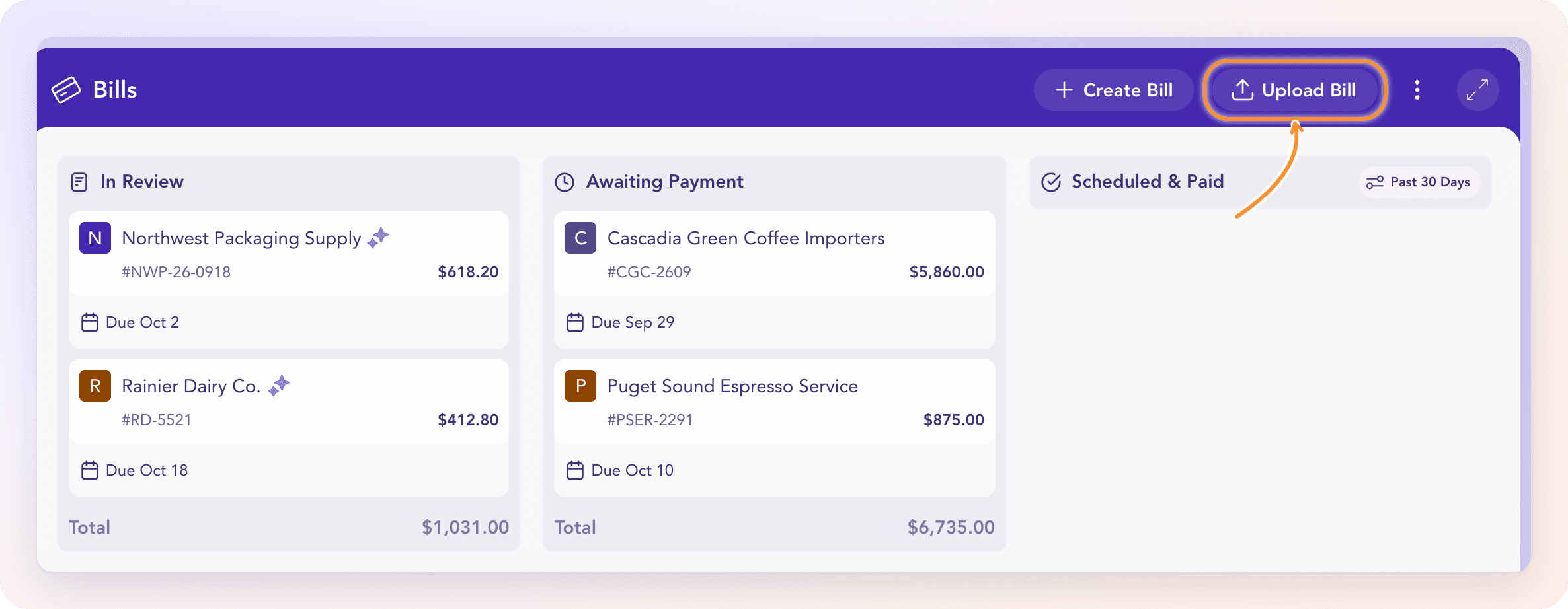
Click Upload Bill and choose one or more files. On an empty board you can also click Browse in the In Review lane.
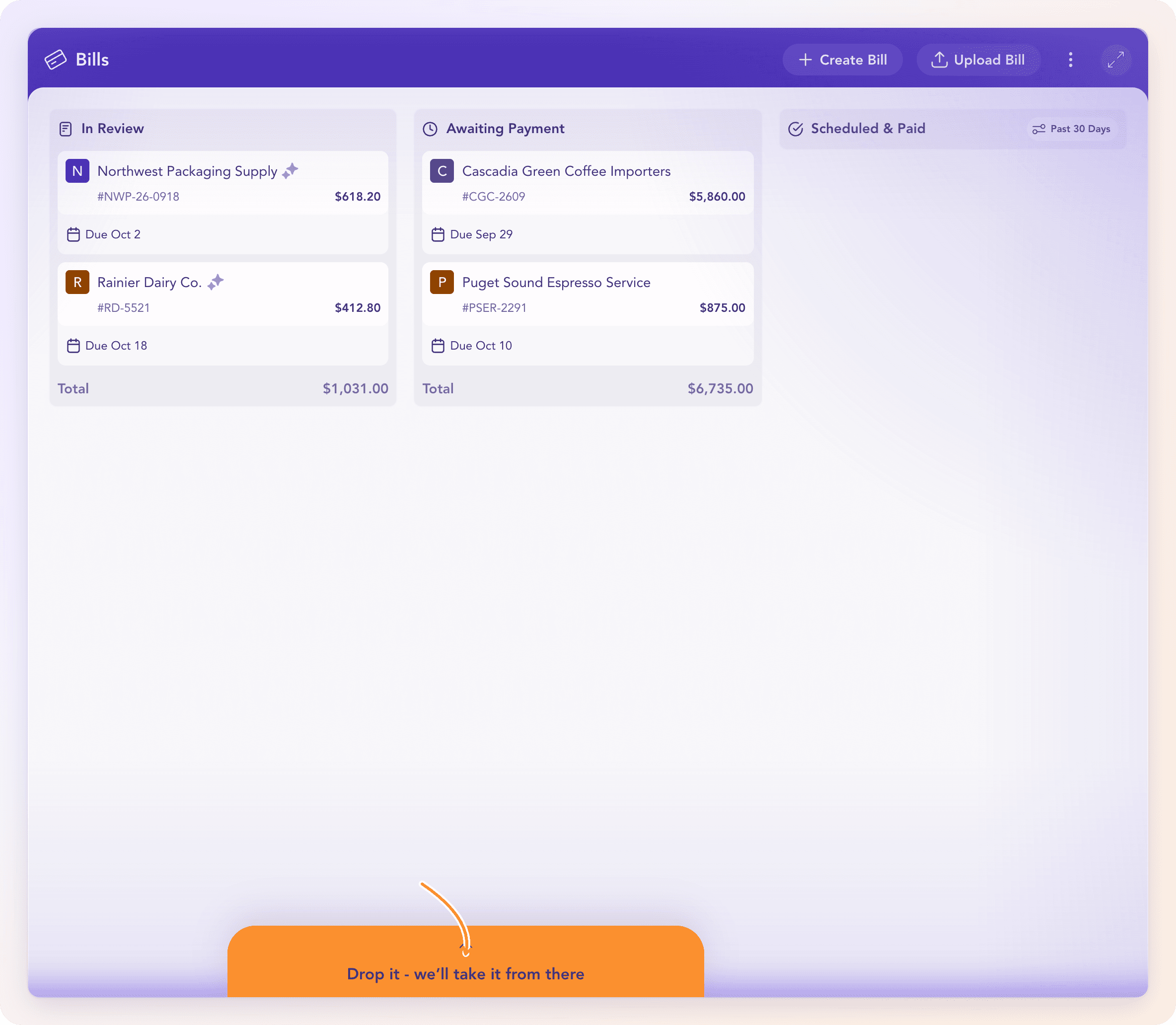
You can also drag files from your computer anywhere onto the Bills page. The page lights up and reads "Drop it - we’ll take it from there".
What happens next
Each file appears as a card in In Review while it is read. ZeraBooks fills in the vendor, the bill number, the bill and due dates, every line item and a category for each line.
Then one of two things happens:
It posts itself. If automatic posting is on and all seven posting checks pass, the bill goes straight to Awaiting Payment.
It waits for you. Otherwise it stays in In Review, and the bill names what needs a look. See Why a bill is waiting.
Open the bill to check what was read. The original document shows beside the fields, so you can compare them.
Files you can upload
| Formats | PDF, PNG, JPG, WEBP or HEIC (phone photos work) |
| Size | Up to 14 MB per file |
| How many | Several files at once |
A file ZeraBooks can't accept is refused with one of these messages:
"This file is empty. Export the document again before uploading it."
"This document is larger than 14 MB. Choose a smaller document."
"Choose a PDF, PNG, JPG, WEBP or HEIC document."
Duplicates are refused
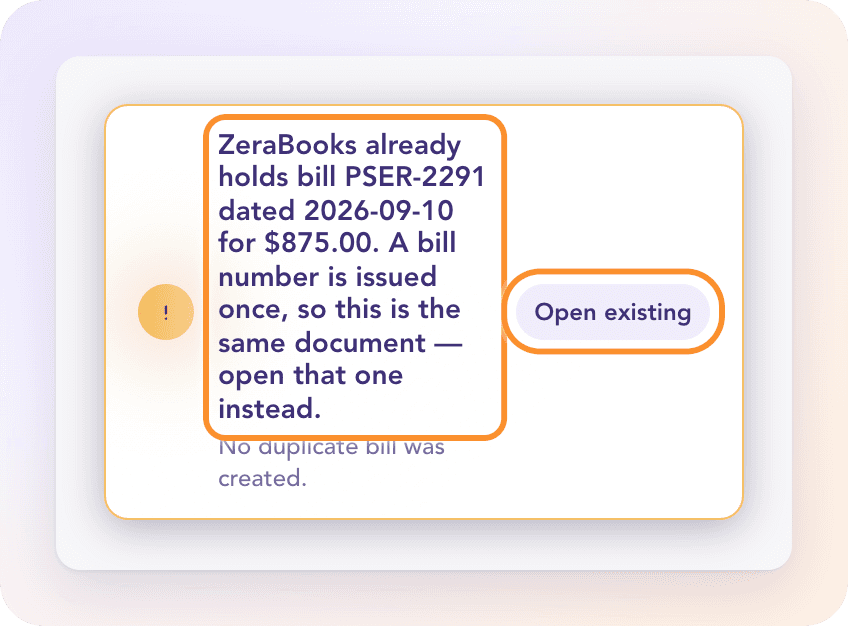
If you upload a file ZeraBooks already holds, or a bill with the same vendor and bill number as one it already holds, the upload is refused. The message says "No duplicate bill was created." Click Open existing to jump to the original.
A bill that only looks similar to another (same vendor, similar amount and date, but a different number) is not refused. It waits in In Review with a note so you can decide.
Tip: If a file isn't a bill at all, such as a statement or a quote, ZeraBooks keeps it for review but won't post it. Open it to look at the document, then delete it and upload the bill itself.
Frequently Asked Questions
What file types can I upload for bills?
PDF, PNG, JPG, WEBP or HEIC, up to 14 MB each. Word files, spreadsheets and emails aren't accepted. Save or print them to PDF first.
I uploaded the same bill twice. What happens?
The second upload is refused and no duplicate is created. Click Open existing in the message to open the bill ZeraBooks already has.
What if ZeraBooks can't read my bill?
The board says the document could not be read. Open it to type the amounts by hand, or upload a clearer copy.
Why did a bill post without me clicking anything?
Automatic posting is on and the bill passed all seven posting checks, including a vendor you've confirmed before and categories ZeraBooks remembers. You can turn this off. See Why a bill is waiting.
Can I email or forward bills to ZeraBooks?
No. ZeraBooks has no bill inbox. Upload the file on the Bills page or drag it onto the board.
Can I attach more files to a bill?
Yes, while it is a draft. Open the bill, click the ⋮ menu and choose Add document…. You can add up to 25 files, 50 MB each.
Learn more about AI-native general ledger: A double-entry ledger where statements become proven transactions.
Still stuck? A real person reads every message—come say hello.