Delete, void or reopen a bill
Delete a draft that never posted, void a posted bill while keeping it for the record, reopen a posted bill to fix it, or restore a voided one.
Which action you get
Open the bill and click the ⋮ menu at the top. The last item depends on the bill:
| The bill is… | Menu item | What you can do |
|---|---|---|
| A draft that has never posted | Delete… | Delete it permanently |
| Posted (Awaiting Payment or Scheduled & Paid) | Document actions… | Reopen for editing or Void |
| A draft that was posted before and reopened | Void… | Void it |
| Voided | Restore… | Put it back in the books |
Delete a draft
Open a draft that has never posted and choose Delete… from the ⋮ menu.
The dialog reads "This bill will be permanently deleted from ZeraBooks." Click Delete.
Deleting permanently removes the draft and its stored source document. It can't be undone. A draft that already has a payment applied can't be deleted.
Reopen a posted bill for editing
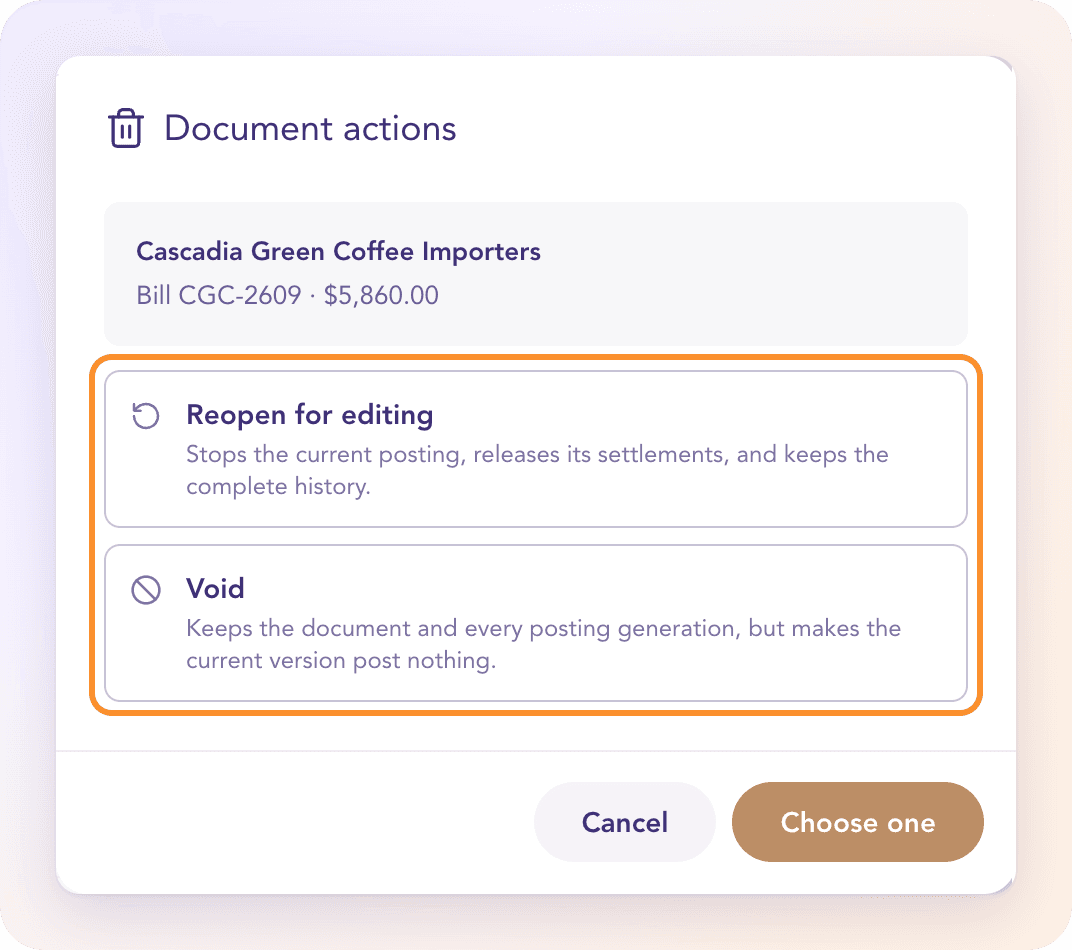
Open the bill and choose Document actions… from the ⋮ menu.
Choose Reopen for editing.
Enter a Reason (what needs to be corrected). It's required for the audit trail.
Click Reopen for editing.
The bill stops posting and becomes a draft in In Review again: "Reopened — it is a draft again." Any payments applied to it are released: bank transactions go back to the category they had before, and credits and payments recorded outside ZeraBooks become available again. The dialog lists them before you confirm. The full history is kept. Correct the bill and approve it again.
Void a posted bill
Open the bill and choose Document actions… (or Void…) from the ⋮ menu.
Choose Void, enter a Reason (why it's being voided), and click Void.
The bill is kept for the record but posts nothing and changes no balance. Its payments are released the same way as for reopening. Voided bills are hidden from the board; show them with Show Voided & Refunded in the board's ⋮ menu.
Restore a voided bill
Open the voided bill and click Restore at the top (or Restore… in the ⋮ menu), then confirm. The bill posts in the books again with its current details: "Restored — it is posting in the books again."
If a bank payment already in your books would settle it, the button reads Restore & apply payment, so the payment is applied and not counted twice.
Frequently Asked Questions
What's the difference between deleting and voiding a bill?
Delete is only for drafts that never posted, and it's permanent. Void is for posted bills: the bill and its history are kept, it just stops posting. A voided bill can be restored.
Why can't I delete a posted bill?
A posted bill is part of your books' history. Void it instead, or reopen it to correct it. Both keep a record of what happened.
What happens to the payment when I void a bill?
It's released. A bank transaction goes back to the category it had before the match; a credit or a payment recorded outside ZeraBooks becomes available again.
Why do I have to give a reason?
Reopening and voiding change posted books, so ZeraBooks records why in the bill's activity. The reason is required for the audit trail.
Can I undo a void?
Yes. Open the voided bill and click Restore. It posts again with its current details.
How do I fix a bill from my opening books?
Bills that came in with your opening balances are corrected together in Company settings › Opening books, not from the Bills board.
Learn more about AI-native general ledger: A double-entry ledger where statements become proven transactions.
Still stuck? A real person reads every message—come say hello.