Mark a bill as paid
Record a bill you paid outside your uploaded statements, such as a check or cash, so ZeraBooks knows it's settled. It records the payment; it doesn't send one.
When to use Mark as Paid
ZeraBooks doesn't pay bills. Mark as Paid… records a payment you already made somewhere else, when that payment won't show up on a statement you upload: a check from an account you don't track here, cash, or a payment from the owner's personal card.
If the payment is on a bank or card statement you upload, don't mark the bill as paid. Match the statement transaction instead, so the money is only counted once. See Match a bill to its bank payment.
Mark a bill as paid
Open the bill.
For a bill in Awaiting Payment, click the ⋮ menu and choose Mark as Paid…
For a bill still in In Review, click the arrow beside Approve Bill and choose Mark as Paid… ZeraBooks approves the bill first, then records the payment.
Set the Payment Date. It starts on the bill's own date.
Choose the Pay Out Category: the account the money came out of, such as a bank account, a credit card or the owner's equity account.
Optionally add a Reference No., such as
Check #1234, and an Internal Memo.Click Mark as Paid.
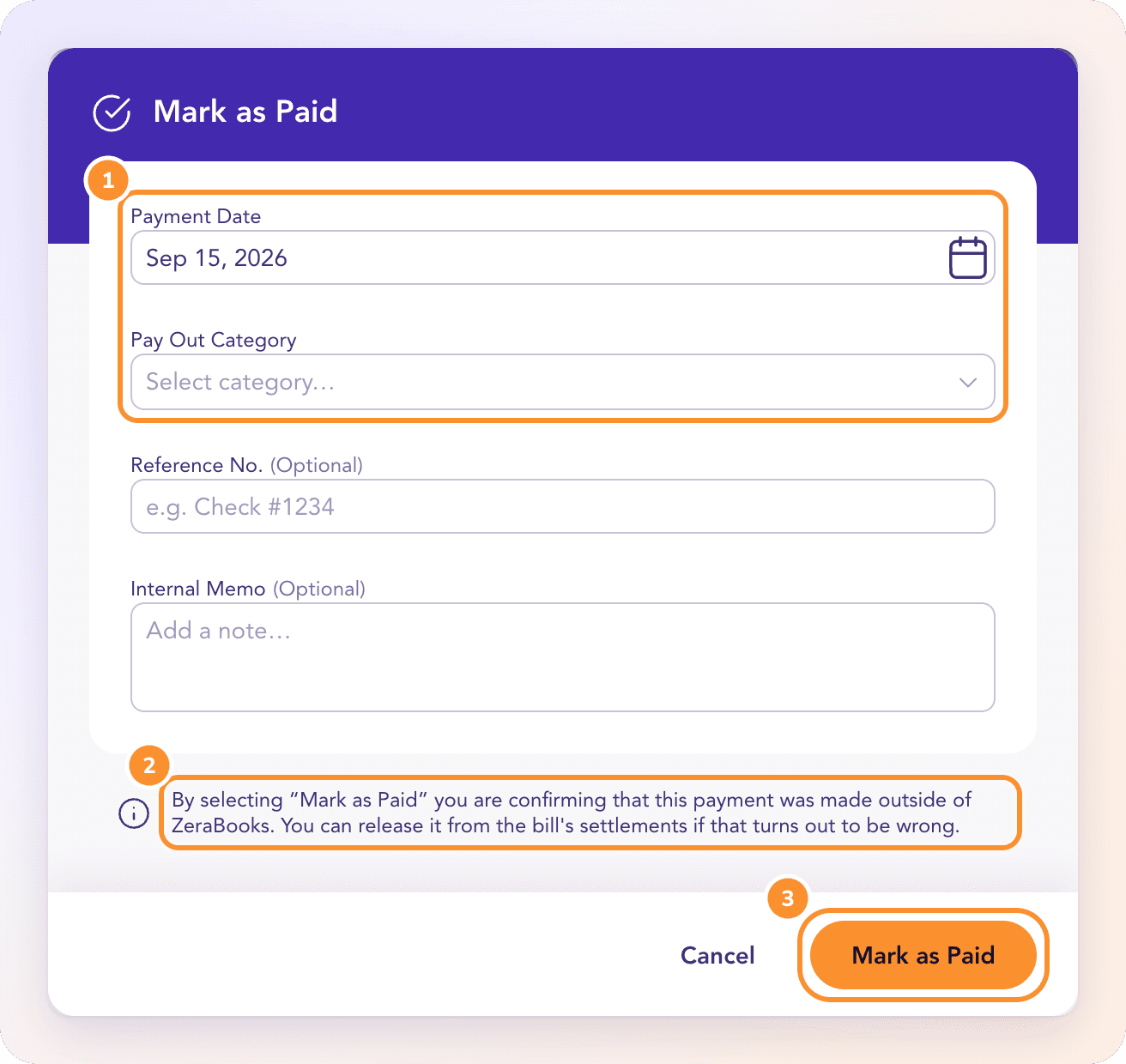
The whole remaining balance is recorded as paid on that date. The bill shows Marked as Paid with the date and moves to Scheduled & Paid.
Tip: If ZeraBooks finds that the payment is already in your books when it approves a draft, it applies that payment instead and tells you: "The payment already in your books was applied to this bill."
Undo it
Open the bill's Settlement panel (click Go to Payment on the bill) and click Release on the payment marked Recorded outside ZeraBooks. The recorded payment is removed and the bill is owed again.
Frequently Asked Questions
Does Mark as Paid send money to my vendor?
No. ZeraBooks never sends or moves money. Clicking Mark as Paid confirms that you already paid the vendor outside ZeraBooks, and records it in your books.
How do I record a check I wrote for a bill?
If the check clears on a bank statement you upload, match it from the bill's Settlement panel. If it came from an account you don't upload, use Mark as Paid… and put the check number in Reference No.
Can I undo Mark as Paid?
Yes. Open the bill's settlements and click Release on the payment recorded outside ZeraBooks. The bill goes back to owing.
Why is Mark as Paid greyed out?
It isn't available for bills in a foreign currency yet: the menu reads "Not yet available for foreign-currency documents". Match the payment from the bill's Settlement panel instead. It's also hidden once nothing is left to pay.
Can I mark part of a bill as paid?
No. Mark as Paid… records the whole remaining balance. For part of a bill, match the partial payment from a statement and choose Apply as partial.
Learn more about AI-native general ledger: A double-entry ledger where statements become proven transactions.
Still stuck? A real person reads every message—come say hello.